Synametrics Technologies
Revolving around the core of technology
Document information
| Document ID: | 1743 |
|---|---|
| Subject: | Total branding in SynaMan |
| Creation date: | 5/24/11 3:18 PM |
| Last modified on: | 11/8/18 11:07 AM |
Total Branding
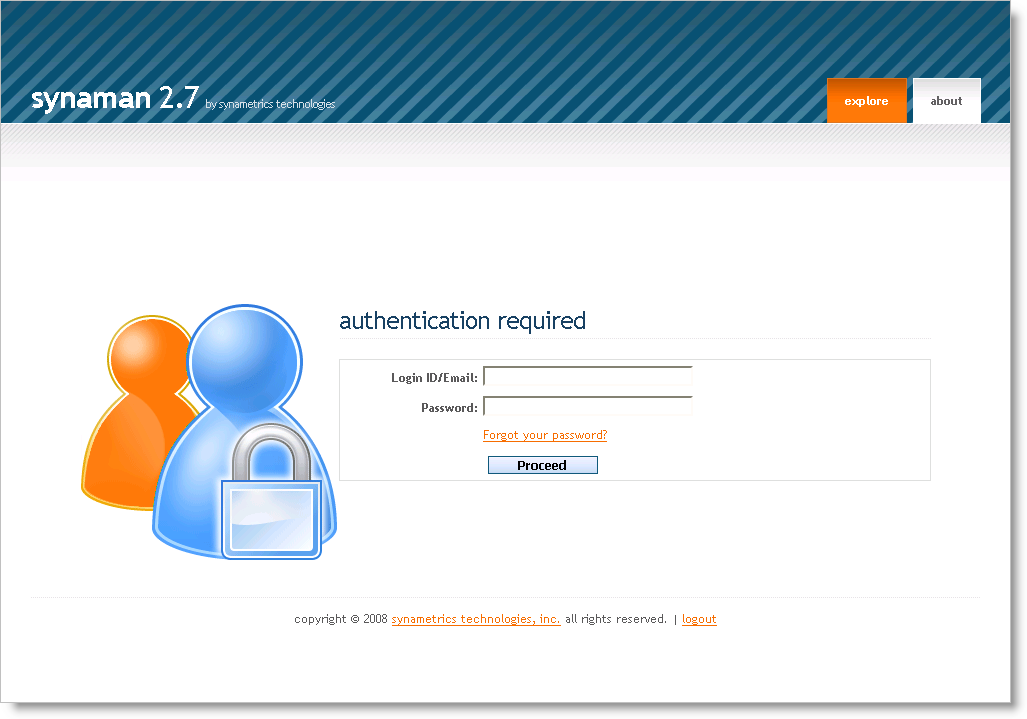
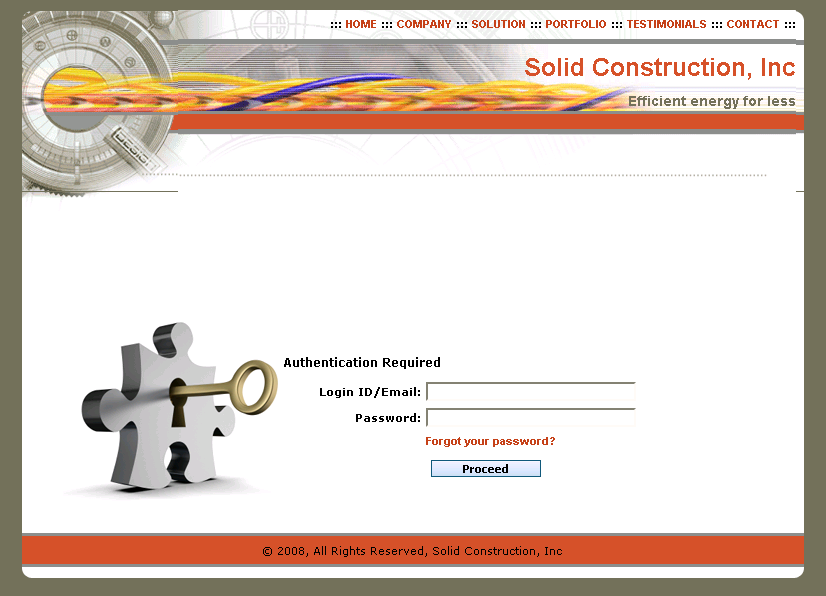
Using Total Branding administrators can modify the looks of SynaMan to match the theme of their corporate website.
See the following example below.
|
|
|
| Before change | After change |
Prerequisites
You must be using the Enterprise edition of SynaMan in order to use Total Branding. This feature is not available in SynaMan Personal or Professional edition. The Personal edition of SynaMan runs in trial mode for the first 30 days and therefore, you can use Total Branding during this time. Once 30 days are over, you won't be able to use this feature unless you upgrade to the Enterprise edition.Additionally, the following steps assume you have some experience working with HTML and Cascading Style Sheets.
Benefits
- Interface for publicly accessible pages can be fully customized
- Use custom images and cascading style sheets
- Seamless navigation can be achieved between your corporate website and SynaMan's web interface
Steps to apply Total Branding
- Create a template page on your corporate website containing the phrase
PAGE_HEADER_FOOTER_SEPARATOR
This phrase should divide the page into two parts: header and footer. At runtime, SynaMan will replace the textPAGE_HEADER_FOOTER_SEPARATORwith the actual data for SynaMan. Click here for an example page.
This web page must conform to the following rules:- Must contain the phrase "PAGE_HEADER_FOOTER_SEPARATOR" somewhere in the body
- Must have a starting and ending HEAD tag in the HTML
- Must have a starting and ending BODY tag in the HTML
Assume the actual URL for this page is http://www.YourCompany.com/SynaManTemplate.htm.
- Log in as admin to SynaMan's web interface.
- Click Advanced configuration on the right hand side.
- Enter the URL of this template page in the Template URL field.
For example: http://www.YourCompany.com/SynaManTemplate.htm - Check Auto update to automatically apply this template periodically, which is very useful if your corporate website gets modified frequently. This option will download the template file once a day and update its local copy.
- Finally, click Apply
- Log out and log back in. You should see the interface changed.
What happens in the background?
- Total Branding does not modify the interface of every page in SynaMan. Instead, it only modifies the
publicly available pages, which include:
- Login Page
- File Explorer
- Public links
- SynaMan fetches the page specified in the Template URL field and saves this page to
$INSTALL_DIR/branding/CustomTemplate.htmfile. Opening this file in a browser should render the page exactly as it appears on your website.
You are free to make any changes to this downloaded file as you like.
Working with images and styles
SynaMan uses several images to spice up the web interface. Total branding allows you to modify these images or replace them completely. Additionally, you can also overwrite any style used in SynaMan. Following steps demonstrate how to accomplish this task.- First, identify the image you want to change. Some web browser, such as Mozilla Firefox, can display the image file name by clicking the right mouse button and selecting View image from the pop-up menu.
- Create another image file with the same name and dimensions and save it to
$INSTALL_DIR/branding/resourcesfolder. - To override any style used by SynaMan, create a file called branded.css and place it in
$INSTALL_DIR/branding/resources. SynaMan will load the styles dynamically from this file.
Template Creator
Click here to create a simple template that you can use right away with your SynaMan.Add a comment to this document
Do you have a helpful tip related to this document that you'd like to share with other users?
Important: This area is reserved for useful tips. Therefore, do not post any questions here. Instead, use our public forums to post questions.
