Synametrics Technologies
Revolving around the core of technology
SynaMan Drive
SynaMan Drive is functionally similar to MS OneDrive, Dropbox, and other similar virtual drive solutions, with one important distinction: privacy. When using SynaMan Drive, your files are stored on a private server that is not shared by any other organization. No third party will ever get access to your files.
Why is Privacy Important
Using a third-party service for sharing files exposes several problems:
- Your files are stored on a third-party server somewhere on the cloud. In most cases, you don't have any control over the country where the actual data is stored and who has access to these files. Although most organizations talk about at-rest encryption, there is no way to fully ensure their privacy.
- In addition to the data in the files, metadata related to them, such as email addresses, names, and dates with whom these files are shared, is equally important. For example, when you share a file with any other person, the information related to both parties is often shared with the service provider.
- Most server providers offer metered access when sharing files. The cost increases once the file size or data transfer volume exceeds a threshold.
Benefits of Using SynaMan
SynaMan offers several benefits over shared services such as Dropbox and MS OneDrive:
- Privacy - Your files, including metadata, are never shared/viewed with any third party.
- Unlimited Transfers - SynaMan is an on-premise file sharing solution with unlimited file transfers.
- Fully supported - Help is just a phone call away when using SynaMan.
What is SynaMan Drive
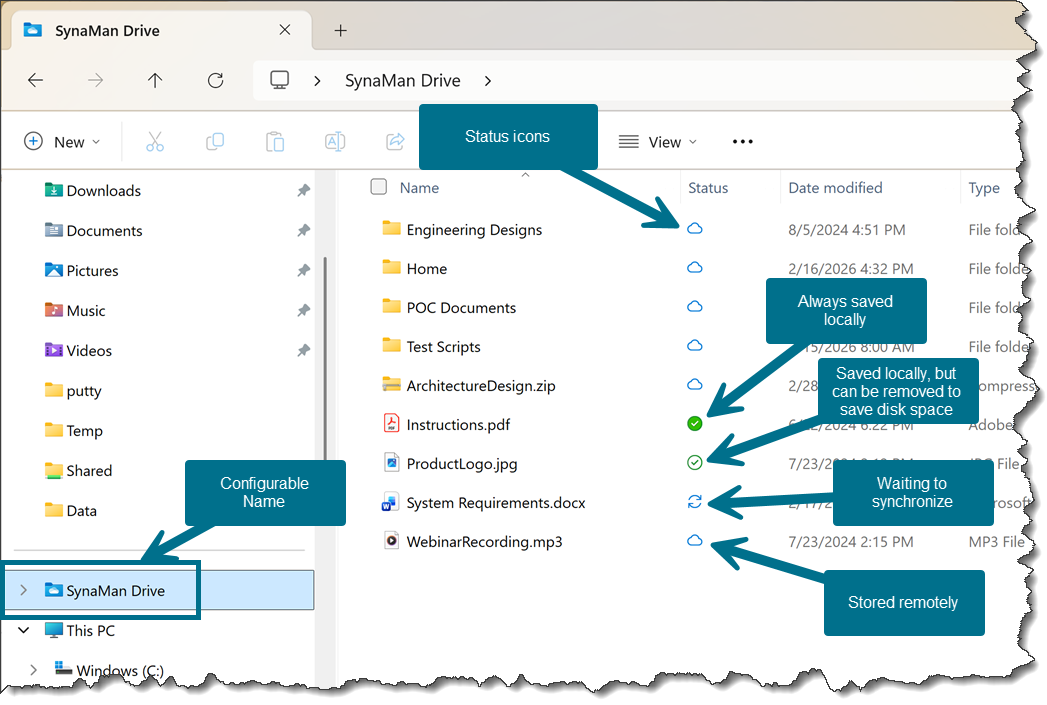
SynaMan Drive is an extension to Microsoft File Explorer. Once installed, it allows users to view, modify, and add new files natively from their Windows machine.
Key Benefits
Configuration
SynaMan offers two levels of configuration for the Drive:
- Global: Must be done globally by the administrator:
- Go to Configuration, click Advanced Configuration.
- Select the tab for Additional Parameters
- Check Enable SynaMan Drive.
- Use the box for Restrict SynaMan Drive to Only Home Folder to allow users to view every Shared folder verses just their home folder
- User Level: This must be done by users. Click here for details.
