Synametrics Technologies
Revolving around the core of technology
SynaMan Drive - Configuration
SynaMan Drive offers functionality similar to Microsoft OneDrive or Dropbox, with one big difference: privacy. This page talks about the steps to configure SynaMan Drive for your account in SynaMan.
Prerequisites
The following instructions assume the following:
- You have a valid user account on a SynaMan Server.
- The administrator(s) responsible for your SynaMan server have enabled SynaMan Drive.
Important Concepts
There are two important points to keep in mind when using SynaMan Drive.
- User IDs/passwords are not used in SynaMan Drive. Instead, you must use a connection token, a single-use token that must be created for every machine you need the drive on. For example, if you have one desktop and two laptops, you must create three connection tokens.
- Depending upon the configuration of your SynaMan server, you may have access only to your home folder or to every shared folder that you have access to.
Setup Instructions
- Log in to your account using a web browser. If you're unfamiliar with the connection URL, contact your organization's system administrator.
- Click the Drive Config button on the bottom left
- Click the download button and install SynaMan Drive. Once installation is complete, come back to this page.
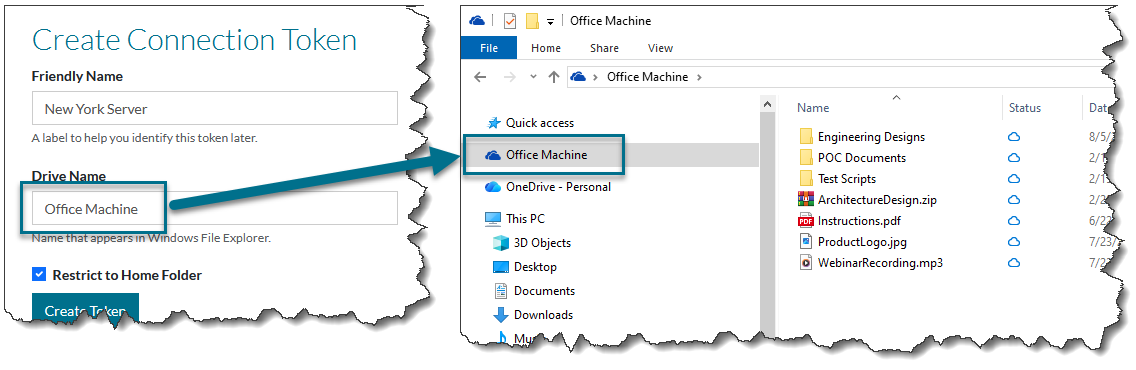
- The following page will allow you to create a connection token and contains either 2 or 3 fields:
- Friendly Name: An arbitrary name of your choice
- Drive name: This is the name that will appear in Windows File Explorer
- Restrict to home folder: This checkbox is displayed only if your server is configured to allow folders other than the Home folder. Depending upon the machine you're connecting this drive to, you may want to share every folder or just the home folder.
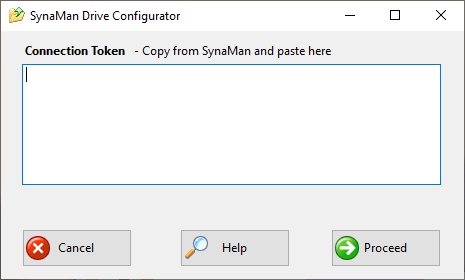
- The generated connection token will be displayed on the screen. Important: You must copy/paste the connection token in the screen displayed by SynaMan Drive. This connection token will not be displayed again.
- Refer to the image below.
- The name you specify for Drive name will appear in your Windows File Explorer, as shown below.
Using SynaMan Drive
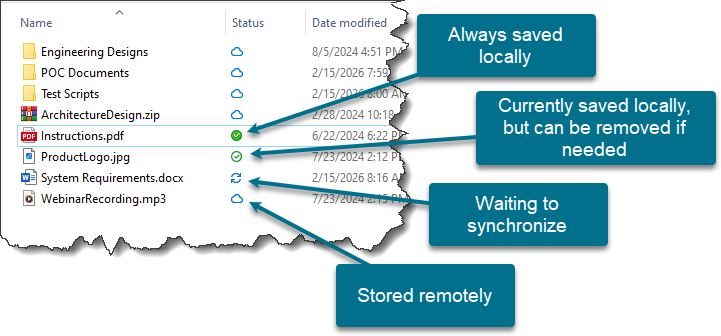
Once SynaMan drive is configured, you use the files normally as any other file/folder in Windows File Explorer, with one subtle difference: you will see an additional column for "Status" displaying the current state of the file. These states are demonstrated by the image below.
Sharing Files
To share files with other users on the Internet, ensure the file is save locally and then click the right-mouse button and select the appropriate link from the pop-up menu, as shown below.
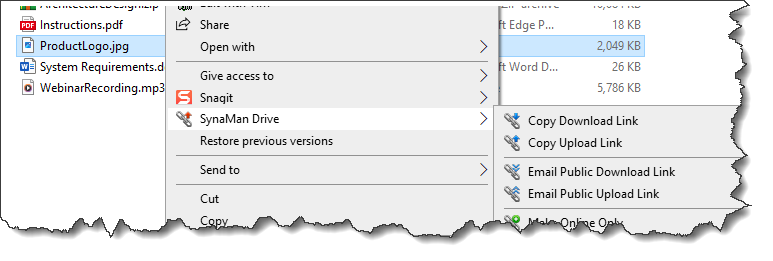
Important: You will have to click Show more options... before the menu item for SynaMan Drive is displayed.
