Synametrics Technologies
Revolving around the core of technology
Connecting to Apache Cassandra with JDBC
Benefits
Connecting to Apache Cassandra with a JDBC connection will greatly improve your ability to work with the database. By doing this, it will make querying the database a much easier task. Additionally, you can use several third-party reporting and querying tools that aren't otherwise available. In this article, we will walk through the steps to connect to Apache Cassandra through JDBC. This page covers using SyncriTab and WinSQL to do so.Configuring JDBC Connection to Apache Cassandra
The following section explains how to configure the Apache Cassandra connection to download the JDBC drivers and run queries in SyncriTab. Select the other tab if you need instructions for WinSQL
Step 1: Configure the Connection in SyncriTab
- Open SyncriTab and log in as an administrator or DB manager.
- Click on Manage Data Sources on the left side.
- Click "Add Data Source".
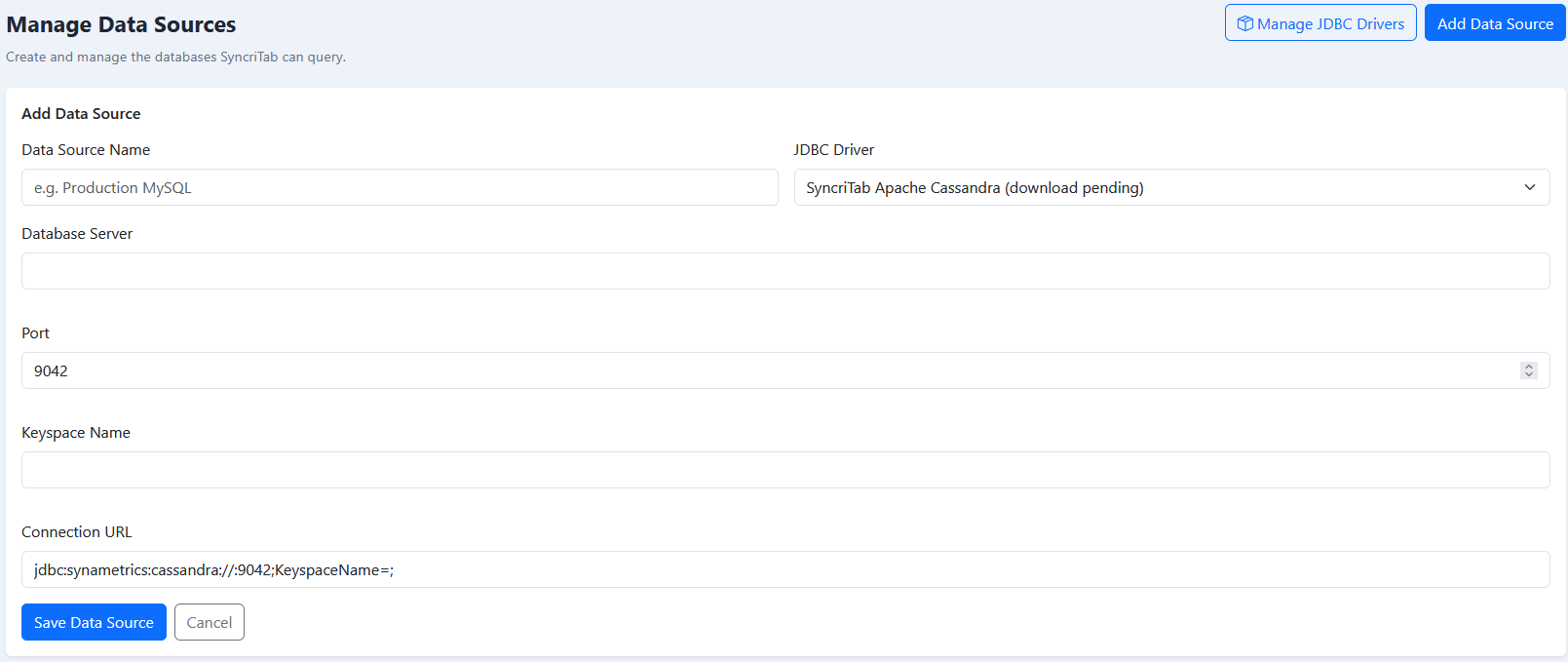
- In the JDBC Driver field, select SyncriTab Apache Cassandra
You will need to fill out the following fields:
| Field | Description |
|---|---|
| Data Source Name | This is a friendly name you want to apply to this Data Source. |
| Database Host | Enter the IP Address/Hostname of the machine where Apache Cassandra is running. |
| Port | Specify the port number of Apache Cassandra. By default, the port number is 9042. |
| Keyspace Name | Select the Dataset from your project that you want to connect to. |
| Connection URL | Connection URL: You do not need to modify this value. Once you specify the values above, this field will automatically be adjusted. |
After specifying the values, click on Save Data Source. SyncriTab will automatically download the Apache Cassandra JDBC drivers.
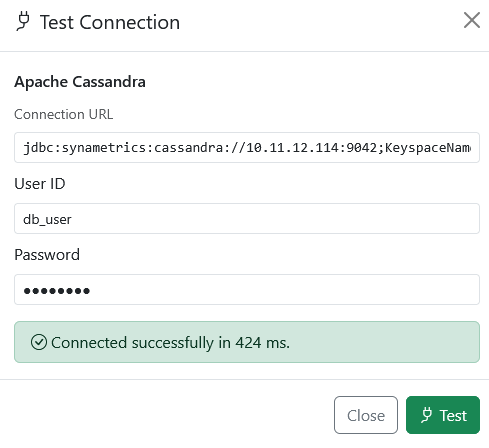
After you create the data source, you should see it as an existing Data Source. For this Data Source, click the "Test" button. Enter your Username and Password. If there are no issues, you should see a "Connected successfully" message:
Step 2: Manage Access to Apache Cassandra in SyncriTab
Once you add the data source and can connect, add users who need access to Apache Cassandra. Follow the instructions below to do this:
- Open SyncriTab and log in as an administrator or DB manager.
- Click on Manage Data Sources on the left side.
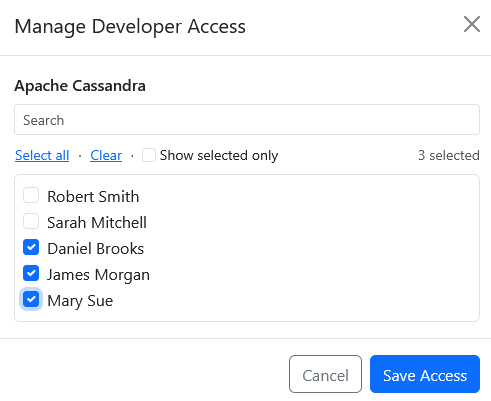
- Look for the Apache Cassandra Data Source. Click on the Manage Access button on the right side under the Action Column.
- Select the users you want to add access for, then click on Save Access:
Step 3: Running Queries and Interacting with Apache Cassandra
Now that we are successfully connected, we can begin running queries and modifying the database.
In this example, I am adding a new customer to my customer database:
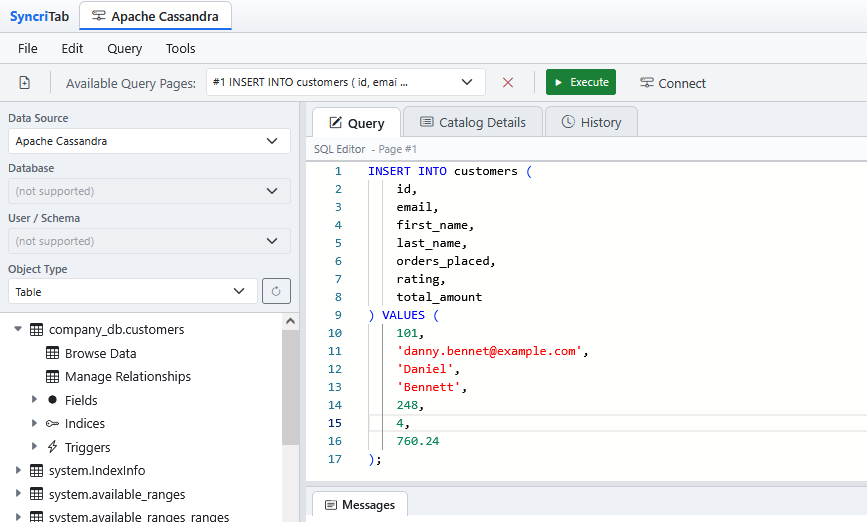
If I browse the data, I can see the new user:
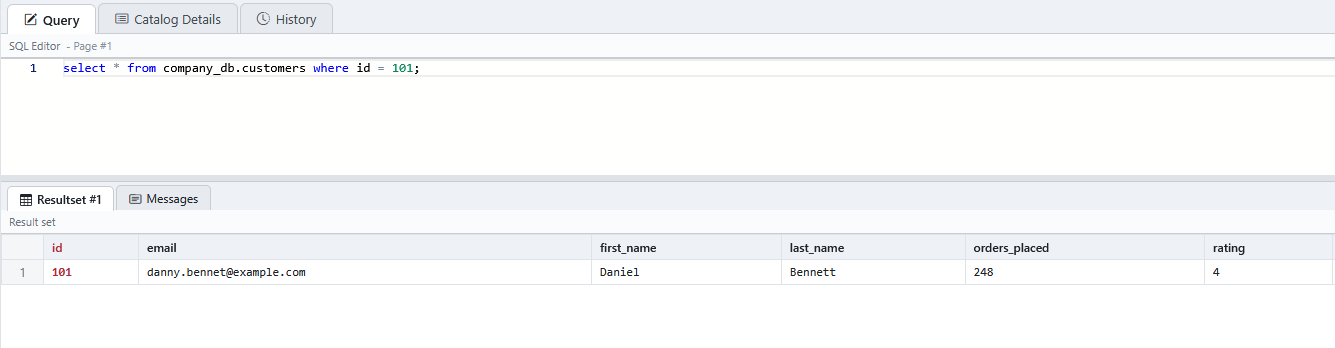
Using your JDBC query tool, you can interact with Apache Cassandra as if you were using the Query Editor directly. The benefit is that you also get the full suite of your chosen tool, plus a much more informative interface.
Step 1: Configure the Connection in WinSQL
- Open WinSQL and click on File, then click on New Connection...
- Click on JDBC Manager on the right side.
- Click Add under User DSN.
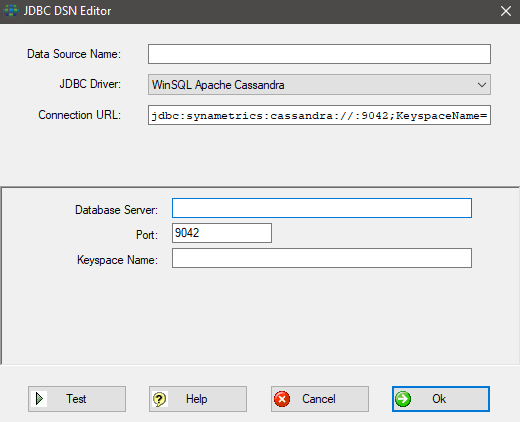
- In the JDBC Driver field, select WinSQL Apache Cassandra
You will need to fill out the following fields:
| Field | Description |
|---|---|
| Connection URL | Connection URL: You do not need to modify this value. Once you specify the values below, this field will automatically be adjusted. |
| Data Source Name | This is a friendly name you want to apply to this Data Source. |
| Database Host | Enter the IP Address/Hostname of the machine where Apache Cassandra is running. |
| Port | Specify the port number of Apache Cassandra. By default, the port number is 9042. |
| KeySpace Name | Select the Dataset from your project that you want to connect to. |
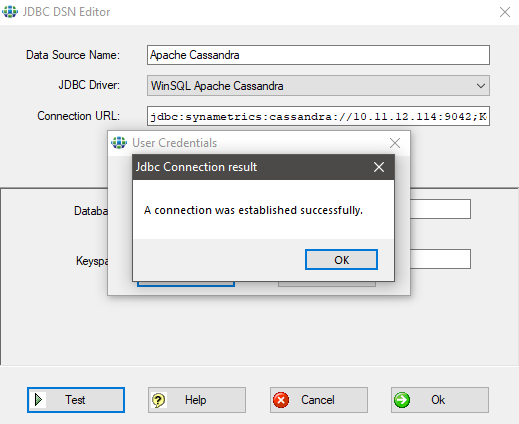
After you specify the values, click the "Test" button. Enter a username and password that can access Apache Cassandra, then click on Test. WinSQL will download the necessary JDBC drivers. If the connection is successful, then you will see the "A connection was established successfully" prompt:
Step 2: Connecting to Apache Cassandra in WinSQL
Once the connection test is successful, click Ok, and you should now see this in the UserDSN list. Click Close.
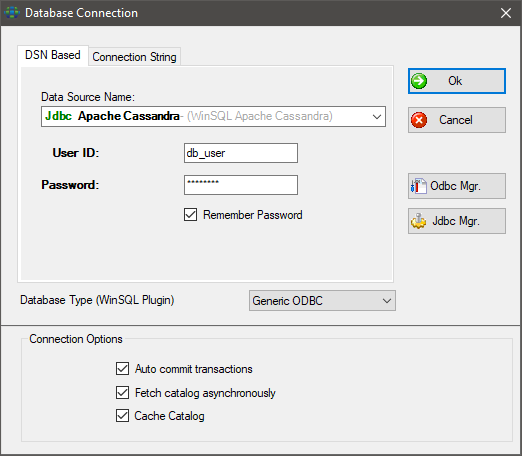
You should now see the Database Connection prompt. In the Data Source Name field, select the JDBC Apache Cassandra you created in the previous step. Specify the correct username and password, then click on Ok:
Step 3: Running Queries and Interacting with Apache Cassandra
Now that we are successfully connected, we can begin running queries and modifying the database.
In this example, I am adding a new customer to my customer database:
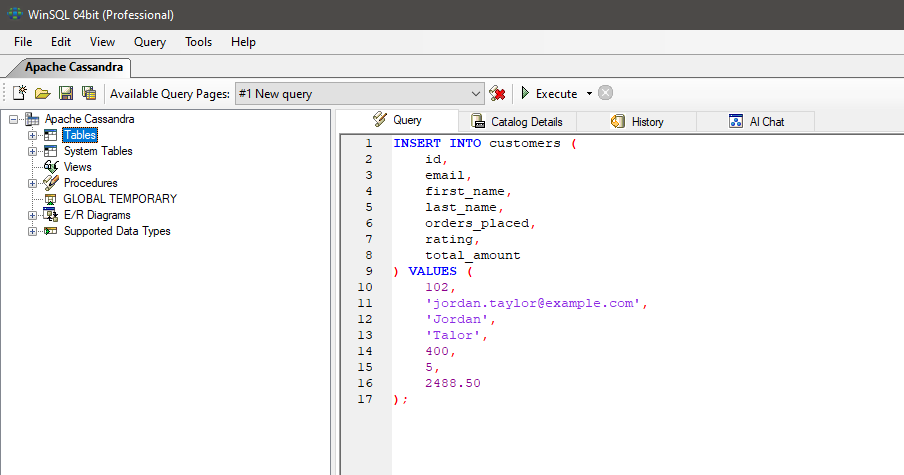
If I browse the data, I can see the new user:
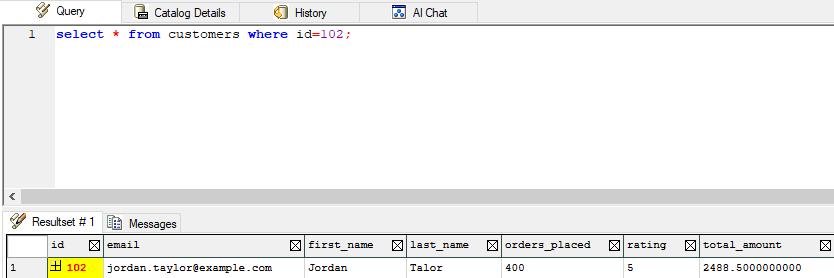
Using your JDBC query tool, you can interact with Apache Cassandra as if you were using the Query Editor directly. The benefit is that you also get the full suite of your chosen tool, plus a much more informative interface.
