Synametrics Technologies
Revolving around the core of technology
Document information
| Document ID: | 829 |
|---|---|
| Subject: | Connecting to Firebird using ODBC |
| Creation date: | 7/29/09 5:39 PM |
| Last modified on: | 12/12/18 11:46 AM |
Firebird
Besides MySQL, Firebird is another open source database recently gaining significant momentum in the industry. The following section talks about accessing Firebird from WinSQL.
Firebird is derived from Borland InterBase 6.0 source code. It is a relational database that runs on a variety of operation systems including Windows, Linux, Solaris, BSD and other flavors of UNIX.
Download and installation
Database as well as the ODBC driver can be downloaded from http://www.firebirdsql.org. The RDBMS itself has two types of architecture: Classic and SuperServer. We will be discussing the SuperServer architecture in this article. Refer to http://www.ibphoenix.com/main.nfs?a=ibphoenix&page=ibp_ss_vs_classic for more information about the difference between the two architectures.
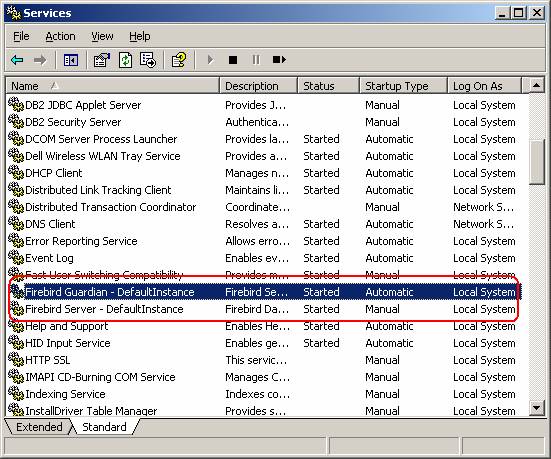
Installation of the RDBMS as well as the ODBC driver is pretty straight forward. There are no configuration parameters during setup. Once the setup is complete, ensure that Firebird service is running.
Configuring the ODBC driver
In this example, we will be connecting to the Employee database that comes as an example with Firebird.
Follow the steps below to create a new DSN for firebird.
- Start ODBC Data Source Administrator either from within WinSQL or from the Control Panel
- Select the Drivers tab and ensure that Firebird/InterBase driver is listed among available driver
- Select either System DSN or User DSN and click Add button
- Pick Firebird/InterBase driver and click Finish
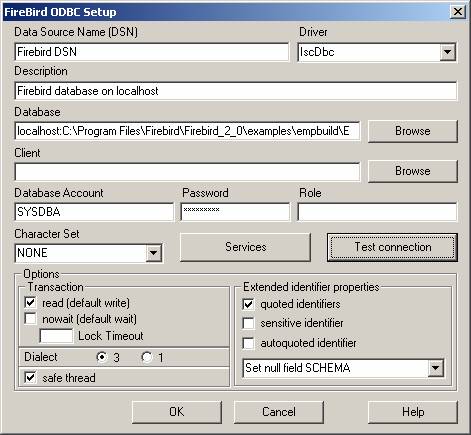
- The next screen prompts you to enter Firebird specific details
and is shown below.
- Finally click Ok
The following table discusses some important parameters required during ODBC setup
Data Source Name: This field identifies the data source and you will see this in WinSQL's connection window.
Database: This is the most important piece of information and is often mistyped by new users. Since we are using the SuperServer architecture, this field expects a host name, TCP/IP port, and the file name representing the database. The format of this string is HostName/Port:FileName . You can omit the TCP/IP port number if the server is listening on the default port, which is 3050. For file name you can either use UNIX style or Windows style separators.
Client: Leave this blank. This is only required for embedded servers.
Database Account: This is the login ID. Try using SYSDBA, which is a pre-built account that comes with Firebird
Password: The default password for SYSDBA is masterkey
Role: Leave this blank, particularly if you are using the SYSDBA account.
Establishing Connection from WinSQL
Start WinSQL after creating the ODBC DSN. In the connection window, select your newly created DSN for Firebird.
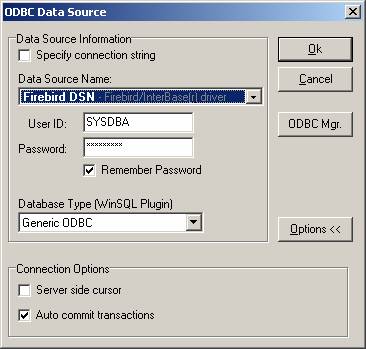
At the time of this article, a plugin is not available for Firebird. Therefore, select Generic ODBC as the database type. If future, select Firebird if you see it in the drop down list box.
Important Concepts
Default Values
Following table lists values for some important parameters in Firebird database.
TCP/IP Port: 3050
Login ID: SYSDBA
Password: masterkey
System database name: None - all system tables are stored in the user database
Security
The built-in login account in Firebird is SYSDBA with password masterkey. All security related information is stored in a special database called "security2.fdb". Firebird does not provide any programmatic access to this database from ODBC. Therefore, you cannot run SQL queries to modify existing users or add new ones.
Firebird comes with a command line utility to manage users called "gsec.exe", which is located in the Bin folder. You could also use the ODBC Driver setup screen to manage users. Click the Services button in Firebird ODBC setup screen and then click the Users tab.
More further information about security in Firebird, refer to http://www.firebirdsql.org/manual/firebird-database-documentation.html
Creating new database
Databases in Firebird are embedded in a single file. The path of this file must be provided as part of the host name in the DSN setup. There are a couple of ways to create a new database:
- Using the isql utility that comes with Firebird
- Submitting a SQL query from WinSQL
We recommend that you use the "isql" utility to create a new database. The reason is that from WinSQL you always connect to the database specified in the DSN. To switch to a different DB, you must change the DSN to point to a different file. Unlike MySQL, Firebird does not allow a client running dynamic SQL to switch database. Although, a CONNECT command is available, it only works from the isql utility.
Troubleshooting
Following is a list of common error messages and their solution
Message: Your user name and password are not defined. Ask you database administrator to set up a Firebird login
Solution: Add a desired user to ensure that user ID / password is correct.
User comments
Posted by Martin on 2/20/13 4:45 AM
Posted by ezekiel mbori on 6/30/12 2:21 AM
Posted by francisco on 5/7/12 10:24 AM
Posted by ashish ojha on 7/1/19 5:04 AM
Posted by AugSoft on 9/27/11 8:16 PM
Posted by Nattcho on 3/27/14 2:07 AM
Posted by Edison on 5/18/11 9:59 PM
Posted by shafiq on 8/31/16 1:45 PM
Posted by Bruce on 8/15/11 6:29 PM
Posted by George Sideris on 12/23/10 9:12 PM
Posted by Chiranjeevi on 11/3/11 8:01 AM
Add a comment to this document
Do you have a helpful tip related to this document that you'd like to share with other users?
