User Roles
Every SyncriTab account has one or more roles. Roles decide which screens a user sees and what they can change, and the Developer role determines your license count.
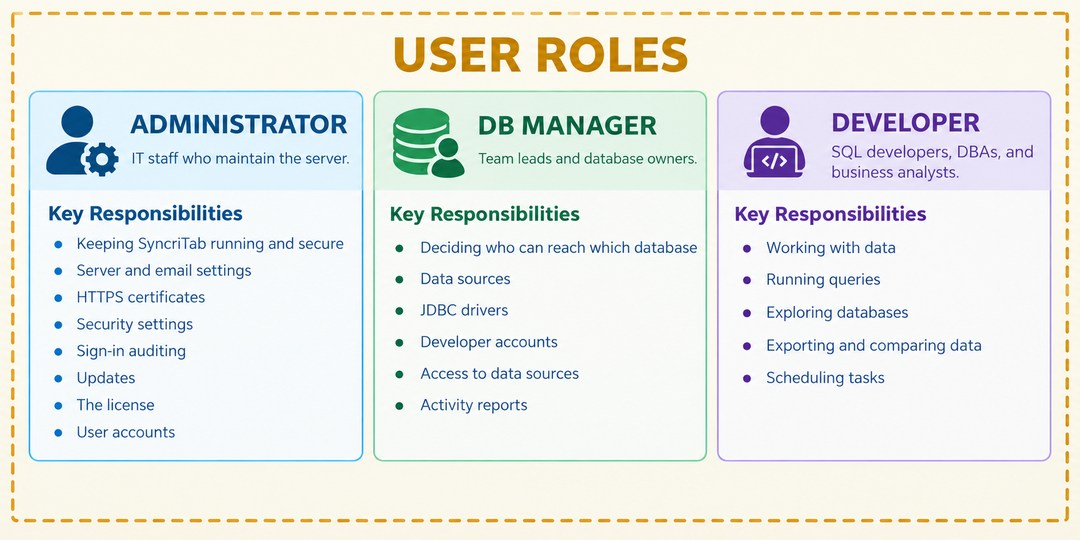
The three roles
| Role | Typical user | Responsible for |
|---|---|---|
| Administrator | IT staff who maintain the server | Keeping SyncriTab running and secure: server and email settings, HTTPS certificates, security settings, sign-in auditing, updates, the license, and user accounts. |
| DB Manager | Team leads and database owners | Deciding who can reach which database: data sources, JDBC drivers, developer accounts, access to data sources, and activity reports. |
| Developer | SQL developers, DBAs, and business analysts | Working with data: running queries, exploring databases, exporting and comparing data, and scheduling tasks. |
Administrators and DB Managers don't run queries themselves unless they also have the Developer role. See Combining roles.
What each role can do
| Task | Administrator | DB Manager | Developer |
|---|---|---|---|
| View the Dashboard | Yes | Yes | – |
| Change server settings: ports, email, security, and HTTPS certificates | Yes | – | – |
| View the license, apply updates, and restart SyncriTab | Yes | – | – |
| Add, edit, and delete users on User Management | Yes | Developers only | – |
| Give someone the Administrator or DB Manager role | Yes | – | – |
| Create data sources and choose which developers can use them | – | Yes | – |
| Add JDBC drivers | – | Yes | – |
| View the Scheduled Task Activity and Query Activity reports | – | Yes | – |
| View the Login Audit report | Yes | – | – |
| Use the query workspace: run queries, browse the catalog, export data, and use Schema Diff, Database Search, Reverse Engineering, and the Task Scheduler | – | – | Yes |
| Change their own password and set up two-factor authentication | Yes | Yes | Yes |
| Contact Synametrics support | Yes | Yes | Yes |
About developers
- A developer's login ID must be their email address: developers can have the results of queries and exports emailed, and SyncriTab puts their address in the From field of those emails.
- Developers see only the data sources a DB Manager has given them access to. A new developer can't connect to anything until they're granted at least one data source. This applies to administrators and DB Managers who also have the Developer role too: their other roles don't give them access to any data source. See Data Sources & Permissions.
- Developers also need their own user name and password for the database itself, which they enter each time they connect. SyncriTab's permissions decide which data sources a developer can see; the database's own permissions decide what they can do inside it.
Combining roles
An account can have any combination of the three roles. For example:
- The account created during Initial Setup is both an Administrator and a DB Manager, so one person can set up the whole server.
- In a small team, the person who manages SyncriTab can also have the Developer role to run queries. That account then counts toward the license. See Roles and licensing.
A user with more than one role sees the side-menu items of all their roles. The top of the page shows the current roles, for example Administrator & DB Manager. If one of the roles is Developer, a Query Window item in the side menu opens the query workspace.
After signing in, users with the Administrator or DB Manager role start on the Dashboard. Users with only the Developer role go straight to the query workspace.
Roles and licensing
SyncriTab licensing is based only on the number of accounts with the Developer role.
- Developer accounts are licensed. Each account with the Developer role counts once, even if it also has other roles.
- Administrator and DB Manager accounts are free. You can have as many as you need at no extra cost, as long as they don't also have the Developer role.
For example, a team with 2 administrators, 3 DB Managers, and 10 developers needs a license for 10 users. If one of the DB Managers also gets the Developer role, the team needs a license for 11. See Licensing & Purchasing.
Assigning and changing roles
Roles are set with the Role check boxes when you add or edit a user on the User Management page. Select at least one role.
Who can change which roles:
- Administrators can add, change, and delete any user and give any role.
- DB Managers (without the Administrator role) can add, change, and delete only users who have just the Developer role, and can only give the Developer role. They can change their own name, password, and MFA email address, but not their own roles. Only an administrator can create another DB Manager or administrator.
- Nobody can delete their own account or remove the Administrator role from their own account. Another administrator must do it. This makes sure SyncriTab always has at least one administrator.
Keep in mind:
- Role changes take effect the next time the user signs in.
- If you remove the Developer role from a user, SyncriTab also removes their access to all data sources. If you give the role back later, grant the data sources again.
- To give someone the Developer role, their login ID must be an email address. If it isn't, create a new account for them with their email address as the login ID.
Recommendations
- Give each person only the roles they need. For example, a business analyst needs only the Developer role.
- Keep at least two administrators. If the only administrator is unavailable or forgets their password, nobody else can change server settings, and an administrator's own account can only be removed or demoted by another administrator. Make sure every administrator has an email address for password resets.
- Give each person their own account. Shared accounts make the Login Audit and Query Activity reports less useful and can't be protected with personal two-factor authentication.