User Management
Create an account for everyone who uses SyncriTab, give each account the right roles, and choose which data sources each developer can use.
Opening User Management
Click User Management in the side menu. Administrators and DB Managers can both open it, but what they can change differs:
- Administrators can add, edit, and delete any user and give any role.
- DB Managers can add, edit, and delete only users who have just the Developer role. The Edit and Delete buttons don't appear for other users.
- Nobody can delete their own account or remove the Administrator role from their own account.
For details, see User Roles.
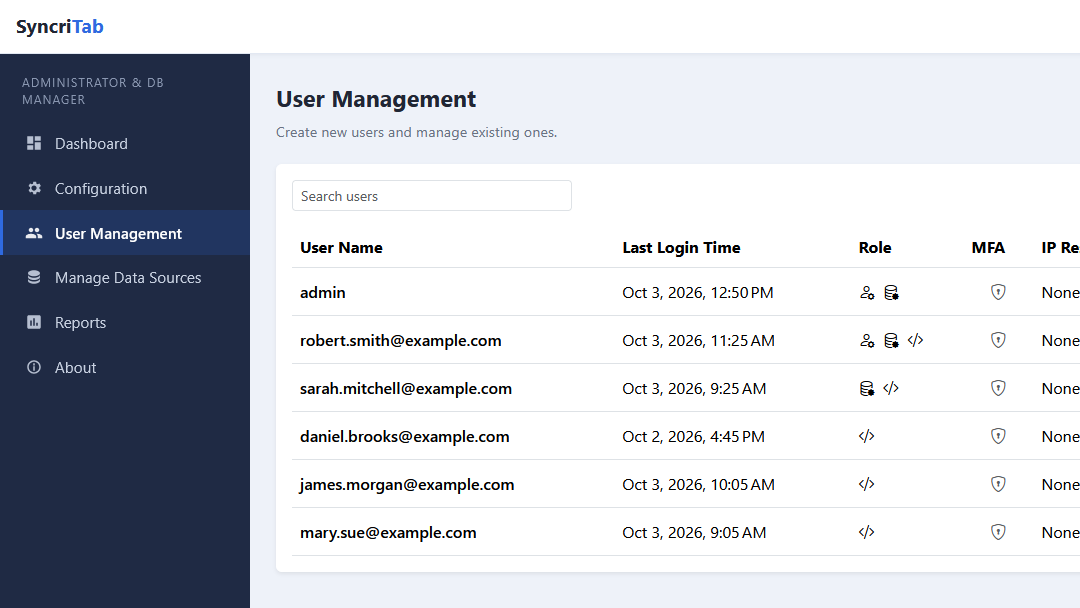
The user list
Type in Search users to filter the list. The number of matching users appears next to the box.
| Column | What it shows |
|---|---|
| User Name | The login ID. |
| Last Login Time | When the user last signed in, or Never. |
| Role | The user's roles. |
| MFA | The user's MFA status. Green means active, orange means temporarily suspended, gray means not set up. Administrators can click a green shield to suspend MFA for 10 minutes. See MFA status column. |
| IP Restrictions | Where the user may sign in from, or None. See Restricting sign-in by IP address. |
| MFA Email Address | Where two-factor codes and password reset links are sent. You can change it here. See MFA email addresses. |
| Data Sources | How many data sources the user can use. |
| Action | Buttons to manage the user's data sources (developers only), edit the user, and delete the user. |
Adding a user
- Click Add New User.
-
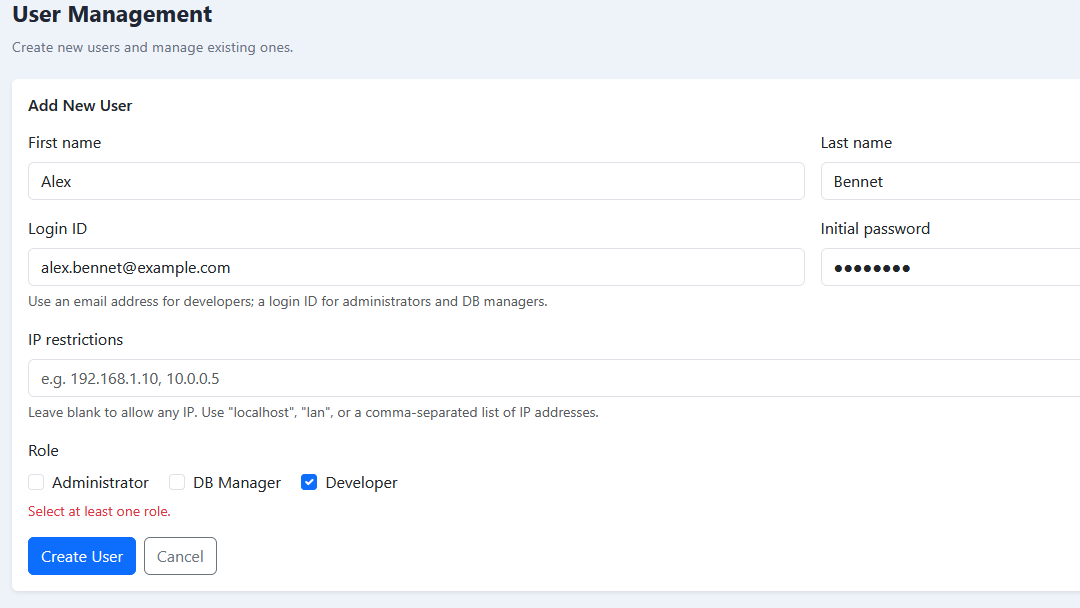
Fill in the form:
Field What to enter First name Required. Last name Required. Login ID What the user signs in with. For developers, it must be their email address: developers can have the results of queries and exports emailed, and SyncriTab puts their address in the From field of those emails. For administrators and DB Managers, you can use any name, such as it.admin, but an email address is recommended so password resets can be emailed. Login IDs aren't case-sensitive, must be unique, and can't be changed later.Initial password The user's first password. Give it to them securely; they can change it after signing in. See Your Account. MFA Email Address Shown only when Mandatory MFA is on, and then required. When it isn't shown and the login ID is an email address, that address is used. IP restrictions Optional. See Restricting sign-in by IP address. Role Select at least one role. DB Managers can only give the Developer role. See User Roles. - Click Create User.
- If the user is a developer, give them access to data sources. See Choosing a developer's data sources.
Every account with the Developer role counts toward your license. Administrator and DB Manager accounts are free. See Roles and licensing.
Editing a user
- Click the edit (pencil) button in the user's row.
- Change the name, roles, or IP restrictions. To set a new password, type it in the password field; leave the field empty to keep the current password.
- Click Save Changes.
Keep in mind:
- The login ID can't be changed. To give someone a different login ID, create a new account and delete the old one.
- Removing the Developer role also removes the user's access to all data sources.
- Changes to roles take effect the next time the user signs in.
- Setting a new password here is also how to help a user who forgot their password and can't receive a reset email.
MFA status column
The MFA column shows whether two-factor authentication is active for each user. The shield icon has three states:
| Icon | Meaning |
|---|---|
| Green shield | MFA is active. For administrators, the shield is a clickable button that can temporarily suspend MFA for that user (see below). For DB Managers, the shield is shown but is not clickable. |
| Orange shield | MFA is active but has been temporarily suspended. The user can sign in without a two-factor code until the suspension expires. |
| Gray shield | MFA is not set up for this user. |
Temporarily suspending MFA (administrators only)
If a user is locked out because they can no longer receive their two-factor code — for example, they lost access to their email — an administrator can temporarily suspend MFA for that account so the user can sign in and update their settings.
- Find the user in the list.
- Click the green shield in their MFA column.
- Confirm the action when prompted.
MFA is suspended for 10 minutes. During that window the shield turns orange and the user can sign in without a two-factor code. After 10 minutes MFA is automatically re-enforced. Only administrators can perform this action; DB Managers see the green shield but cannot click it.
MFA email addresses
Each account can have an MFA email address. SyncriTab sends two-factor verification codes there, and also password reset links when the login ID isn't an email address.
To change it, type the new address in the MFA Email Address column of the user's row and click Save. If the user signs in with emailed codes, the codes go to the new address from their next sign-in. The address can't be left empty while the user signs in with emailed codes.
When Mandatory MFA is on, every user must have a valid MFA email address. See Security settings.
Restricting sign-in by IP address
The IP restrictions field limits where a user can sign in from. Leave it empty to allow sign-in from anywhere. Otherwise, enter one of these:
| Value | The user can sign in only from |
|---|---|
localhost | The SyncriTab server itself. |
lan | The local network: addresses that start with 10., 192.168., or 172.16. through 172.31.. |
| A list of IP addresses | The listed addresses, separated by commas, for example 192.168.1.10, 10.0.0.5. Each address must match exactly; ranges aren't supported. |
A user who tries to sign in from another address sees the same Invalid user id or password message as for a wrong password. If SyncriTab is behind a proxy or load balancer, make sure it passes the user's real IP address, or the restriction sees the proxy's address instead.
Choosing a developer's data sources
Developers can use only the data sources they've been given access to.
- In the developer's row, click the Data Sources (database) button.
- In Manage Data Source Access, select the data sources the developer may use and clear the others.
- Click Save Access.
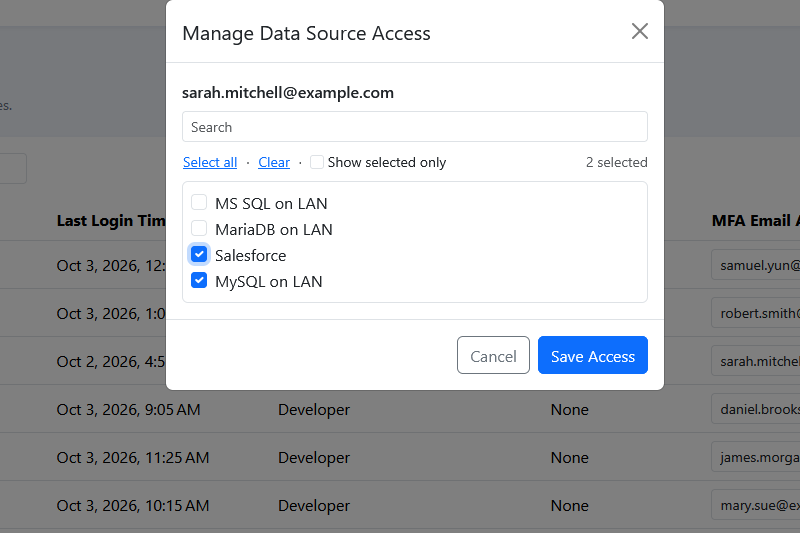
You can also do this from the other direction, choosing which developers can use a data source, on the Manage Data Sources page. See Data Sources & Permissions.
Access to a data source lets the developer try to connect to it. They still need their own user name and password for the database itself, which they enter each time they connect, and the database's own permissions decide what they can do there.
Deleting a user
- Click the delete (trash) button in the user's row.
- Confirm that you want to delete the user.
SyncriTab also removes the user's data source access, two-factor settings, sign-in history, and saved sessions. Deleting a developer frees up one license. The Login Audit report keeps its record of their past sign-ins.
You can't delete your own account. Another administrator must do it.