Data Sources & Permissions
A data source tells SyncriTab how to reach one database. DB Managers create data sources and decide which developers can use each one.
How developers get to a database
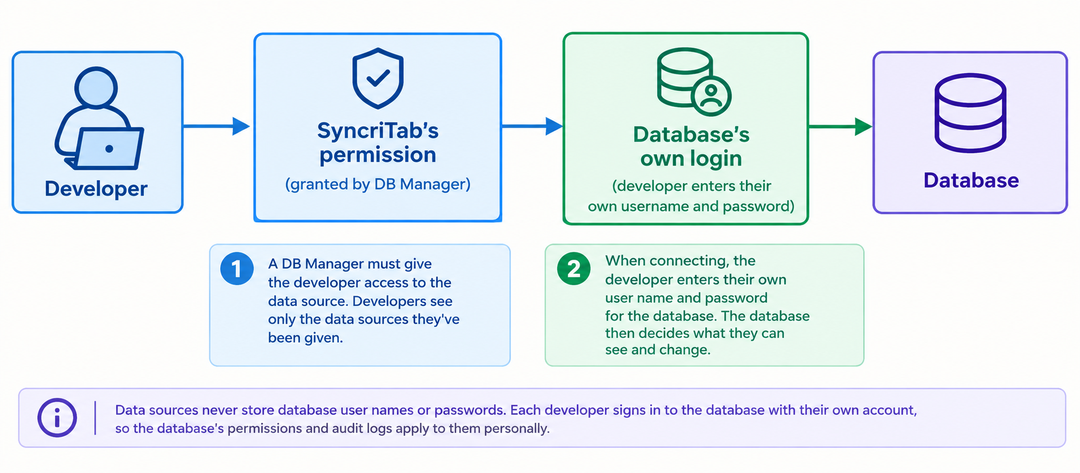
Two separate checks stand between a developer and a database:
- SyncriTab's permission. A DB Manager must give the developer access to the data source. Developers see only the data sources they've been given.
- The database's own login. When connecting, the developer enters their own user name and password for the database. The database then decides what they can see and change.
Data sources never store database user names or passwords. Each developer signs in to the database with their own account, so the database's permissions and audit logs apply to them personally.
The Manage Data Sources page
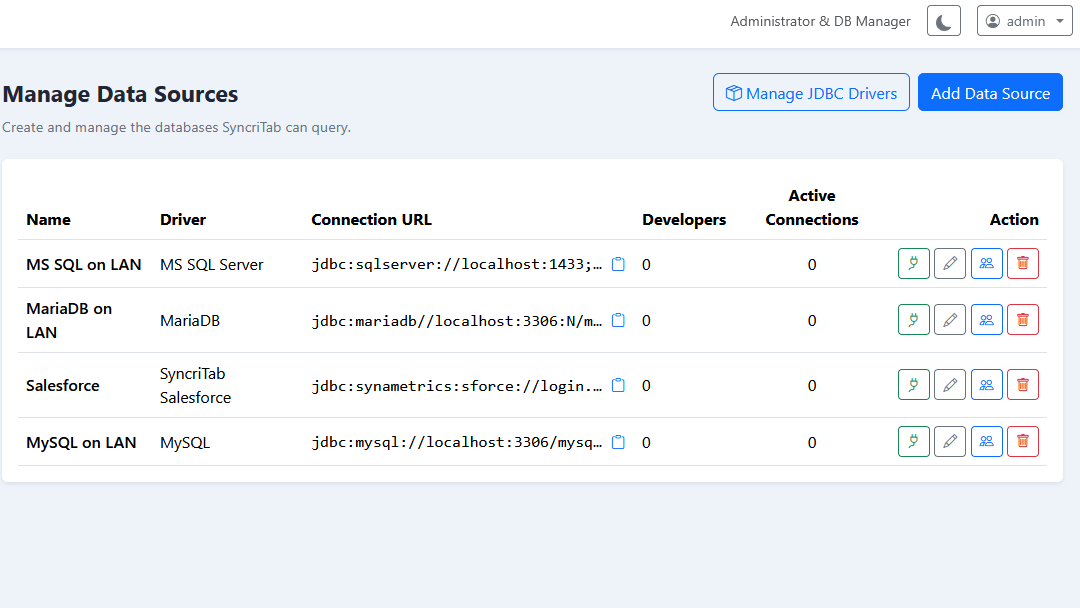
Sign in as a DB Manager and click Manage Data Sources in the side menu. The page lists every data source:
| Column | What it shows |
|---|---|
| Name | The data source's name, which developers see when they connect. |
| Driver | The type of database. |
| Connection URL | The start of the JDBC connection URL. Click the clipboard button to copy the whole URL. |
| Developers | How many developers can use the data source. |
| Active Connections | How many connections to it are open right now. |
| Action | Buttons to test the connection, edit the data source, manage which developers can use it, and delete it. |
Adding a data source
If the database you need isn't in the JDBC Driver list, add its driver first. See JDBC Drivers.
- Click Add Data Source.
- Enter a Data Source Name that developers will recognize, such as
Sales (production)orHR reporting replica. - Choose the JDBC Driver for the type of database. A driver marked (download pending) is downloaded automatically when you save.
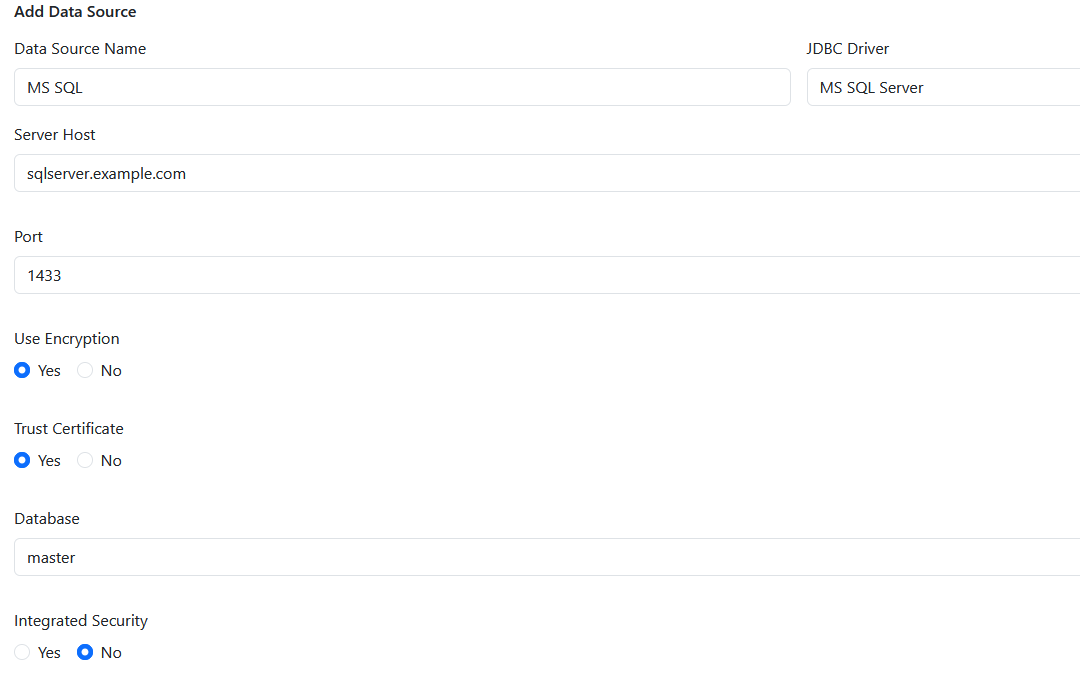
- Fill in the connection fields that appear for that driver, such as Server Host, Port, and Database Name. They start with typical values. SyncriTab builds the Connection URL from them as you type.
- Click Save Data Source.
- Test the connection, then choose which developers can use it.
About the connection fields
- The fields depend on the driver. Text fields take names such as host names, number fields take values such as port numbers, and yes/no fields turn options on or off, such as Use SSL.
- Use the host name the SyncriTab server uses to reach the database. It connects from the server, not from users' computers, so
localhostmeans the SyncriTab server itself. - For settings that have no field, edit the Connection URL directly, following your driver's documentation.
- Some drivers carry the user name and password inside the URL. For these, the URL keeps
{Username||S}and{Password||S}placeholders, which are filled in with what each developer enters when connecting. SyncriTab won't save a URL with an actual password in it.
Testing a connection
- Click the test (plug) button in the data source's row.
- Enter a database User ID and Password and click Test. They're used only for the test and aren't saved.
- SyncriTab connects and reports Connected successfully in n ms, or the error the database returned.
Common causes of a failed test are a wrong host name or port, a firewall between the SyncriTab server and the database, a wrong user name or password, or a database that requires encrypted connections.
Choosing which developers can use a data source
- Click the manage access (people) button in the data source's row.
- In Manage Developer Access, select the developers who may use it and clear the others.
- Click Save Access.
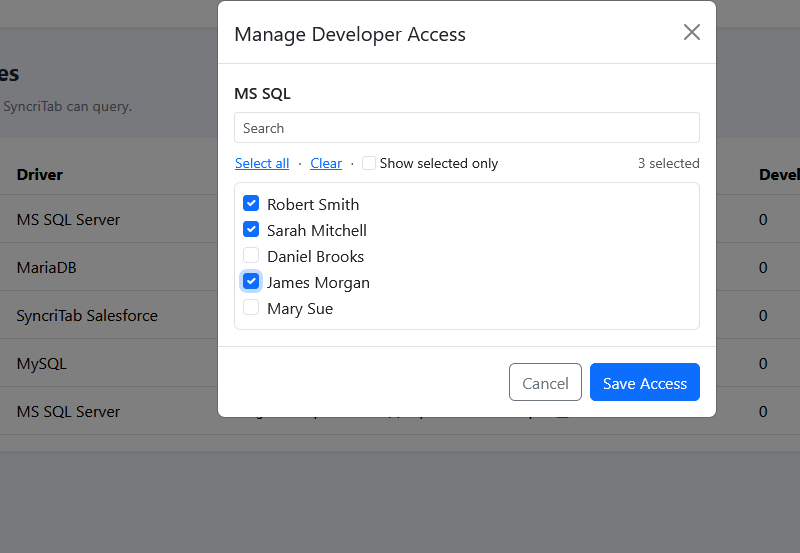
Only users with the Developer role appear in the list. You can also give access from the other direction, choosing a developer's data sources on the User Management page. See Choosing a developer's data sources.
Removing access stops the developer from opening new connections to the data source. Connections they already have open stay open until they disconnect or their session times out.
Editing a data source
- Click the edit (pencil) button in the data source's row.
- Change the name or connection fields. The driver can't be changed; to use a different driver, create a new data source.
- Save your changes.
Developers' access to the data source is kept. The change applies to new connections; connections that are already open keep their original settings.
Deleting a data source
Click the delete (trash) button in the data source's row and confirm. SyncriTab also removes every developer's access to it and deletes the saved sessions that used it. Check the Active Connections column first, and let developers know before you delete a data source they're using.
Tips
- Name data sources clearly. Include the environment, such as production or test, so developers don't run a query against the wrong database.
- Use read-only database accounts where possible. For developers who only need to report on data, a database account that can't change data is the safest choice.