Your Account
Change your own password and set up two-factor authentication from the user menu, without asking an administrator.
The user menu
Click your name in the upper-right corner of any SyncriTab page. The menu has:
- Two-Factor Authentication: turn on, change, or turn off the code you enter after your password. See Two-factor authentication.
- Change Password: see Changing your password.
- Administration: in the query workspace, for users who are also Administrators or DB Managers. Opens the Dashboard.
- Contact Support: send a question or problem report to Synametrics. See Getting Support.
- Sign Out: see Signing out.
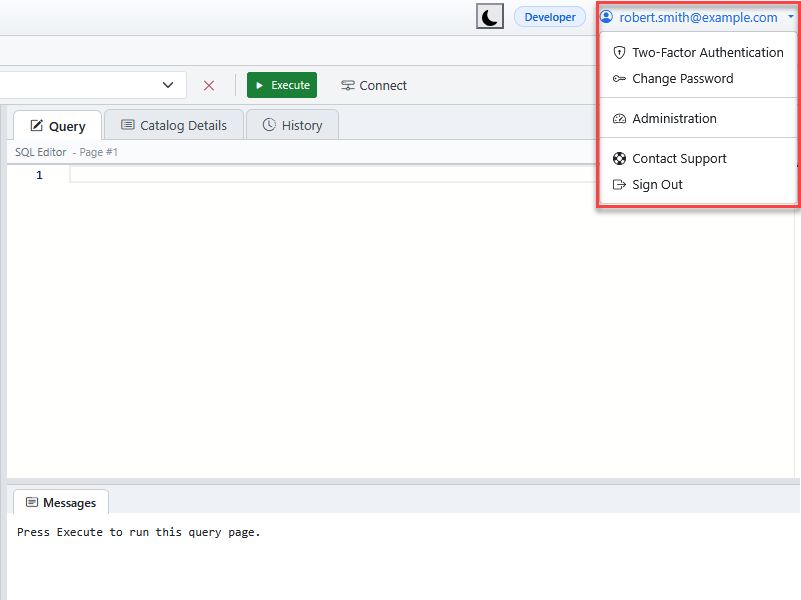
In the query workspace, the name shown is your Full Name from Edit › Options, or your login ID if you haven't set one. Point to it to see your login ID. See Options & Preferences.
Changing your password
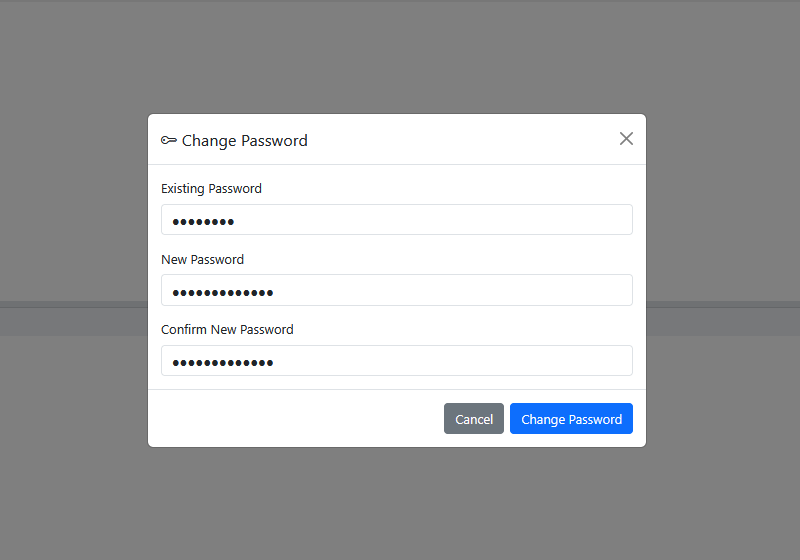
- Click your name, then Change Password.
- Enter your Existing Password.
- Enter the new password in New Password and again in Confirm New Password.
- Click Change Password. The dialog says Your password was changed. and closes.
- You stay signed in. Every browser where you chose Keep me signed in, including this one, asks for your password the next time you open SyncriTab. The same happens when an administrator sets a new password for you or you reset a forgotten one.
- This is your SyncriTab password. It doesn't change the database user names and passwords you use to connect to data sources.
- SyncriTab doesn't set rules for how long or complex the password must be. Choose a long password you don't use anywhere else, and follow your organization's password policy.
If you've forgotten your password, you can't change it here. Use Forgot? on the sign-in page instead. See Resetting a forgotten password.
Two-factor authentication
Two-factor authentication (also called MFA) protects your account even if someone learns your password: after your password, SyncriTab asks for a six-digit code that only you can get. The code comes either from an email to your MFA email address or from an authenticator app on your phone.
Click your name, then Two-Factor Authentication. The top of the dialog shows:
| Field | Meaning |
|---|---|
| Required by administrator | Yes if an administrator requires two-factor authentication for everyone. You can then change the method but not turn it off. See Mandatory two-factor authentication. |
| Enabled | Whether you're asked for a code when you sign in. |
| Preferred method | Email, Authenticator App, or None. |
| Your MFA email address, partly hidden, or Not configured. |
Every change needs your current SyncriTab password, so someone who finds your computer unlocked can't change it.
Using email codes
- On the Email tab, check the MFA Email Address where you want codes sent. It starts with your current address, if you have one; change it if you want codes to go elsewhere. Enter your Current Password.
- Click Send Verification Code. SyncriTab emails a six-digit code to that address.
- Enter it in Six-Digit Code and click Verify.
If the code doesn't arrive, check your spam folder. After the countdown ends, you can click Resend Code. Email codes need a working email server; see Server Configuration.
To change your MFA email address later, repeat these steps with the new address. The new address is used only after you've verified a code sent to it. SyncriTab also sends password reset links to this address if your login ID isn't an email address.
Using an authenticator app
An authenticator app, such as Microsoft Authenticator, Google Authenticator, or any app that supports time-based one-time passwords (TOTP), shows a new six-digit code every 30 seconds. It works without email and without an internet connection on your phone.
- On the Authenticator App tab, enter your Current Password and click Set Up Authenticator.
- In your authenticator app, add an account and scan the QR code. If you can't scan it, type the secret shown next to it into the app instead.
- Enter the code the app shows in Six-Digit Code and click Verify.
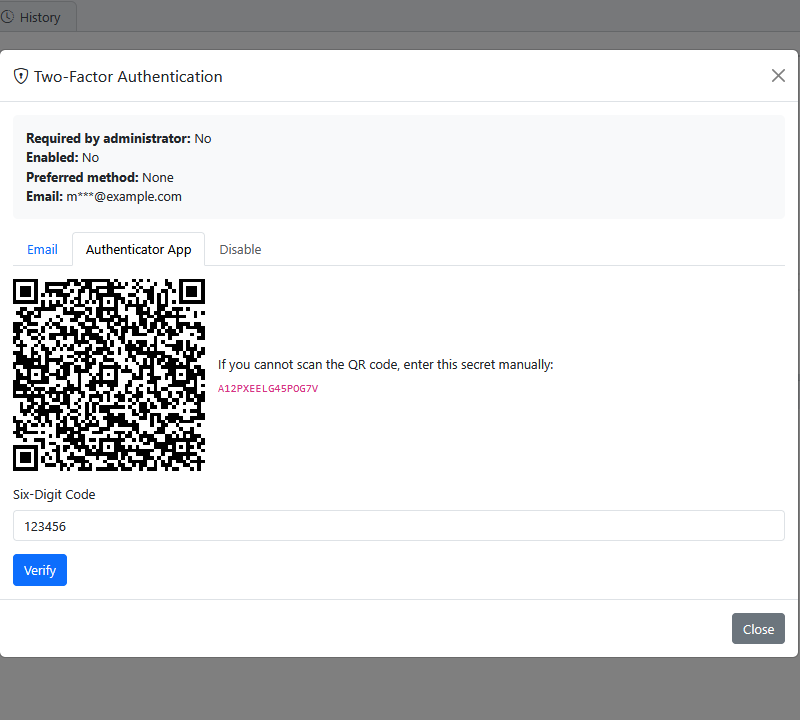
Once verified, SyncriTab asks for the app's code at every sign-in instead of emailing one. If the code is rejected, check that your phone's clock is set automatically; the codes depend on the time.
Treat the QR code and secret like a password: anyone who has them can create your codes. Don't screenshot or share them. If you close the dialog before clicking Verify, or don't verify within 10 minutes, the setup is discarded and you start again. After too many wrong codes, you also have to start again.
If you get a new phone, set up the authenticator again before you lose the old one: the new QR code replaces the old one.
Turning two-factor authentication off
- On the Disable tab, enter your Current Password and click Continue.
- Enter a code from the method you use now: from the email SyncriTab sends, or from your authenticator app.
- Click Disable MFA.
The Disable tab is unavailable when an administrator requires two-factor authentication.
If something goes wrong
| Problem | What to do |
|---|---|
| The existing password is incorrect. | Enter your current SyncriTab password exactly, checking Caps Lock. If you've forgotten it, sign out and use Forgot?. |
| The new passwords do not match. | Type the new password the same way in both boxes. Both boxes are cleared so you can try again. |
| The password could not be saved. Your existing password is unchanged. | SyncriTab couldn't save the change. Keep using your existing password, try again later, and tell your administrator if it keeps happening. |
| The verification email doesn't arrive | Check the address you entered and your spam folder, then click Resend Code. If no email arrives at all, ask your administrator to check the email server settings. |
| The authenticator code is rejected | Enter the code currently shown, before it changes. Make sure your phone sets its time automatically. |
| You lost your phone or can't get codes | If you use emailed codes, you can still sign in as long as you can read that mailbox; an administrator can change your MFA email address on the User Management page. If you use an authenticator app and lose it, SyncriTab doesn't yet have a way for an administrator to reset it; contact your administrator. To avoid this, set up the app on your new phone before you give up the old one. |