Options & Preferences
The Options dialog holds your personal settings: how many rows queries and Browse Data return, how scripts are split into statements, auto-save, IntelliSense, and how the results grid shows long values.
Options belong to your account, not to a browser or a data source. They're kept on the SyncriTab server, so they follow you to any computer, and they don't affect anyone else.
Changing your options
- In the query workspace, choose Edit › Options.
- Change settings on the General and Advanced Options tabs.
- Click Save. Click Cancel to close the dialog without changing anything.
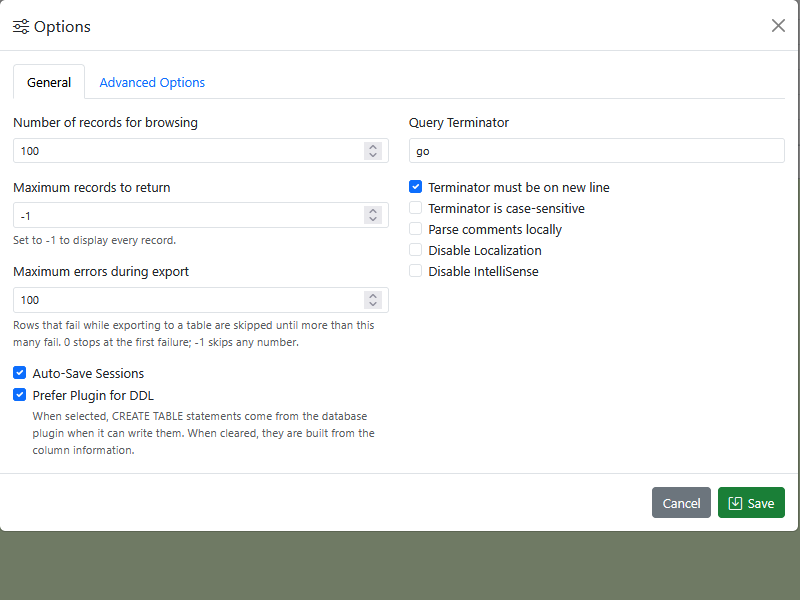
Most changes apply to the next query you run or the next grid you open. You don't need to reconnect or sign in again.
If a value isn't allowed, for example a negative number of rows, the dialog says which option to fix and nothing is saved. The allowed values are listed below.
General tab
| Option | Default | What it does |
|---|---|---|
| Number of records for browsing | 100 | How many rows Browse Data shows when you open a table from the catalog. Enter 0 for no limit, or any larger number. See Browsing data. |
| Maximum records to return | 10000 | The most rows a query returns in each result set. When a result reaches it, the Messages tab says so. Enter -1 to return every row, or a number of 1 or more. See Row limit. |
| Maximum errors during export | 100 | When you export into another database's table, rows that fail are skipped until more than this many have failed; then the export stops. Enter 0 to stop at the first failure, or -1 to skip any number. See Exporting to another table. |
| Auto-Save Sessions | Selected | Saves your query pages and results as you work, so you can pick up where you left off. Clearing it deletes all your saved workspaces. See Turning auto-save off. |
| Prefer Plugin for DDL | Selected | Where CREATE TABLE statements come from when SyncriTab writes them for you: in the catalog's generated SQL, the Export wizard's new target table, Reverse Engineering, and Schema Diff reports. When selected, they come from the database plugin, which usually includes database-specific details, when it can write them. When cleared, they're always built from the table's column information, which is simpler and more portable. |
| Query Terminator | go |
The word or character that separates statements in a script: 1 to 20 characters, with no spaces. See The query terminator. |
| Terminator must be on new line | Selected | The terminator counts only when it's on a line by itself. |
| Terminator is case-sensitive | Cleared | When selected, GO doesn't count as the terminator go. |
| Parse comments locally | Cleared | Removes -- and /* */ comments from your SQL before sending it to the database. Select it if your database or driver rejects statements that contain comments. |
| Disable Localization | Cleared | Shows SyncriTab in English whatever language your browser asks for. SyncriTab is currently available only in English, so this has no visible effect yet. |
| Disable IntelliSense | Cleared | Turns off the suggestions that appear as you type in the SQL editor. See IntelliSense. |
The query terminator
When you run a script, SyncriTab splits it into statements at the query terminator and sends them to the database one at a time. With the defaults, put go on a line by itself between statements:
UPDATE orders SET status = 'CLOSED' WHERE shipped_at < '2026-01-01'
go
SELECT COUNT(*) FROM orders WHERE status = 'CLOSED'
go
To use a semicolon instead, as many other tools do, enter ; as the Query Terminator and clear Terminator must be on new line. The script is then split wherever the terminator appears, except:
- Inside quoted text and quoted names:
'a;b',"a;b",`a;b`, and[a;b]. - Inside comments:
-- ...to the end of the line, and/* ... */. - For a word such as
go, inside a longer name.categoryandgo_livearen't split;goon its own is.
A procedure, function, or trigger body often contains semicolons of its own, and those are split. For scripts that create them, keep the default, go on a line by itself.
The terminator is also used by IntelliSense to tell which statement you're typing, by Reverse Engineering to end each statement it writes, and by INSERT exports. Scheduled SQL tasks keep the terminator they were saved with; after changing it, open each SQL task in the Task Scheduler and save it again.
Advanced Options tab
| Option | Default | What it does |
|---|---|---|
| Full Name | Empty | Shown at the top right of the workspace instead of your login ID, up to 100 characters. Point to it to see your login ID. |
| Email Address | Empty | Filled in as the recipient when you select Email me the exported file in the Export wizard. Leave it empty to use your login ID, when your login ID is an email address. Other emails, such as Schema Diff reports and scheduled task results, go to the address you enter for each one. |
| Maximum size for grid cell | 512 | From 10 to 1,000,000. Values longer than this many characters are shortened in the results grid and end with …. Right-click a cell and choose Zoom to see the whole value. Copying and exporting always use the full value. See Working with the results grid. |
| Records in History | 250 | How many queries the History tab lists at a time, from 1 to 1,000. See How much history is kept. |
| Fetch BLOBs when browsing | Cleared | When cleared, Browse Data shows (BLOB) in binary columns, such as images and documents, instead of reading their contents, so opening a table of files is quick. Select it to see their contents. Queries you run yourself, and exports of a whole table, always read binary values. |
Tips
- Keep the row limits. Returning every row with
-1is convenient, but a mistaken query on a large table can then run for a long time. To get all of a large result, export it instead. See Exporting & Importing Data. - Match your team's scripts. If your team's scripts end statements with semicolons and don't create procedures or triggers, switch the terminator to
;. See The query terminator. - Before turning off auto-save, save any SQL you want to keep as a script. See Saving a script.