Exporting & Importing Data
Save query results as a file, turn them into INSERT statements, or copy them into a table in another database. You can also load data from a text file into a table.
Which way to export
| To | Use |
|---|---|
| Quickly save results you're looking at | Download Data in the results grid's right-click menu. See The right-click menu. |
| Save a table as a delimited file with your choice of delimiter | Export To Text in the catalog's right-click menu. See Exporting a table from the catalog. |
Export as CSV, Excel, HTML, or INSERT statements, email the file, copy rows into another database, or set up an export to run on a schedule |
The Export wizard. |
The Export wizard
The Export wizard exports the rows returned by a SELECT statement.
- In the SQL editor, write the
SELECTstatement. If the page holds other statements too, select just this one. - Choose Query › Export.
- On the Destination page, choose where the data should go:
- A text file (CSV, Excel or HTML). See Exporting to a file.
- INSERT statements. See Exporting as INSERT statements.
- A table in another database. See Exporting to another table.
- Optionally, enter a Friendly name. SyncriTab saves the export under that name so you can run it again later with the Task Scheduler. See Saving an export for the scheduler. Leave it blank for a one-time export.
- Click Next, fill in the next page, and click Finish.
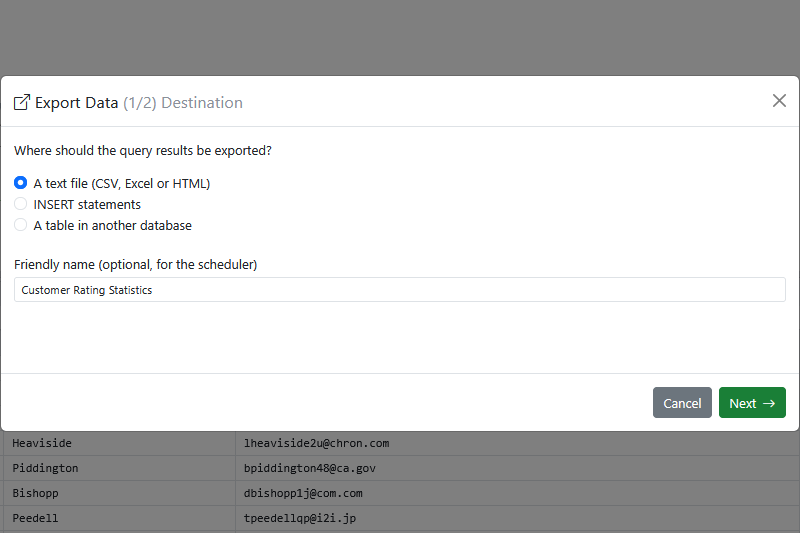
The wizard runs the statement again when you click Finish and exports every row it returns, whatever the row limit in your options. The statement must be a single SELECT and must finish within 10 minutes.
Exporting to a file
- Choose the Target format: CSV, MS Excel (.xlsx), or HTML.
- Optionally, select Email me the exported file and enter the Recipient email address.
- Click Finish.
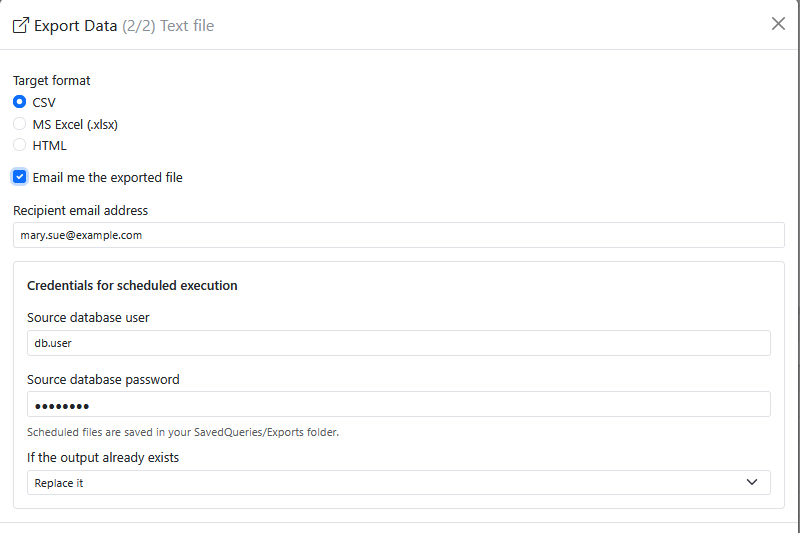
Your browser downloads the file, named ExportedResults.csv, ExportedResults.xlsx, or ExportedResults.htm. If you asked for email, the file is also sent as an attachment, and the status bar says whether the email was sent. If it couldn't be sent, the status bar shows the reason, and your file is still downloaded. Email works only if your administrator has set up the email server; see Server Configuration.
Exporting as INSERT statements
This creates a script that recreates the rows in another table, for example to copy reference data into a test database.
- Check the Target table name. SyncriTab fills it in from the
FROMclause of your statement; if it can't tell, it usesTARGET_TBL. Change it to the table the statements should insert into. - Optionally, choose to email the file.
- Click Finish.
Your browser downloads ExportedResults.sql, with one INSERT statement per row, separated by your query terminator (go by default). To run it, open it with File › Open File (upload it first) and click Execute. See Uploading a script.
Exporting to another table
This copies the rows straight into a table in another data source, even one on a different kind of database.
- On the Connect to target page, choose the Data Source that will receive the data and enter your User ID and Password for it. Click Next.
- On the Target table page, enter the Target table name and choose:
- New table to create it. Click Generate DDL: SyncriTab writes a
CREATE TABLEstatement with a column for each column of your results, using data types from the target database. Edit it if you need to, then click Create Table. - Existing table to add rows to a table that's already there. Click Check to compare the table with your results. SyncriTab lists any problems it finds, or says the table looks compatible.
- New table to create it. Click Generate DDL: SyncriTab writes a
- Optionally, choose to be emailed when the export finishes.
- Choose Run now, or Save for later (scheduler) to only save it. See Saving an export for the scheduler.
- Click Finish.
How columns are matched:
- Columns are matched by position: the first column of your results goes into the first column of the table, and so on. Names don't have to match.
- If your results have more columns than the table, the extra ones are ignored.
- If your results have fewer, the remaining table columns are left empty (
NULL).
When rows fail
A row can fail to copy, for example because a value is too long for its column or repeats a primary key. SyncriTab skips rows that fail and copies the rest, up to a limit: Maximum errors during export in Edit › Options, 100 by default. See Options & Preferences.
- If no more rows fail than the limit allows, the export succeeds. The status bar shows how many rows were copied, how many failed, and the first error, for example Row 12: ….
- If more rows fail than the limit allows, the export stops and none of the rows are kept. The wizard shows the last error, so you can fix the problem and try again.
- Set the limit to
0to make every export all or nothing, or to-1to skip any number of failed rows.
Scheduled exports use the same setting, and the task's history shows how many rows were skipped.
Saving an export for the scheduler
When you enter a friendly name on the first page, the wizard also saves the export so the Task Scheduler can run it again, for example every night. See Task Scheduler.
- A scheduled export runs without you, so the wizard asks for the database user and password to use: for the source, and for exports to another table, for the target too. The passwords are saved encrypted.
- For a file, choose what happens if the output file already exists: Replace it, Fail the task, or Add a timestamp to the new file's name. Scheduled files are saved on the SyncriTab server, in your
SavedQueriesfolder underExports. - For an export to an existing table, click Check before finishing, so SyncriTab knows the table's columns.
- For files and
INSERTstatements, the export also runs right away when you click Finish. For a table, choose Save for later (scheduler) if you only want to save it.
Exporting a table from the catalog
For a quick delimited file of a whole table:
- In the catalog pane, right-click the table and choose Export To Text.
- Choose the Delimiter: comma, tab, pipe, or semicolon.
- Choose whether to Include header row with the column names, and whether to Quote text values.
- Click Export.
Your browser downloads the file, named after the table, with a .tsv extension for tab-delimited files and .csv otherwise. Every row is exported. The file is built in your browser, and the status bar counts the rows as they arrive, so a very large table can take a while. For those, the Export wizard with SELECT * FROM the table is usually faster, and can also produce Excel and HTML files.
Importing data from a text file
To load rows from a delimited text file, such as a CSV file, into a table:
- In the catalog pane, right-click the table and choose Import Text.
- Choose the Text file on your computer.
- Choose the Delimiter the file uses.
- If the first line of the file holds column names, leave First row is a header selected.
- Click Generate INSERTs.
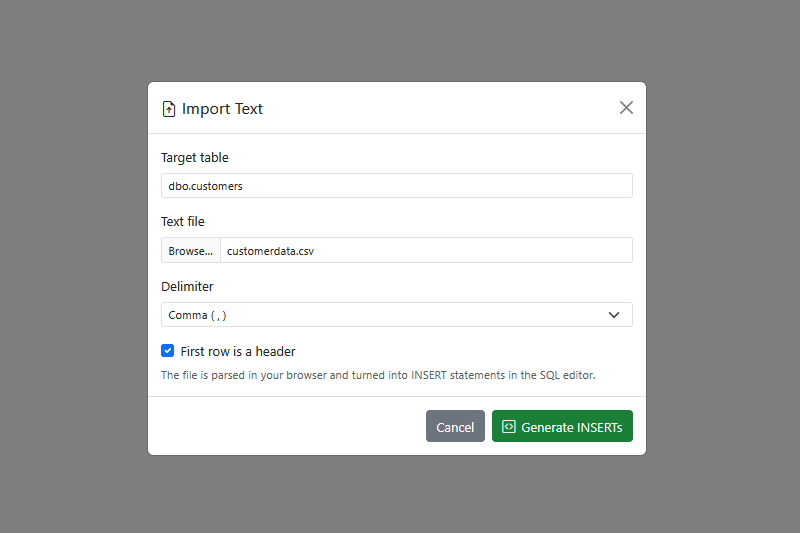
SyncriTab reads the file in your browser and puts one INSERT statement per line into the SQL editor. Nothing is added to the table yet. Review the statements, then click Execute to run them.
- If the file has a header row, its names are used as the column list, so they must match the table's column names. Without a header, each line must have a value for every column, in the table's order.
- Every value is inserted as text, in quotes, and the database converts it to the column's type. Empty values become
NULL. - Values in the file can be enclosed in double quotes, which lets them contain the delimiter or line breaks.
- If you connected with Manual Commit, run
COMMITafterwards to keep the rows.
If something goes wrong
| Problem | What to do |
|---|---|
The wizard says the statement must be a single SELECT |
Select just one SELECT statement in the editor before choosing Query › Export. |
| The source query did not finish before the export timeout. | The statement took longer than 10 minutes. Add a WHERE clause to export less, or make the query faster. |
| An export to another table stops because too many rows failed | No rows were copied. Fix the problem in the error, such as a column that's too short, and run the export again. See When rows fail. |
| The status bar says the email could not be sent, or the email doesn't arrive | Check your junk mail folder. Give your administrator the reason shown in the status bar; it's also recorded in the SyncriTab log. They can send a test email from Configuration. See Server Configuration. |
The generated INSERT statements fail |
Check that the header names match the table's columns and that values suit the column types, for example dates in a format your database accepts. |