Server Configuration
The Configuration page controls how people reach SyncriTab, how it sends email, and its security settings.
Opening the Configuration page
Sign in as an administrator and click Configuration in the side menu. The page has three tabs:
- HTTP Configuration: ports, HTTPS, and the address users open.
- Email Configuration: the mail server SyncriTab uses to send email.
- Security: alert recipients, two-factor authentication, IP blocking, encryption, and idle timeouts.
Each tab has its own Save button, which saves only that tab. Saving reloads the page, so unsaved changes on the other tabs are lost. Change and save one tab at a time.
HTTP Configuration
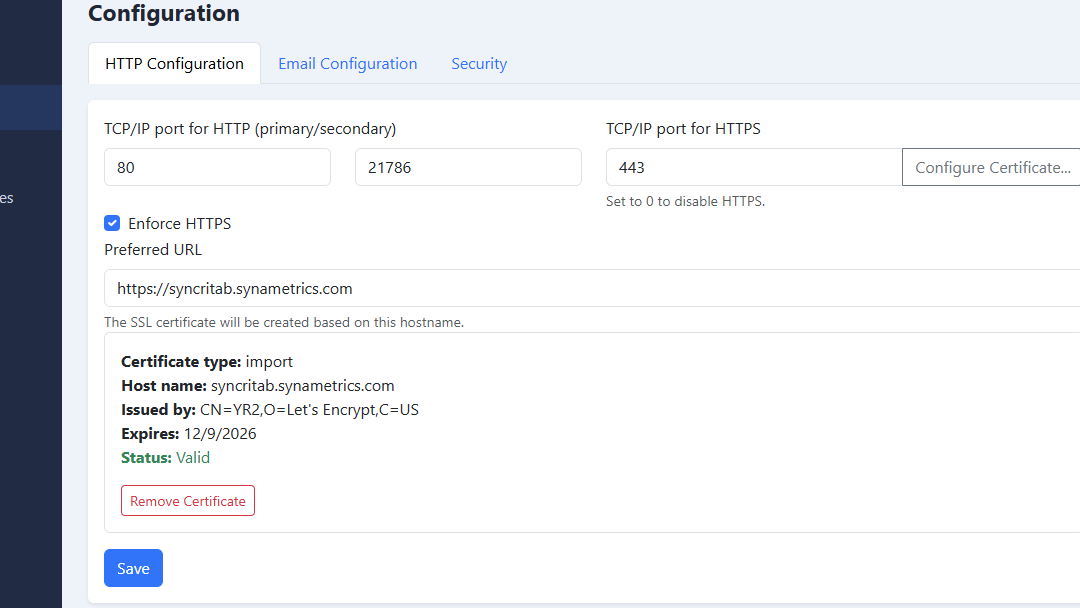
| Setting | What it does |
|---|---|
| TCP/IP port for HTTP (primary/secondary) | Two ports for plain HTTP. The primary port is 21786 after installation. Enter 80 as the secondary port so users can open SyncriTab without typing a port number. Leave the secondary box empty to use only the primary port. |
| TCP/IP port for HTTPS | The port for encrypted HTTPS connections, normally 443. Enter 0 to turn HTTPS off. HTTPS also needs a certificate; click Configure Certificate... next to this field. See SSL Certificates. |
| Enforce HTTPS | When selected, and HTTPS is turned on, browsers that open SyncriTab over plain HTTP are redirected to the HTTPS address. Turn this on once HTTPS works, so passwords and data are never sent unencrypted. |
| Preferred URL | The full address users should use, for example https://syncritab.example.com. SyncriTab uses its host name when it creates a certificate, and uses the address in the links it emails, such as password reset links. It must start with http:// or https://. If you leave it empty, links use whatever address the user's browser used. |
Below the settings, a summary shows the current HTTPS certificate: who issued it, when it expires, and whether it's valid.
Changing ports
- Restart SyncriTab after you change a port. See Updating & Restarting.
- Open the new ports in the server's firewall. See Network access.
- If you run SyncriTab in Docker, map the new ports when you start the container. See Running SyncriTab in Docker.
- Keep the primary port at
21786even after you turn on ports 80 and 443. It gives you a known address to fall back on if the others stop working, for example because a certificate expired.
Email Configuration
SyncriTab needs an email (SMTP) server to send:
- two-factor verification codes,
- password reset links,
- alerts to administrators,
- exported files that users choose to email,
- support requests, when they can't be sent to Synametrics directly.
Set it up soon after installation. Mandatory MFA on the Security tab can't be turned on without it.
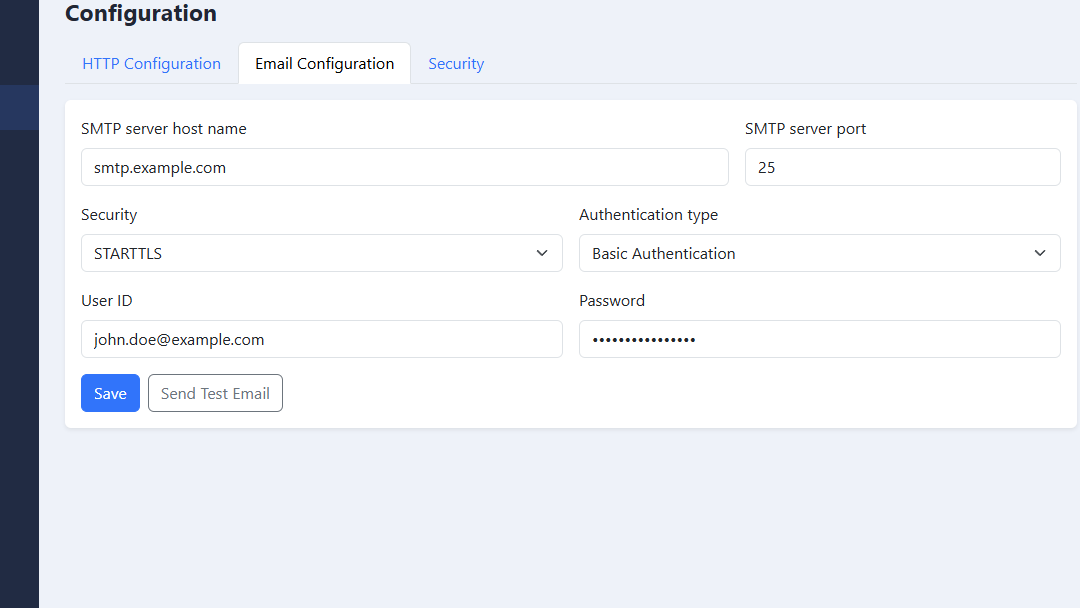
| Setting | What to enter |
|---|---|
| SMTP server host name | Your mail server, for example smtp.example.com, smtp.office365.com, or smtp.gmail.com. |
| SMTP server port | Usually 587 (the default). Some servers use 465 or 25. |
| Security |
STARTTLS: the connection starts unencrypted and then switches to encryption. Normally used with port 587. TLS/SSL: encrypted from the start. Normally used with port 465. None: no encryption. Use only with a mail server on your own network. |
| Authentication type | How SyncriTab signs in to the mail server. See the next sections. |
Basic Authentication
Enter the mail account's User ID and Password. This is the most common choice. Some providers, including Microsoft 365 and Google, may require OAuth or an app password instead of the account's normal password.
SSL Certificate
SyncriTab proves its identity to the mail server with a client certificate instead of a password. The mail server must be set up to accept it.
- Set Security to STARTTLS. This authentication type requires it.
- Upload the certificate as a
.p12,.pfx, or.jksfile with its password. - In Certificate domain, enter a DNS name from the certificate, for example
example.com, or*.example.comfor a wildcard certificate. - Check the certificate details that SyncriTab shows, including its expiration date, and click Save.
To remove the certificate, first switch to a different authentication type and save.
OAuth
Use OAuth with providers that don't allow password sign-in for SMTP, such as Microsoft 365 and Google Workspace. You'll need to register SyncriTab as an application with your provider first.
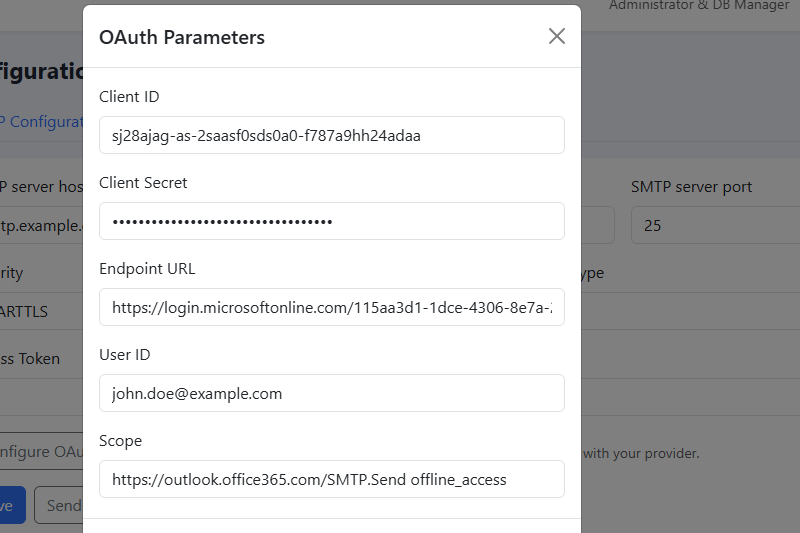
- In your provider's admin portal, register an application for SyncriTab. Allow it to send email over SMTP, and add a redirect URI made of the address you use to open SyncriTab followed by
/auth, for examplehttps://syncritab.example.com/auth. Note the client ID and client secret. - In SyncriTab, set Authentication type to OAuth and click Configure OAuth.
-
Fill in the OAuth Parameters and click Done:
Field What to enter Client ID From the application you registered. Client Secret From the application you registered. Endpoint URL Your provider's OpenID configuration address, which ends in .well-known/openid-configuration. For example,https://accounts.google.com/.well-known/openid-configurationfor Google, orhttps://login.microsoftonline.com/your-tenant-id/v2.0/.well-known/openid-configurationfor Microsoft 365.User ID The mailbox SyncriTab sends from, for example syncritab@example.com.Scope The permissions to request, as listed in your provider's documentation for SMTP sending. Separate several scopes with spaces. For example, https://mail.google.com/for Google, orhttps://outlook.office.com/SMTP.Send offline_accessfor Microsoft 365. - Click Save.
- Click Authorize and sign in to your provider with the mailbox account. Open SyncriTab at the same address you registered as the redirect URI before you click it.
- You return to the Email Configuration tab with the message OAuth authorization completed successfully. The Access Token and its Expiration date are filled in. SyncriTab renews the token automatically.
Sending a test email
After saving, click Send Test Email, enter a sender and recipient address, and click Send. If the message doesn't arrive, check the settings and the recipient's spam folder. The test needs the Administrator's address on the Security tab, so fill that in first.
Security
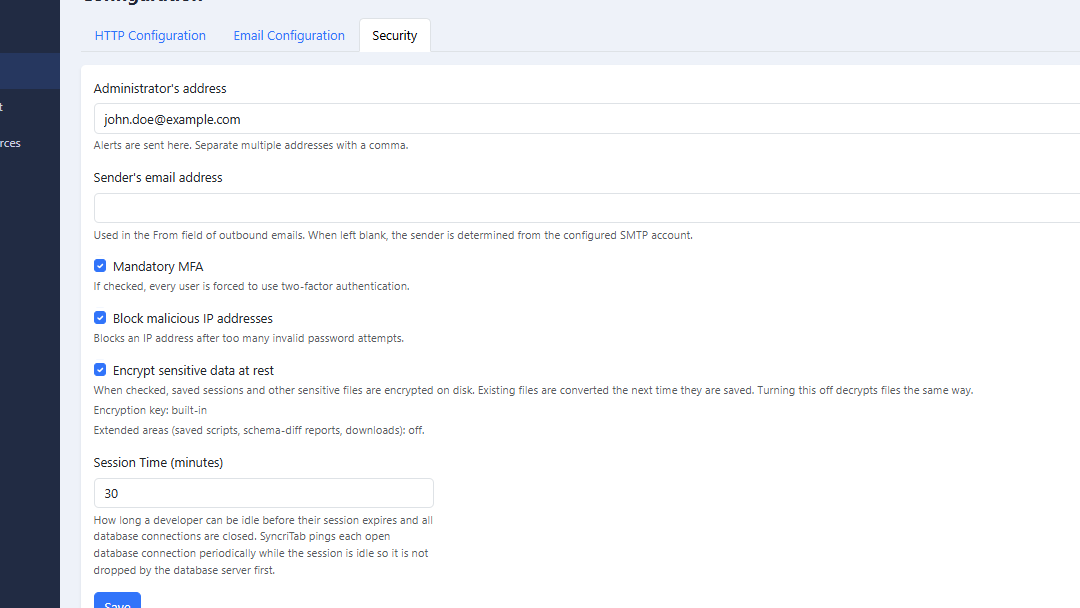
| Setting | What it does |
|---|---|
| Administrator's address | Where SyncriTab sends alerts. Separate several addresses with commas. |
| Sender's email address | The From address on email SyncriTab sends. If you leave it empty, the mail server account decides. Many mail servers only accept a sender address that belongs to the account they sign in with. |
| Mandatory MFA | Makes every user sign in with two-factor authentication. It can be turned on only when email is set up, a valid sender address is available, and every user has a valid MFA email address. If any are missing, SyncriTab lists the users you need to fix first. |
| Block malicious IP addresses | Temporarily blocks an IP address after too many wrong passwords. |
| Encrypt sensitive data at rest | Encrypts saved sessions and other sensitive files on the server's disk. Existing files are converted the next time they're saved. The line below the check box shows which encryption key is in use. |
| Session Time (minutes) | How long a user can be idle before SyncriTab signs them out and closes their database connections. The default is 30; you can enter 5 to 1,440 (24 hours). While a session is idle but hasn't timed out, SyncriTab keeps its database connections alive, so the database doesn't drop them first. |
For more about these settings, including managing the encryption key, see Security & Encryption.
Recommended setup
After you first install SyncriTab:
- On the Security tab, enter the Administrator's address and a Sender's email address, and save.
- On the Email Configuration tab, set up your mail server, save, and send a test email.
- On the HTTP Configuration tab, enter the Preferred URL, set up an HTTPS certificate, set the ports to 80 and 443, and save. Then restart SyncriTab.
- When HTTPS works, select Enforce HTTPS and save.
- Consider turning on Mandatory MFA after every user has an MFA email address.