Security & Encryption
SyncriTab gives people access to your databases, so protecting it matters. This page explains each security setting and how SyncriTab protects the data it stores.
The Security tab
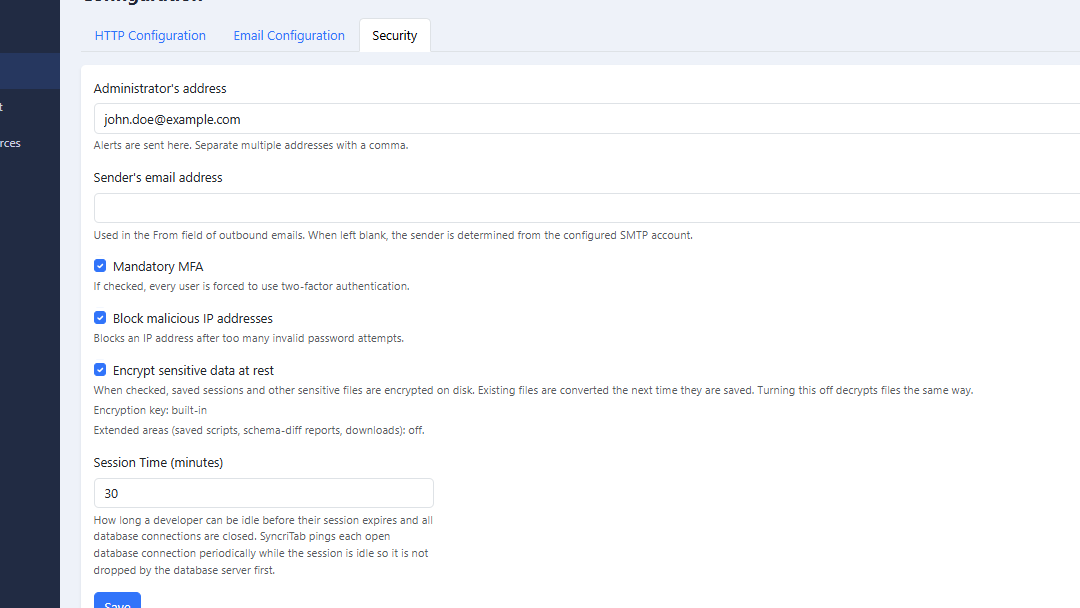
Most security settings are on the Security tab of the Configuration page. Sign in as an administrator, click Configuration in the side menu, and open the Security tab. After making changes, click Save.
Alert and sender addresses
- Administrator's address: where SyncriTab sends alerts, such as certificate renewal notices and new-version announcements. Enter several addresses separated by commas so alerts still reach someone when one person is away.
- Sender's email address: the From address on alerts and other system email. If it's empty, the email server account decides. Email that developers send, such as query results, uses the developer's own address instead.
Both need a working email server. See Email Configuration.
Mandatory two-factor authentication
Two-factor authentication (MFA) asks for a one-time code after the password, so a stolen password alone isn't enough to sign in. Users can turn it on for themselves (see Your Account), but you can require it for everyone by selecting Mandatory MFA.
SyncriTab turns it on only when all of these are true, and otherwise lists what's missing:
- An email server is set up.
- A valid sender address is available.
- Every user has a valid MFA email address. Add missing addresses on the User Management page first.
Once it's on:
- Users who haven't set up two-factor authentication get a code by email at their next sign-in.
- Users can switch to an authenticator app, but they can't turn two-factor authentication off.
- New users must be given an MFA email address when they're created.
See Signing In for what users see.
Blocking malicious IP addresses
When Block malicious IP addresses is selected, an IP address with 5 wrong passwords is blocked from signing in until 10 minutes after its first wrong password. This stops attackers from guessing passwords quickly. A blocked user sees Your IP address and/or login ID has been temporarily blocked due to too many failed login attempts, even if they then enter the right password.
Only IP addresses are blocked, not login IDs, so nobody can lock another user out of their account by typing wrong passwords for it. Users who share an IP address, for example behind the same office router, are blocked together, so tell users to use Forgot? instead of guessing. Administrators can see failed sign-in attempts in the Login Audit report. See Reports.
Independently of this setting, SyncriTab always refuses connections from known Tor exit nodes, and blocks addresses that send the kinds of web requests used to probe servers for weaknesses.
Limiting where each user can sign in
You can also restrict individual users to the server itself, your local network, or specific IP addresses. For example, you might allow administrators to sign in only from the office network. See Restricting sign-in by IP address.
Idle timeout
Session Time (minutes) sets how long a user can be idle before SyncriTab signs them out and closes their database connections. The default is 30 minutes; you can enter 5 to 1,440. A shorter time lowers the risk of someone using an unattended computer. A longer time is more convenient but keeps database connections open longer.
While a session is idle but hasn't timed out, SyncriTab keeps its database connections alive, so the database doesn't drop them first.
Password strength policy
By default SyncriTab accepts any non-empty password. To require stronger passwords, select Enforce password strength policy. Once that box is checked, every new or changed password must meet the rules you configure. Existing passwords are not affected: a user with a weak password that was set before the policy was turned on can still sign in, but the next time they change their password the new one must pass.
Configuring the rules
The following options appear when Enforce password strength policy is selected. Each one can be turned on or off independently:
| Setting | What it requires |
|---|---|
| Minimum length | Password must be at least this many characters. Enter any value from 1 to 128. The default is 8. |
| Uppercase letter | At least one uppercase letter (A–Z). |
| Lowercase letter | At least one lowercase letter (a–z). |
| Digit | At least one digit (0–9). |
| Symbol | At least one character that is not a letter or digit, such as !, @, #, $, or a space. |
The policy applies everywhere a password is set or changed:
- An administrator creates or edits a user account on the User Management page.
- A user changes their own password on the Account page.
- A user resets their password through the Forgot? link.
If a password doesn't meet the rules, SyncriTab shows a message describing which rule was violated and does not save the change.
Encrypting data at rest
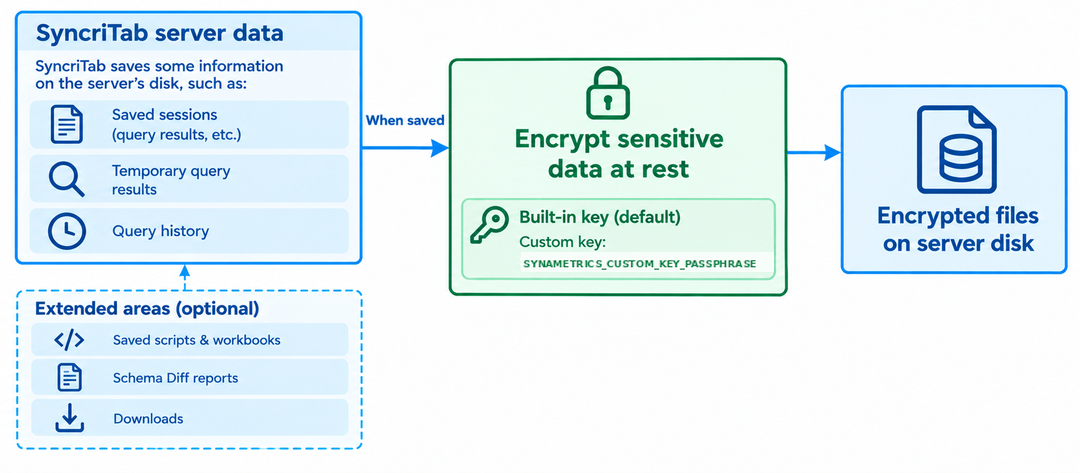
SyncriTab saves some information on the server's disk, such as query results in saved sessions. That data can include anything your databases hold. When Encrypt sensitive data at rest is selected, SyncriTab encrypts these files, so they can't be read by someone who copies them from the disk, a backup, or a stolen drive.
What is encrypted
| Data | Encrypted |
|---|---|
| Saved sessions: query pages, SQL, and saved results | Yes |
| Temporary query results, while a query page is open | Yes |
| Query history | Yes |
| Saved scripts and workbooks, Schema Diff reports, and files waiting to be downloaded | Only when the extended areas are also turned on |
| Files written by scheduled exports | No. They're meant to be read by other programs. Protect their folder with file permissions or disk encryption. |
| SyncriTab's internal database | No, but passwords and other secrets in it are stored encrypted. |
| Certificates | Protected by their own passwords. |
Encryption at rest doesn't protect data while it travels over the network; use HTTPS for that. See SSL Certificates.
Turning encryption on or off
Select or clear Encrypt sensitive data at rest and click Save. You can change it at any time, and nothing is lost:
- SyncriTab doesn't convert existing files right away. Each file is encrypted, or decrypted, the next time it's saved.
- SyncriTab can always read files in either form, so there's no downtime and no conversion step.
The encryption key
The line below the check box shows which key is in use:
- Encryption key: built-in. SyncriTab uses a key built into the program. This is the default and needs no setup, but every SyncriTab installation shares it.
- Encryption key: custom (fingerprint ...). SyncriTab uses a key made from a passphrase you choose. The fingerprint identifies the key without revealing it.
- Encryption key: none loaded. No key is available, and saving encrypted files will fail until one is.
For the best protection, use your own key. Set the environment variable SYNAMETRICS_CUSTOM_KEY_PASSPHRASE to a long, random passphrase where the SyncriTab service can read it, then restart:
- Windows: add it as a system environment variable, then restart the computer. Windows services see new system environment variables only after a restart.
- Linux: add
Environment="SYNAMETRICS_CUSTOM_KEY_PASSPHRASE=your-passphrase"to thesyncritabservice withsudo systemctl edit syncritab, then restart the service. - Docker: pass it with
-e SYNAMETRICS_CUSTOM_KEY_PASSPHRASE=your-passphrasewhen you start the container.
Back up your passphrase. SyncriTab keeps no copy of it, and there's no way to recover data encrypted with a lost passphrase. Store it somewhere safe, separate from the server and its backups.
Keep in mind:
- Switching from the built-in key to your own key is safe. Files encrypted with the built-in key can still be read, and are re-encrypted with your key the next time they're saved.
- Changing your passphrase makes files encrypted with the old one unreadable. SyncriTab keeps those files and shows a warning instead of deleting them. Setting the old passphrase again makes them readable.
Extended areas
Saved scripts and workbooks, Schema Diff reports, and files waiting to be downloaded can also be encrypted. This is off by default, because encrypted scripts can no longer be opened directly from the server's disk in other tools, such as WinSQL or a text editor. The line below the check box shows whether the extended areas are on. They take effect only while Encrypt sensitive data at rest is also selected. To turn them on, contact Synametrics support. See Getting Support.
Security checklist
- Turn on HTTPS with a trusted certificate, then select Enforce HTTPS. See SSL Certificates.
- Set up email, and enter the administrator's and sender's addresses.
- Give every user an MFA email address, then turn on Mandatory MFA.
- Select Block malicious IP addresses.
- Restrict administrators to trusted networks with IP restrictions.
- Set a Session Time that suits how your team works.
- Turn on Enforce password strength policy and set the rules your organization requires.
- Turn on encryption at rest with your own passphrase, and back the passphrase up.
- Give each person their own account with only the roles they need. See User Roles.
- Keep SyncriTab up to date. See Updating & Restarting.