Signing In
Sign in to SyncriTab, enter a verification code if two-factor authentication is on, reset a forgotten password, and sign out.
Signing in
Open SyncriTab in your browser using the address your administrator gave you, for example https://syncritab.example.com or http://server-name:21786. If you aren't signed in, SyncriTab shows the sign-in page.
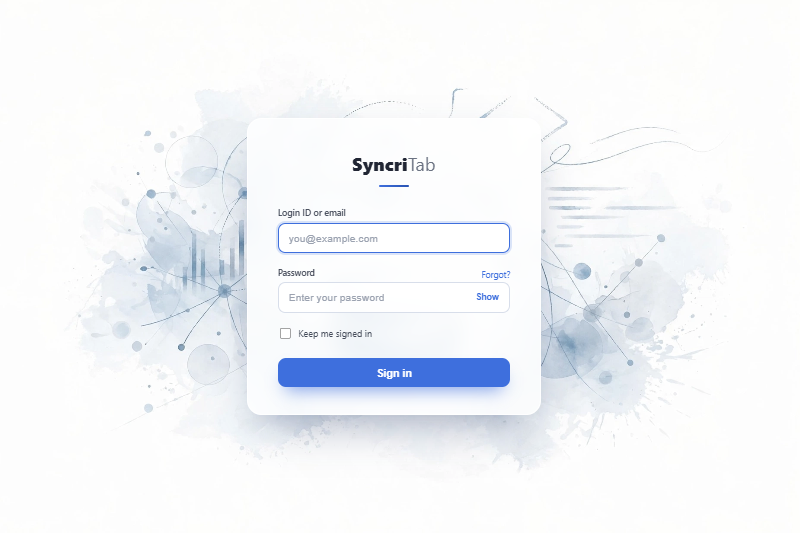
- In the first field, enter your login ID. If you're a developer, your login ID is your email address. Login IDs aren't case-sensitive, but passwords are.
- Enter your password. To check what you typed, click Show.
- Optionally, select Keep me signed in. See Staying signed in.
- Click Sign in.
- If two-factor authentication is on for your account, enter the verification code. See Two-factor authentication.
The first screen you see depends on your role:
- Administrators and DB Managers see the Dashboard.
- Developers see the query workspace.
If your account has more than one role, you start on the Dashboard and can switch to the query workspace from the side menu. See User Roles.
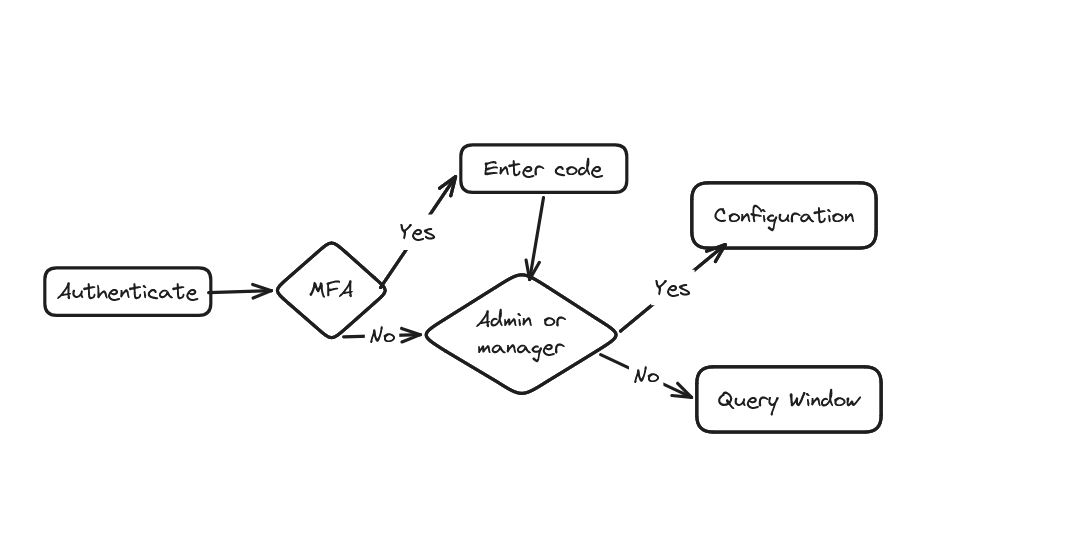
Two-factor authentication
With two-factor authentication, SyncriTab asks for a six-digit verification code after your password. The code comes from one of these:
- Email: SyncriTab sends a code to your MFA email address. The page shows a partly hidden version of the address.
- Authenticator app: enter the code currently shown in your authenticator app, such as Microsoft Authenticator or Google Authenticator.
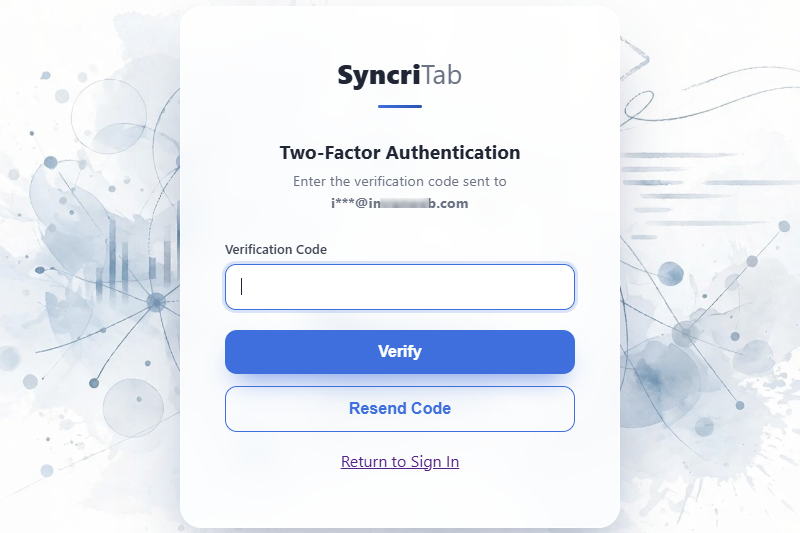
Enter the code in Verification Code and click Verify. If an emailed code doesn't arrive, check your spam folder or click Resend Code. To start over with a different account, click Return to Sign In.
You can turn on two-factor authentication yourself, or switch between email and an authenticator app. See Your Account.
When two-factor authentication is required
An administrator can require two-factor authentication for everyone. If you haven't set it up yet, SyncriTab emails a code to your MFA email address the next time you sign in. After you sign in, you can switch to an authenticator app, but you can't turn two-factor authentication off.
If no MFA email address is on file for your account, you can't sign in, and SyncriTab shows Two-factor authentication is required, but no email address is configured. Ask your administrator to add an MFA email address to your account.
Staying signed in
If you select Keep me signed in, SyncriTab remembers you in this browser for 30 days, so you don't have to enter your password each time you return. If two-factor authentication is on, you're still asked for a verification code.
SyncriTab remembers you with a random code stored in the browser, not with your password. Each code works once; SyncriTab replaces it every time it signs you in this way.
Signing out ends this for that browser. Changing or resetting your password ends it for every browser. Don't use Keep me signed in on a shared or public computer.
Resetting a forgotten password
- On the sign-in page, click Forgot? next to Password.
- Enter your login ID and click Send reset link.
- Open the Reset your SyncriTab password email and click Reset Password.
- Enter a new password twice and click Reset password.
- Click Back to sign in and sign in with your new password.
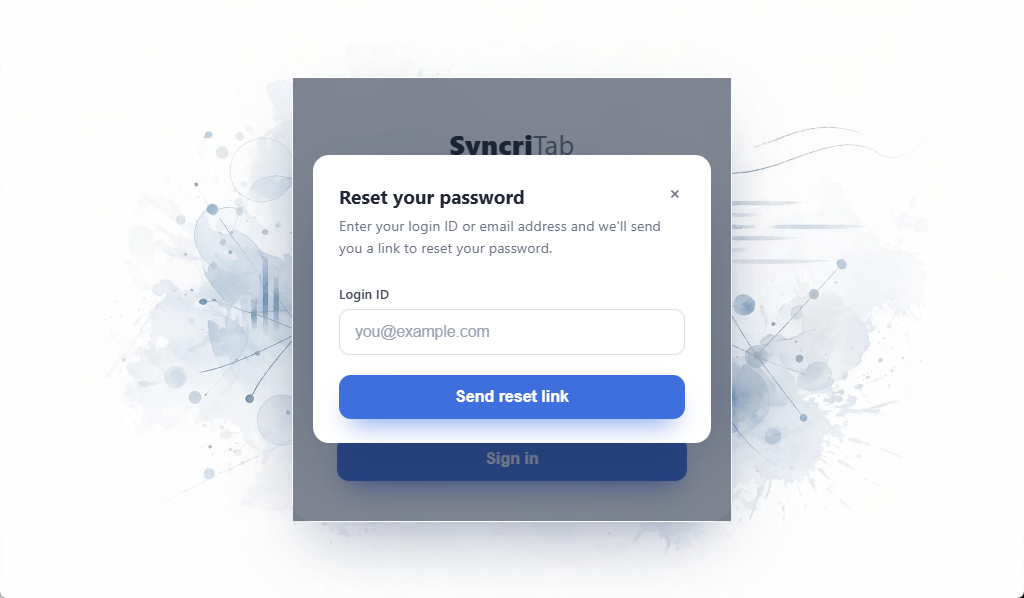
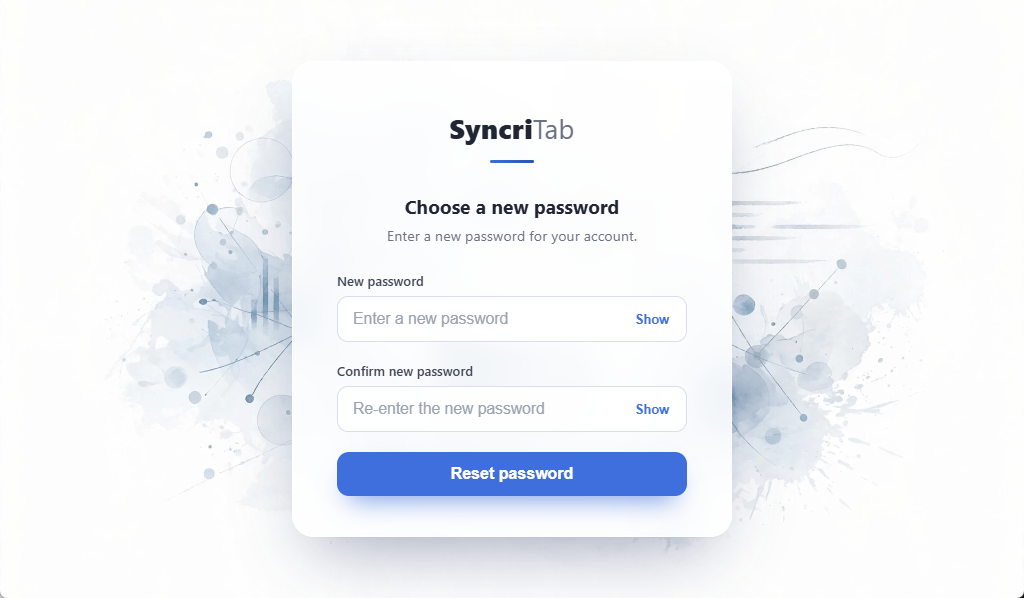
The reset link works once and expires after 30 minutes. It also stops working if SyncriTab restarts. If the link has expired, request a new one.
SyncriTab sends the link to your login ID if it's an email address, or otherwise to your account's MFA email address. For your privacy, SyncriTab says a link was sent if an email address is available, without confirming whether the account exists. SyncriTab also needs a working email server; if no email arrives, ask your administrator to check the email settings.
If no email address is on file
If your account has no email address, SyncriTab can't send a reset link and shows a link to recovery instructions instead:
- Developers and DB Managers: ask an administrator to set a new password for you on the User Management page.
- Administrators: follow the instructions at web.synametrics.com/syncritab-forgot-password.htm. To avoid this, give your account an MFA email address.
Signing out
Click your name in the upper-right corner, then click Sign Out. SyncriTab closes your database connections and returns you to the sign-in page.
Automatic sign-out
If you're idle for too long, SyncriTab signs you out and closes your database connections. By default this happens after 30 minutes; your administrator can change it with the Session Time setting. See Security & Encryption.
If auto-save is on, your query pages and results are restored after you sign in again. See Saved Sessions.
If you can't sign in
| Message or problem | What to do |
|---|---|
| Invalid user id or password | Check your login ID and password, and make sure Caps Lock is off, because passwords are case-sensitive. Developers sign in with their email address. If they're correct, your administrator may have limited your account to certain IP addresses or to the local network; ask them to check your account's IP restrictions. |
| Your IP address and/or login ID has been temporarily blocked due to too many failed login attempts | After 5 wrong passwords from your computer's IP address, SyncriTab blocks sign-in from that address for up to 10 minutes. Wait 10 minutes and try again, or ask your administrator for help. If you've forgotten your password, reset it instead of guessing. |
| Two-factor authentication is required, but no email address is configured | Ask your administrator to add an MFA email address to your account. See When two-factor authentication is required. |
| The verification code isn't accepted. | Enter the most recent code. Codes from an authenticator app change every 30 seconds, so make sure the clock on your phone is correct. For emailed codes, click Resend Code to get a new one. |
| This password reset link is invalid, expired, or has already been used | Request a new link from the sign-in page. Links expire after 30 minutes. |
| The sign-in page doesn't load at all. | SyncriTab may not be running, or a firewall may be blocking the connection. Contact your administrator, or see Troubleshooting. |
Administrators can review successful and failed sign-in attempts in the Login Audit report. See Reports.