Saved Sessions
SyncriTab saves your work as you go. When you connect to a data source again, even days later, your query pages and their latest results are waiting for you.
How it works
Auto-save is on unless you turn it off. While you work, SyncriTab saves your workspace for the data source you're connected to: a second after you stop typing, and right after you run a query, add or close a page, switch pages, or open or save a script.
Your workspace is restored the next time you connect to the same data source. It survives signing out, being signed out for inactivity, closing or refreshing your browser, and SyncriTab restarting.
- Each data source has its own workspace. Working on one data source never changes what's saved for another.
- Workspaces are private: only you can restore yours.
- Restoring a workspace never runs any SQL. Results you see are the ones saved from your last run. To refresh them, run the query again.
- A workspace that hasn't been saved for 90 days is deleted automatically. Anything you want to keep longer, save as a script. See Query Pages, Scripts & Workbooks.
What is saved
| Saved | Not saved |
|---|---|
|
|
Restoring a session
Just connect to the data source. See Connecting to a Database. The status bar says Restoring workspace... and then Session restored. If nothing was saved for that data source, you start with one empty query page.
If you were in the middle of running a query when your session ended, that run isn't restored. The page shows the results of its previous completed run instead, with a message explaining what happened.
Size limits
Auto-save is meant to bring back what you were looking at, not to keep full copies of large results. These limits apply:
| Limit | Default | What happens when it's reached |
|---|---|---|
| Rows saved per result | 10,000 | Only the first rows are saved |
| Data saved per result | 25 MB | Only the first rows are saved |
| Results per query page | 20 | The workspace isn't saved until it's back within the limit |
| SQL per query page | 2 MB | |
| Query pages per workspace | 50 | |
| Everything saved for one data source | 100 MB | |
| Everything saved for you, across all data sources | 500 MB | The workspace isn't saved. During the nightly cleanup, your oldest workspaces are removed until you're back under the limit. |
When a result has more rows than can be saved, SyncriTab tells you A result was truncated during auto-save. Nothing changes in your current session: the grid still has every row. Only a restored session shows fewer rows. With the default row limit of 10,000 rows per query, this happens only if you've raised that limit or the rows are very large.
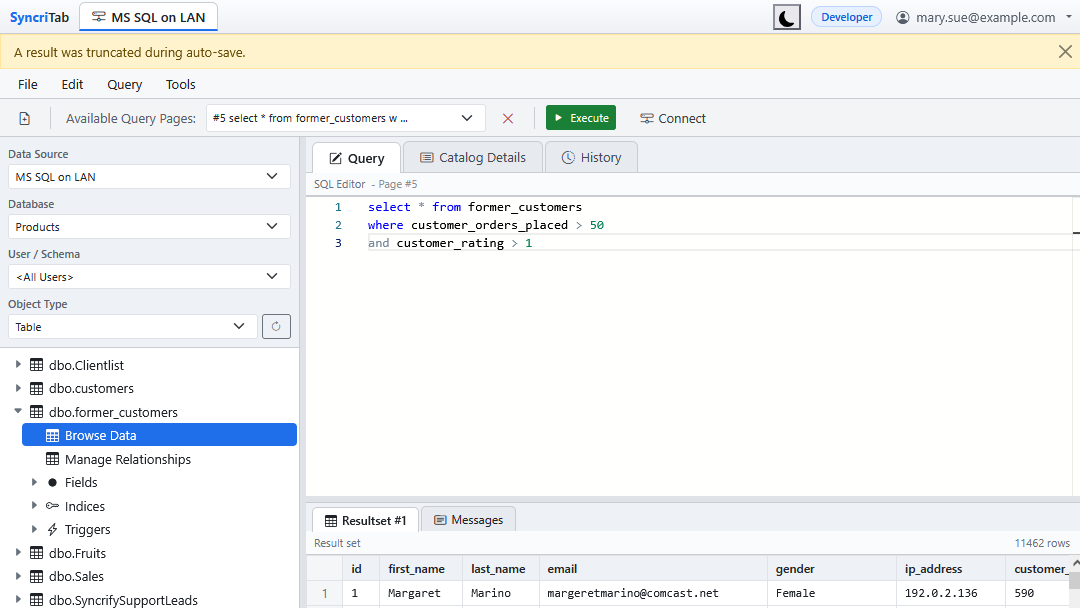
To keep a complete result, export it instead. See Exporting & Importing Data. Download Data in the grid's right-click menu isn't available for restored results; run the query again first.
Your administrator can change these limits. See For administrators.
Using more than one browser tab
If you connect to the same data source in two browser tabs, both tabs share one saved workspace. To avoid one tab silently overwriting the other, only the tab that saved last keeps saving. The other tab shows A newer browser tab has already saved this workspace. Auto-save has stopped in this tab. with two buttons:
- Reload Saved Workspace replaces this tab's pages with the newer saved workspace.
- Replace Saved Workspace saves this tab's pages over the newer workspace, after asking you to confirm.
Messages you might see
Auto-save messages appear in a yellow bar at the top of the workspace. They never stop you from working, and you can close the bar.
| Message | What it means |
|---|---|
| A result was truncated during auto-save. | A result is larger than the per-result limits. See Size limits. |
| The workspace could not be auto-saved because its storage quota was exceeded. | Your saved workspaces are full. Close pages or run queries that return fewer rows, or ask your administrator to raise the limit. Your current work stays open in the browser. |
| The workspace could not be auto-saved because the server could not be reached. | SyncriTab keeps trying. Check your network connection. |
| The saved workspace belongs to different data-source settings and was not restored. | A DB Manager changed the data source's driver or connection URL since you last used it, so the saved workspace might not match the database any more. |
| A saved result is unavailable. Its query and messages were restored. | The saved rows for one result couldn't be found. Run the query again. |
| The saved workspace is corrupt. A blank workspace was opened. | The saved file couldn't be read. SyncriTab set it aside and started fresh. |
| This saved workspace was encrypted with a key that is not currently loaded. | Your administrator needs to restore the encryption key. See Security & Encryption. |
If auto-save fails when you disconnect, switch data sources, sign out, or run a query, SyncriTab asks whether to go ahead without saving.
Turning auto-save off
Choose Edit › Options, clear Auto-Save Sessions on the General tab, and click Save. See Options & Preferences.
Turning auto-save off deletes all of your saved workspaces, for every data source. Save any SQL you want to keep as scripts first. See Query Pages, Scripts & Workbooks.
With auto-save off, every connection starts with one empty query page, and closing the connection discards your pages and results.
Privacy
Saved workspaces can contain real data from your database, so SyncriTab protects them:
- They're stored on the SyncriTab server, not in your browser, and only you can restore them.
- Your database user name and password are never saved in them.
- If your access to a data source is removed, you can no longer restore its workspace.
- When a DB Manager deletes a data source, its saved workspaces are deleted too.
- When your account is deleted, all of your saved workspaces are deleted with it.
- Workspaces unused for 90 days are deleted automatically.
- If your administrator has turned on encryption at rest, saved workspaces are encrypted.
For administrators
Saved workspaces are stored in the SavedSessions folder of the SyncriTab installation folder, with a folder for each user and data source. SyncriTab cleans this folder when it starts and at the end of every day, removing expired workspaces and leftover files. The limits above can be changed in config\server.properties in the installation folder. Add a line for each setting you want to change, then restart SyncriTab:
# Save up to 50,000 rows and 100 MB per result set.
syncritab.savedSessions.maxRowsPerResultSet=50000
syncritab.savedSessions.maxBytesPerResultSet=104857600
Setting (syncritab.savedSessions. + name) | Default |
|---|---|
maxRowsPerResultSet | 10000 |
maxBytesPerResultSet | 26214400 (25 MB) |
maxResultSetsPerPage | 20 |
maxSqlBytesPerPage | 2097152 (2 MB) |
maxPages | 50 |
maxBytesPerWorkspace | 104857600 (100 MB) |
maxBytesPerUser | 524288000 (500 MB) |
retentionDays: how long an unused workspace is kept | 90 |
orphanGraceHours: how long leftover temporary files are kept | 24 |
- Sizes are in bytes. Values must be positive whole numbers; an invalid value is ignored.
- Name the file exactly
server.properties. Notepad may save it asserver.properties.txt, which SyncriTab doesn't read. - Raising the per-result limits without raising the workspace and per-user limits lets one large result fill a user's space. Keep the workspace limit a few times the per-result limit, and the per-user limit well above the workspace limit.