Query Pages, Scripts & Workbooks
Keep different pieces of work apart in separate query pages, save a page's SQL as a script, and save a whole set of pages as a workbook.
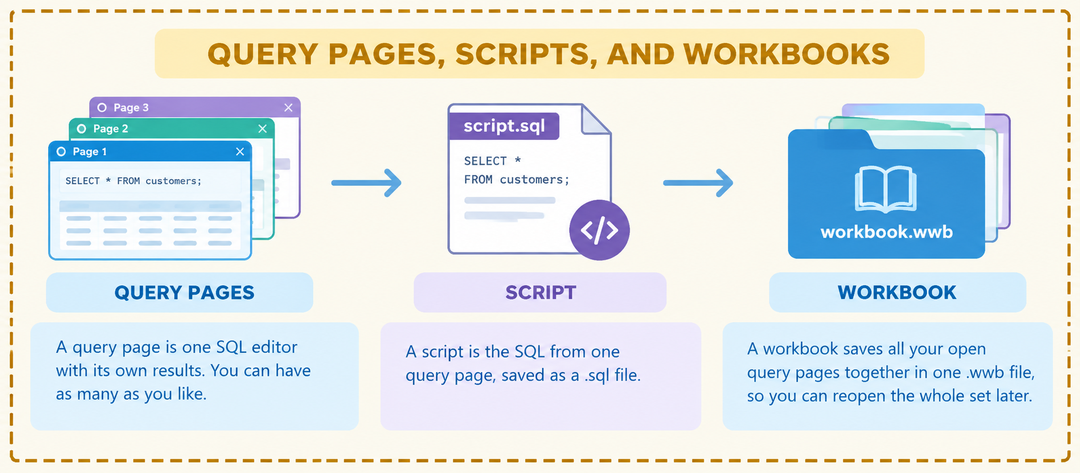
- A query page is one SQL editor with its own results. You can have as many as you like.
- A script is the SQL from one query page, saved as a
.sqlfile. - A workbook saves all your open query pages together in one
.wwbfile, so you can reopen the whole set later.
Query pages
Use query pages to keep separate tasks apart, for example reports on one page and data fixes on another. Each page keeps its own SQL and its own results, and switching pages shows that page's results. See Running Queries & Results.
| To | Do this |
|---|---|
| Add a page | Click the New query page button at the left end of the toolbar, or choose File › New Query Page. |
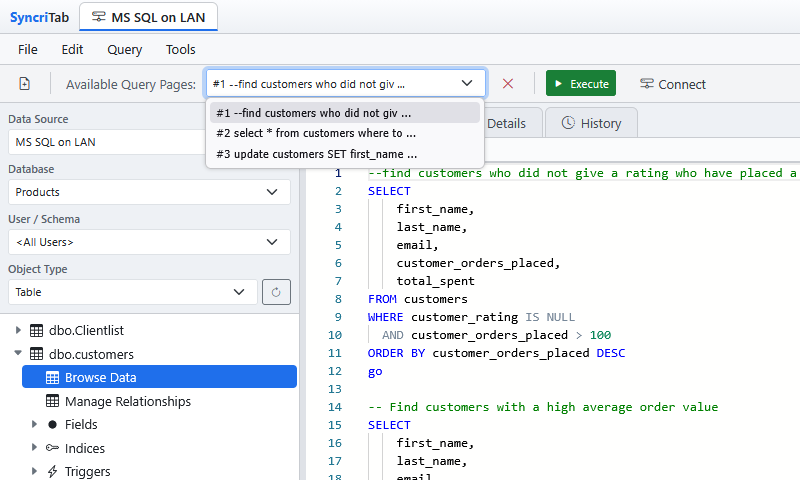
| Switch pages | Choose a page from the Available Query Pages list on the toolbar. |
| Close the current page | Click the red ✕ next to the list. You can't close the last page. |
Pages are numbered in the order you create them. A new page is named Query and its number, for example #2 Query 2. After you run a query, the page is named after the start of the SQL you ran, so you can tell the pages apart in the list.
Closing a page discards its SQL and results. If the page has SQL you haven't saved as a script, or changes to its script you haven't saved, SyncriTab asks before closing it.
Query pages belong to your connection. If auto-save is on, SyncriTab brings your pages back the next time you connect to the same data source. See Saved Sessions.
Scripts
Save a query page's SQL as a script to reuse it later, from any data source. Scripts are stored on the SyncriTab server, in your own private folder: other users can't see them.
Saving a script
- Choose File › Save, or press Ctrl+S (Cmd+S on a Mac).
- The first time you save a page, enter a File name and click Save. SyncriTab adds
.sqlfor you.
After that, File › Save saves the page to the same script without asking. To save a copy under a different name, choose File › Save As.
The name of the script appears next to the data source name at the top of the window. An asterisk (*) after it means the page has changes you haven't saved.
If you choose the name of another script you already have, SyncriTab asks whether to replace it. Click Cancel to go back and choose a different name.
A name can't contain / or \, can be up to 120 characters, and a script can be up to 2 MB.
Opening a script
- Choose File › Open File, or press Ctrl+O. The list shows your scripts with their size and when they were last saved.
- To find a script quickly, type part of its name in the filter box.
- Select the script and click Open, or double-click it.
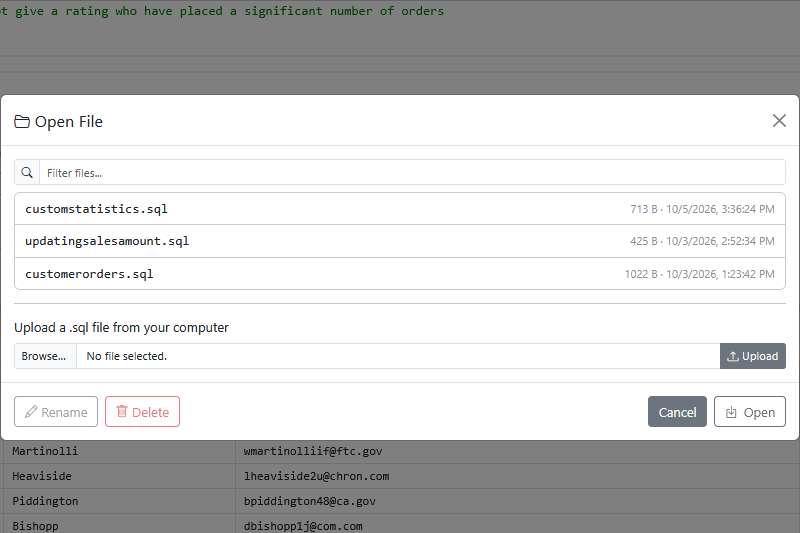
If the current page is empty, the script opens in it. Otherwise, SyncriTab opens the script in a new page, so nothing you've typed is replaced.
Uploading a script from your computer
To use a .sql file you have on your own computer, such as one from WinSQL:
- Choose File › Open File.
- Under Upload a .sql file from your computer, choose the file and click Upload. WinSQL's
.sql32and.sql64files are accepted too. - The file joins your list of scripts. Select it and click Open.
An uploaded file keeps its name. If you already have a script with that name, SyncriTab asks whether to replace it.
Renaming and deleting scripts
Choose File › Open File and select a script, then:
- To rename it, click Rename, type the new name, and click Rename again. If you leave out the extension, the script keeps the one it had. You can't give it the name of another script you already have.
- To delete it, click Delete and confirm. A deleted script can't be recovered.
Query pages that show the script follow the change: after a rename they show the new name, and after a delete they keep the SQL but are no longer tied to a file. Workbooks that link to the script aren't updated; see Opening a workbook.
Workbooks
A workbook saves every open query page at once, in order, so you can come back to a whole set of related queries later.
Saving a workbook
- Choose File › Save Workbook.
- Enter a Workbook name and click Save. SyncriTab adds
.wwbfor you. If you already have a workbook with that name, SyncriTab asks whether to replace it.
How each page is saved depends on whether it came from a script:
- A page opened from a script, with no unsaved changes, is saved as a link to that script. If you change the script later, the workbook opens the new version.
- Any other page, including a script page with unsaved changes, is saved with its SQL inside the workbook.
Opening a workbook
- Connect to a data source first. A workbook's pages are created on your connection.
- Choose File › Open Workbook, select the workbook, and click Open.
SyncriTab adds one new query page for each page in the workbook, after the pages you already have open, and shows the first one. If a script the workbook links to has since been renamed or deleted, that page shows a comment saying the file wasn't found.
To rename or delete a workbook, choose File › Open Workbook, select it, and click Rename or Delete, as for scripts. Renaming or deleting a workbook doesn't affect the scripts it links to.
Where scripts and workbooks are kept
Scripts and workbooks are saved on the SyncriTab server, in the SavedQueries folder of the installation folder, with one private folder for each user. They're kept until they're removed from the server. If your administrator has turned on encryption at rest, including its extended areas, they're encrypted on disk. See Security & Encryption.