Running Queries & Results
Run the SQL in a query page, stop it if it takes too long, and work with what comes back: result grids, messages, copying, and downloading.
Running a query
To run the SQL in the current query page, do one of the following:
- Click Execute on the toolbar.
- Press F5.
- Choose Query › Execute.
Execute is available only while you're connected to a data source. SyncriTab switches to the Query tab, shows Running... on the Messages tab, and then shows the results as soon as the first rows arrive.
Running part of a script
If you select text in the editor, Execute runs only the selection. With nothing selected, it runs the whole query page. This is the easiest way to run one statement from a long script: select it, then press F5.
Running a script
A script is several statements separated by the query terminator, go on a line by itself by default. See Writing more than one statement. SyncriTab sends each part of the script to the database in turn, from top to bottom.
- If a statement fails, SyncriTab stops and doesn't run the rest of the script. Results from the statements that already ran are still shown, and the error appears on the Messages tab.
- Changes made by statements that succeeded before the error are kept, unless you connected with Manual Commit and roll them back.
Stopping a query
While a query is running, the Execute button changes to a red Abort Execution button. Click it to stop the query.
- SyncriTab asks the database to cancel the query. Rows that already arrived stay in the grid, and the Messages tab shows Query aborted.
- If the database doesn't respond within about 10 seconds, SyncriTab closes the connection and opens a new one to the same data source with the same account, so you can carry on working. The Messages tab tells you when this happened.
- If the new connection can't be opened, SyncriTab disconnects and shows the reason. Connect again to continue.
When SyncriTab has to close the connection, changes that weren't committed may be lost. This matters most if you connected with Manual Commit.
One query at a time
Each connection runs one query at a time. If you run a query while another is still running on the same connection, even from a different query page, SyncriTab cancels the one that's running and starts the new one. The other page's Messages tab says why its query stopped. If the connection is busy with something else, such as a Database Search or Reverse Engineering, SyncriTab tells you the connection is busy; try again when it has finished.
Results
Results appear in the lower part of the Query tab. Each statement that returns rows gets its own tab, named Resultset #1, Resultset #2, and so on. The last tab is always Messages. Some statements, such as certain stored procedures, return more than one result set, and each one gets its own tab.
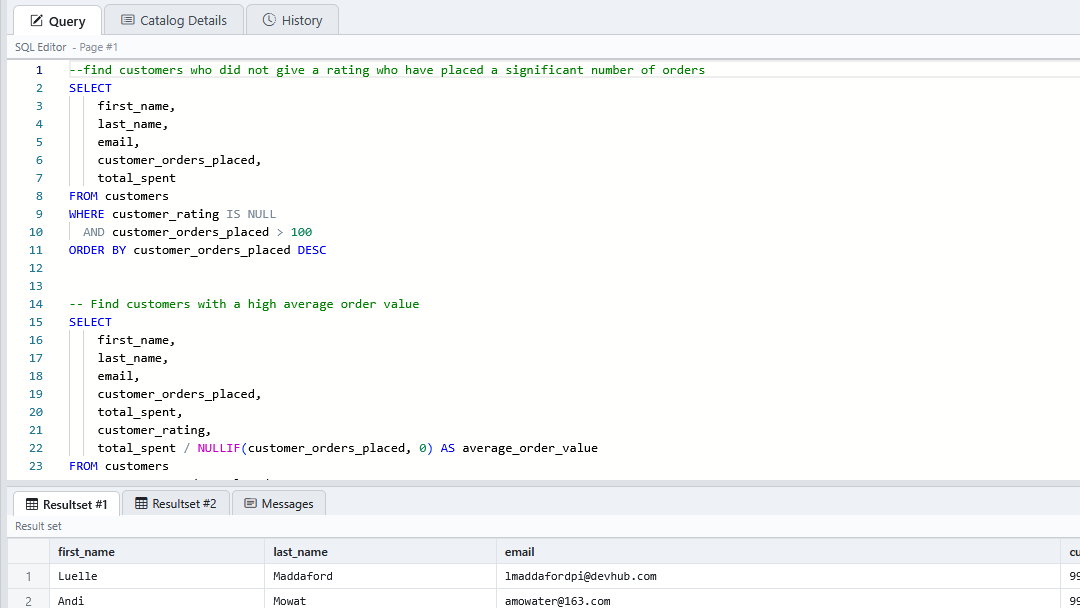
Each query page keeps its own results. When you switch to another query page, you see that page's results. See Query Pages, Scripts & Workbooks.
The Messages tab
The Messages tab lists what happened for each statement, with how long it took:
| Statement | Message |
|---|---|
SELECT, or anything that returns rows | 25 row(s) returned in 12 ms |
INSERT, UPDATE, or DELETE | 3 row(s) affected in 8 ms |
Other statements, such as CREATE, ALTER, or GRANT | Command executed successfully in 40 ms |
Errors from the database are shown in red. When a query returns results, SyncriTab opens the first result tab, so if a later statement in a script fails, check the Messages tab for the error.
The status bar
When a query finishes, the status bar at the bottom of the window shows the number of result sets, the number of rows in the first one, and the execution time.
Working with the results grid
- Row numbers appear in the first column.
- Empty values (
NULL) are shown as NULL in purple, so you can tell them apart from empty text. - Key columns. When all of a result's columns come from one table, primary key columns are shown in bold red and foreign key columns in bold blue. Point to a column heading to see which table a foreign key refers to. Results from joins or calculated columns aren't colored.
- Long values. Cells longer than 512 characters are shortened and end with …. To see the whole value, right-click the cell and choose Zoom. To change the length, choose Edit › Options and change Maximum size for grid cell on the Advanced Options tab. See Options & Preferences.
Large results
A query can return millions of rows without slowing down your browser. SyncriTab saves the rows on the server as they arrive from the database, and your browser loads only the rows you scroll to. There are no pages to click through: keep scrolling and more rows appear.
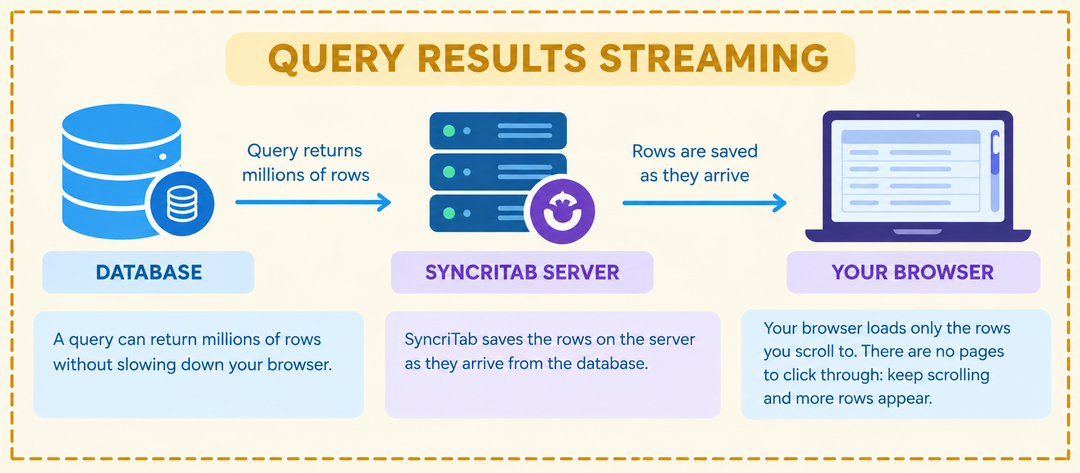
While rows are still arriving, the grid shows Fetching more rows... and the row count ends with +, for example 5000+ rows. You can scroll and work with the rows already shown in the meantime.
SyncriTab keeps these rows only until you run another query in the same query page, close the page, or disconnect. To keep results, download them (below), export them (see Exporting & Importing Data), or turn on auto-save (see Saved Sessions).
Row limit
To keep an accidental SELECT * on a huge table from running for a long time, each result set stops after 10,000 rows by default. When a result reaches the limit, the Messages tab says so, because the query may have more rows.
To change the limit, choose Edit › Options and change Maximum records to return on the General tab. Enter -1 to return every row. See Options & Preferences. Browse Data has its own, smaller limit.
The right-click menu
Right-click anywhere in a results grid for these commands. The same menu is available in the Browse Data grid on the Catalog Details tab.
When a query reads from a single table that has a primary key, the menu also includes Update selected record. Double-clicking a row has the same effect. See Insert/Update Wizard.
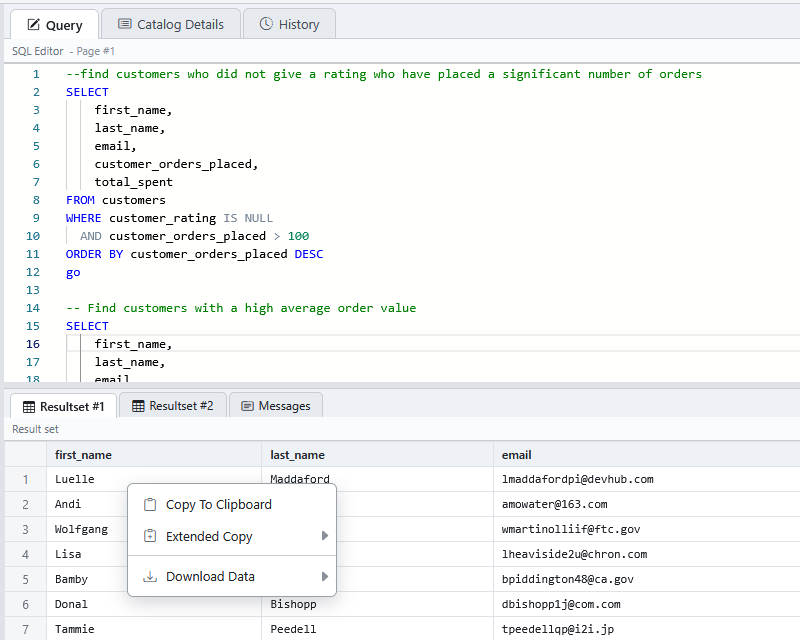
| Command | What it does |
|---|---|
| Copy To Clipboard | Copies the value of the cell you right-clicked. For a shortened cell, the whole value is copied. |
| Extended Copy › Copy Entire Row | Copies every value in the row, separated by tabs. |
| Extended Copy › Copy Entire Column | Copies the column's name and every value in it, one per line, including rows you haven't scrolled to yet. |
| Extended Copy › Copy Entire Grid | Copies the column names and every row, with values separated by tabs. Paste it into a spreadsheet to get one value per cell. |
| Download Data › As CSV | Downloads every row as a comma-separated file named ExportedResults.csv. |
| Download Data › As Excel | Downloads every row as an Excel workbook named ExportedResults.xlsx. |
| Download Data › As HTML | Downloads every row as a web page table named ExportedResults.htm. |
| Zoom | Appears only for a shortened cell. Shows the whole value in a window, with a Copy button. |
Copy Entire Column and Copy Entire Grid copy up to 200,000 rows. If a result has more, SyncriTab copies the first 200,000 and tells you the rest was left out. Click Export... in that message to open the Export wizard, which saves every row to a file you can download. See Exporting & Importing Data. Download Data also includes every row.
If something goes wrong
| Problem | What to do |
|---|---|
| Execute is grayed out | You aren't connected. See Connecting to a Database. |
| Nothing to execute - the query page is empty. | Type a query, or check that the text you selected isn't empty. |
| Only part of a script ran | A statement failed, and SyncriTab stopped there. See the error on the Messages tab, fix the statement, and run the rest. |
| The statements weren't split where you expected | Put the terminator on a line by itself, or check the terminator in Edit › Options. See Options & Preferences. |
| The connection is busy with another operation. | Another task, such as a Database Search or Reverse Engineering, is using the connection. Wait for it to finish, then run the query again. |
| A query takes too long | Click Abort Execution. See Stopping a query. |
| A result has exactly 10,000 rows and the Messages tab mentions a limit | The result reached the row limit. Narrow the query with WHERE, or raise the limit. See Row limit. |