Browsing the Catalog
The catalog pane on the left of the workspace lists the objects in the database you're connected to. Use it to explore tables, views, and stored procedures, look at their data and source code, and generate SQL.
Choosing what the catalog shows
Four drop-down lists at the top of the catalog pane control which objects appear in the tree below them. They're available once you've connected to a data source.
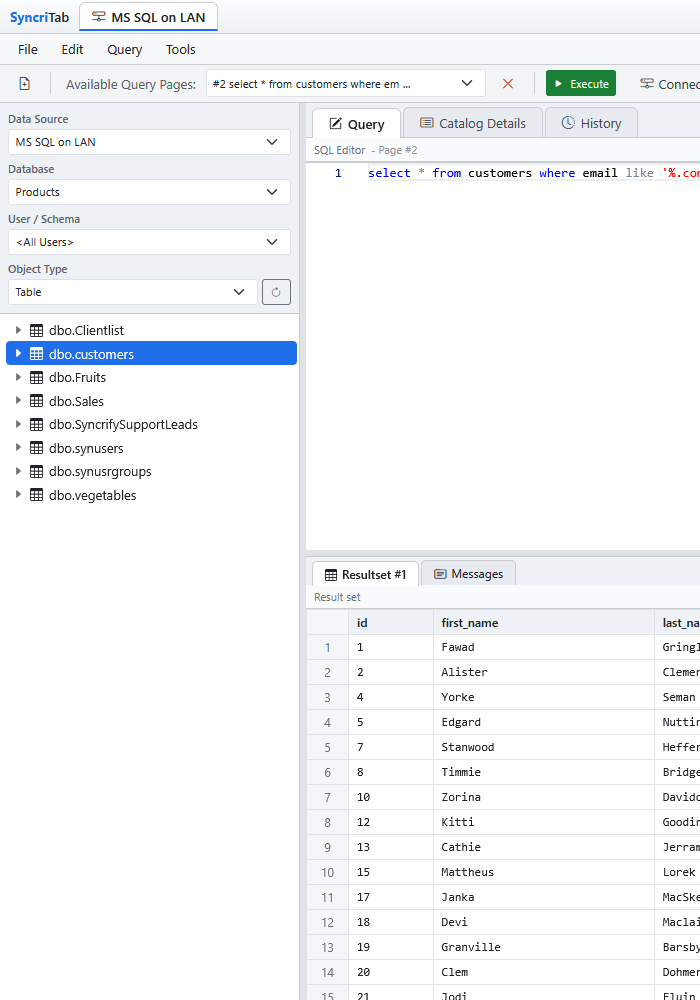
| List | What it does |
|---|---|
| Data Source | Shows the data source you're connected to. Choosing a different one opens the connection dialog so you can connect to it. See Switching to another data source. |
| Database | Switches your connection to another database on the same server. Queries you run afterward also use this database. If the database doesn't have separate databases, the list shows (not supported). |
| User / Schema | Shows only the objects that belong to one user or schema. Choose <All Users> to see objects from every schema you can access. If the database doesn't use schemas, the list shows (not supported). |
| Object Type | Chooses which kind of object the tree lists, such as Table, View, System Table, or Stored Procedure. The types available depend on the database. Tables and views come first. |
SyncriTab remembers the database and schema you last used with each data source and selects them again the next time you connect.
For some databases, SyncriTab hides internal system objects from the tree, so you see only your own objects.
The tree doesn't update on its own. To see objects created or dropped since it loaded, for example by a query you just ran, click Refresh (↻) next to the Object Type list. Refreshing collapses any items you expanded, and also updates the names IntelliSense suggests.
Exploring objects
Each object in the tree is shown with its schema, for example dbo.Customer. Click the arrow next to an object to expand it. What you see inside depends on the kind of object:
| Object | Contains |
|---|---|
| Table |
Browse Data: the table's rows. Manage Relationships: a diagram of the table and the tables it's related to. Fields: one entry per column, with its data type, for example CustomerID : int.Indices: one entry per index, with its columns, marked [UNIQUE] for unique indexes.Triggers: one entry per trigger, with the events that fire it (Insert, Update, or Delete). |
| View |
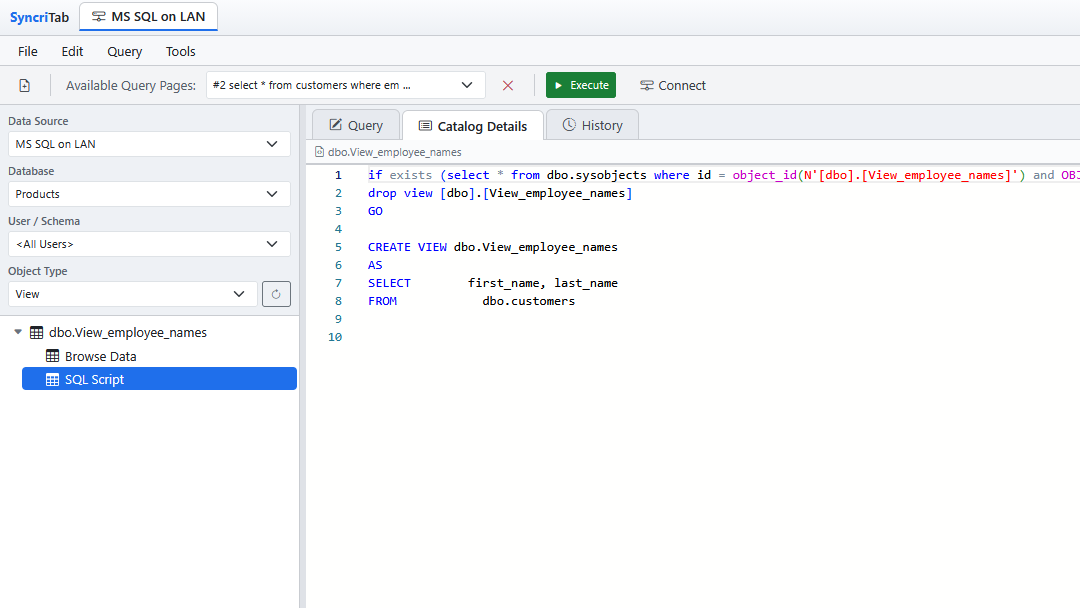
Browse Data: the rows the view returns. SQL Script: the statement that defines the view. |
| Stored procedure | SQL Script: the procedure's source code. |
Items are loaded from the database the first time you expand them, so a large table may take a moment to open. Triggers, view definitions, and procedure source come from SyncriTab's built-in knowledge of each database product, so they might not be available for every database.
Viewing details
Click an item in the tree to see more about it on the Catalog Details tab. SyncriTab switches to that tab automatically. What you see depends on the item.
Browsing data
Click Browse Data under a table or view to see its rows. SyncriTab shows the object's name and the number of rows above the grid. More rows load as you scroll.
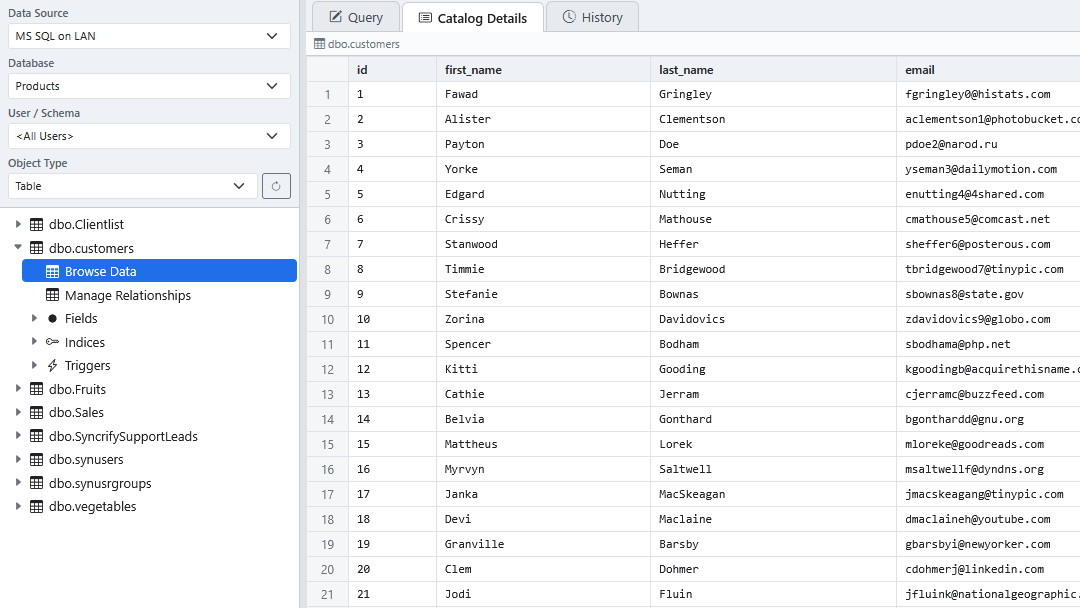
To keep this quick on large tables, SyncriTab shows only the first 100 rows by default. To change the limit, choose Edit › Options and change Number of records for browsing on the General tab. See Options & Preferences.
Right-click the grid to copy values and more, as you can with query results. See Running Queries & Results. To filter or sort rows, write a query instead.
The right-click menu also lets you insert a new row or update an existing one without writing SQL. Double-clicking a row opens the Update Wizard directly. See Insert/Update Wizard.
Viewing source code
Click SQL Script under a view or stored procedure, or click a trigger, to see its source code. The code is read-only here. To change it, copy it into a query page, edit it, and run it.
Viewing properties
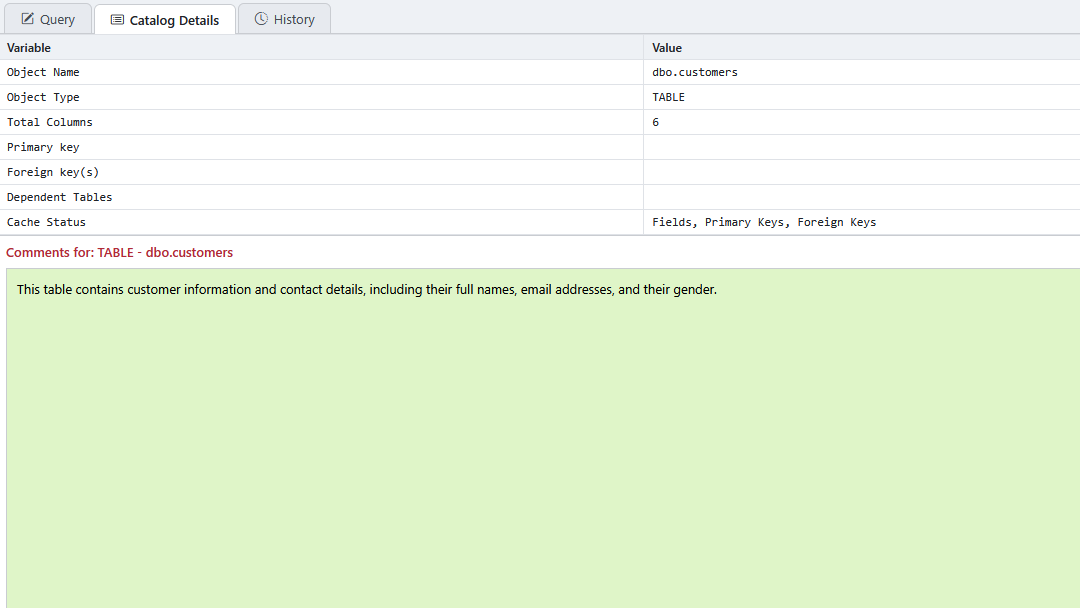
Click a table, view, stored procedure, column, or index to see its properties:
- Tables and views: the number of columns, the primary key, foreign keys, and the tables that depend on it.
- Stored procedures: the number of parameters.
- Columns: the data type, size, precision, scale, whether it allows nulls, whether it's part of the primary key, the column it references (if it's a foreign key), and its default value.
- Indexes: the table, whether the index is unique, its columns, and its type.
Adding comments
Below the properties is a Comments box. Use it to record notes about an object, such as what a table is for or what values a column holds. Type your note and click Save Comments.
- Comments are saved in SyncriTab, not in your database, so saving one never changes the database.
- Comments belong to the data source, so everyone who uses the same data source sees and can edit them.
- If you haven't saved a comment for a column, SyncriTab shows the column's description from the database, if it has one.
Viewing relationships
Click Manage Relationships under a table to see a diagram of the table and the tables linked to it by foreign keys. See ER Diagrams.
The right-click menu
Right-click any item in the tree for a menu of actions. Every item has Copy To Clipboard and Paste To Query. Tables have more commands.
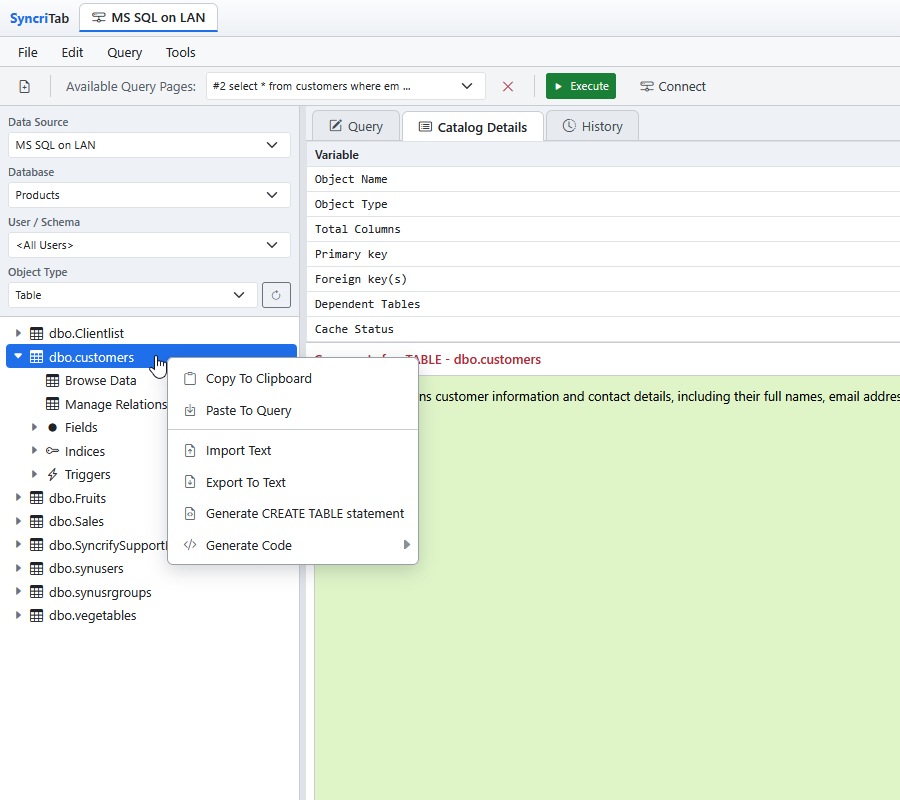
| Command | Available for | What it does |
|---|---|---|
| Copy To Clipboard | Every item | Copies the item's name to your clipboard. For a column, index, or trigger, only the name is copied, without the data type, columns, or events shown in the tree. |
| Paste To Query | Every item | Inserts the item's name into the current query page at the cursor, replacing any selected text. This saves typing long table and column names. |
| Import Text | Tables | Reads a delimited text file, such as a CSV file, and creates INSERT statements for the table in the query page. Nothing is added to the table until you run the statements. See Exporting & Importing Data. |
| Export To Text | Tables | Downloads the table's rows as a delimited text file. See Exporting & Importing Data. |
| Generate CREATE TABLE statement | Tables | Creates a CREATE TABLE statement for the table in the query page, for example to create a copy of it elsewhere. |
| Generate Code › SELECT statement | Tables | Creates a SELECT statement that lists all of the table's columns. |
| Generate Code › INSERT statement | Tables | Creates an INSERT statement for the table's columns, with a ? for each value. Replace each ? with a value before you run it. |
| Generate Code › CREATE VIEW statement | Tables | Creates a CREATE VIEW statement that selects all of the table's columns. The view is named after the table with _v added, for example dbo.Customer_v. Change the name and columns as needed. |
The Generate commands switch to the Query tab and insert the statement at the cursor. They don't run it. Review the statement, change it as needed, and then run it. See Running Queries & Results.
If something doesn't appear
| Problem | What to do |
|---|---|
| The tree says No … found | Check the User / Schema list. The objects might belong to another schema; choose <All Users> to see every schema. Also check that you've chosen the right database and object type. |
| A table you just created is missing | Click Refresh (↻) next to the Object Type list to reload the tree. |
| An object is missing even though it exists | Your database account might not have permission to see it. Ask your database administrator. |
| Triggers or SQL Script is empty | SyncriTab can't read this information for every database product, or your database account might not have permission to see object definitions. |