Writing SQL
You write queries in the SQL editor on the Query tab. It highlights SQL syntax, suggests table and column names as you type, and has the editing tools you'd expect from a code editor.
The SQL editor
The SQL editor fills the top of the Query tab. Its title bar shows the number of the query page you're editing, for example SQL Editor - Page #1. Each query page has its own SQL. See Query Pages, Scripts & Workbooks.
- Syntax highlighting. SQL keywords, strings, numbers, and comments are shown in different colors. The editor follows the workspace's light or dark theme.
- Line numbers appear on the left, which helps when an error message refers to a line.
- Resizing. Drag the bar between the editor and the results to give either one more room.
- Undo and redo. Press Ctrl+Z to undo and Ctrl+Y to redo. On a Mac, use Cmd instead of Ctrl.
If auto-save is on, what you type is saved as you work, so it's still there after you sign out or your browser closes. See Saved Sessions.
Writing more than one statement
A query page can hold a whole script. To separate statements, put the query terminator on a line by itself between them. The default terminator is go:
SELECT * FROM Customers
go
SELECT * FROM Orders
go
You can change the terminator in Edit › Options. See Options & Preferences. To learn how to run all or part of a script, see Running Queries & Results.
IntelliSense
As you type, IntelliSense suggests the names of tables and columns from the database you're connected to. Choose a suggestion to insert it instead of typing the whole name.
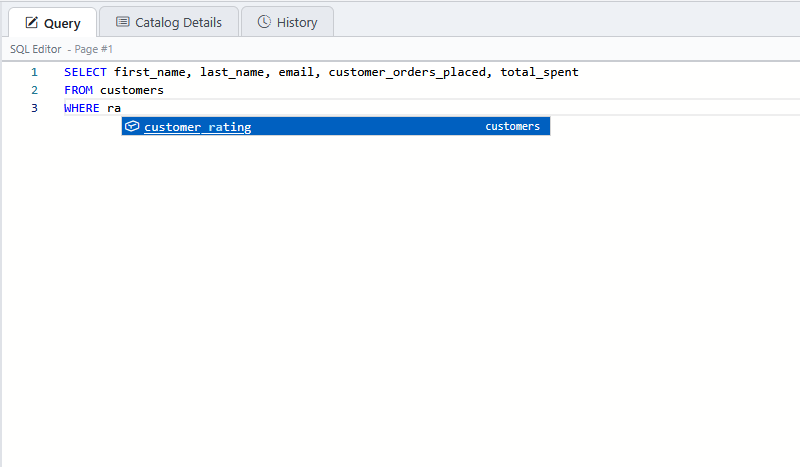
Using suggestions
- Suggestions appear on their own after you type a space or a period in a place where a name belongs. To show them at any time, press Ctrl+Space.
- Keep typing to narrow the list.
- Press ↑ and ↓ to move through the list, and Enter or Tab to insert the highlighted name.
- Press Esc to close the list.
Next to each name, IntelliSense shows where it comes from: the schema for a table, or the table for a column. This helps when your query uses several tables.
What IntelliSense suggests
| Where the cursor is | Suggestions | Example (▮ is the cursor) |
|---|---|---|
After FROM, JOIN, UPDATE, or INSERT INTO |
Tables and views | SELECT * FROM ▮ |
In the column list of a SELECT statement, once it has a FROM clause |
Columns of the tables in the FROM clause |
SELECT ▮ FROM Customers |
In a WHERE clause, before the = |
Columns | DELETE FROM Orders WHERE ▮ |
In the SET clause of an UPDATE statement, before the = |
Columns | UPDATE Customers SET ▮ |
In the column list of an INSERT statement |
Columns | INSERT INTO Customers (▮ |
| After a table name or alias followed by a period, anywhere after the table-name spot | Columns of that table only | SELECT c.▮ FROM Customers c |
After DROP TABLE or DROP PROCEDURE |
Tables or stored procedures | DROP PROCEDURE ▮ |
A few things to know:
- In a
SELECTstatement, IntelliSense can't know which columns to suggest until theFROMclause names a table. WriteSELECT * FROM Customersfirst, then go back and replace the*. - When a query uses several tables, type the table's alias or name and a period, for example
o., to see only that table's columns. Aliases can be written with or withoutAS, as inFROM Orders oorFROM Orders AS o. - Suggestions come from the database and schema chosen in the catalog pane. If a table doesn't appear, check the Database and User / Schema lists. See Choosing what the catalog shows.
- In a script with several statements, IntelliSense looks only at the statement the cursor is in.
- Names are read from the database the first time they're needed and then remembered until you connect again or change the database or schema. If you've just created a table, click Refresh (↻) in the catalog pane to reload the names. See Choosing what the catalog shows.
- IntelliSense needs a connection. When you're not connected, it suggests nothing.
Turning IntelliSense off
If you'd rather type without suggestions, choose Edit › Options, select Disable IntelliSense on the General tab, and click Save. The change takes effect right away.
Commenting out lines
To stop part of a script from running without deleting it, turn it into a comment:
- Select the lines. To comment out just one line, click anywhere in it.
- Choose Edit › Comment Block. SyncriTab adds
--to the start of each line.
To undo it, select the lines and choose Edit › Uncomment Block, which removes the --.
SELECT * FROM Customers
-- WHERE Country = 'Canada'
-- ORDER BY Name
These commands have no keyboard shortcut by default. To add one, choose Tools › Customize Shortcuts. See Keyboard Shortcuts.
Finding and replacing text
To find text in the current query page, choose Edit › Find or press Ctrl+F. To replace it as well, choose Edit › Replace or press Ctrl+H. On a Mac, use Cmd instead of Ctrl. A search box opens in the upper-right corner of the editor, and every match is highlighted.
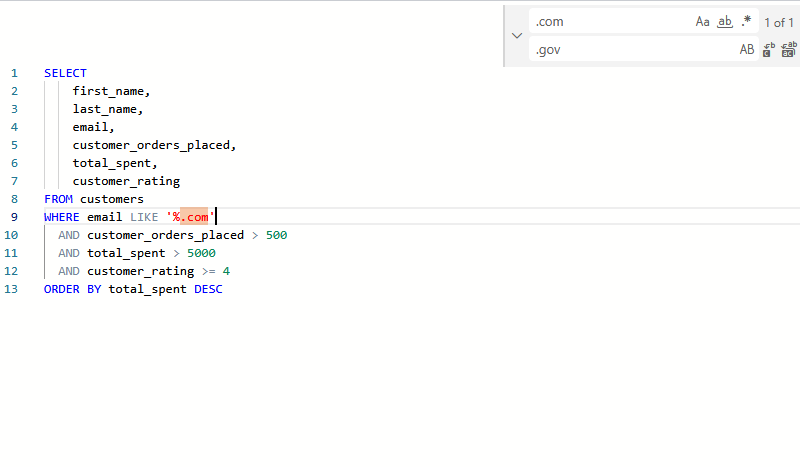
- Press Enter to go to the next match and Shift+Enter to go to the previous one. The box shows how many matches there are.
- Use the buttons in the search field to match case, match whole words only, or search with a regular expression.
- In the replace field, click Replace to replace the current match, or Replace All to replace every match. You can undo a replacement with Ctrl+Z.
- Press Esc to close the box.
Find and replace work on one query page at a time. To search the database itself for objects by name, use Database Search.