Database Search
Database Search finds every table, view, column, procedure, function, and trigger whose name contains a word you're looking for, and every view, procedure, and trigger whose SQL code mentions it.
Use it to answer questions such as "Which tables have a customer_id column?" or "Which procedures still use the OrderArchive table?" before you rename or drop something. Database Search looks at the database's design, not at the data in its tables. To find a value in the data, write a query instead; see Running Queries & Results.
Searching a database
Database Search uses the connection of the query page you're working in, so connect to a data source first. See Connecting to a Database.
- At the top of the catalog pane, choose the Database and User / Schema to search. Choose <All Users> to search every schema you can access.
- Choose Tools › Database Search. The top of the dialog shows the data source, database, and schema that will be searched.
- In Search string, type the text to find, up to 256 characters.
- Select or clear Match case and Match partial word. See Search options.
- Click Search, or press Enter.
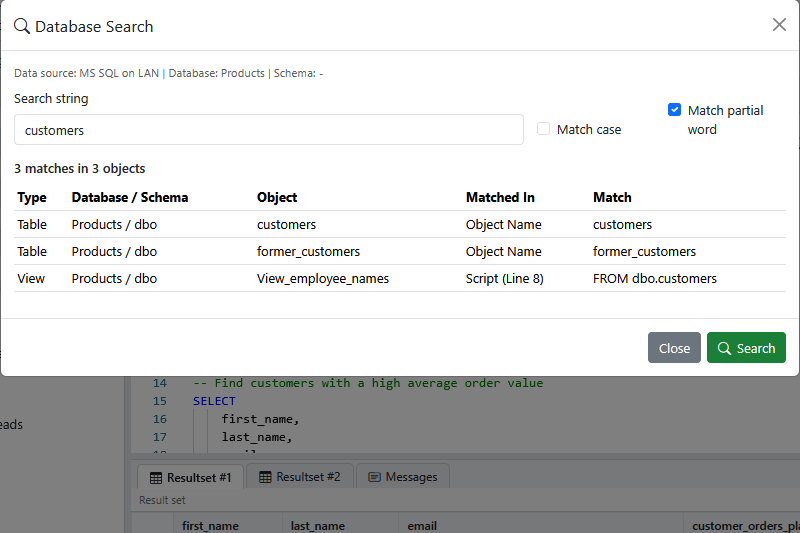
SyncriTab reads the design of every object in the database and schema, then lists the matches. On a large database, or with <All Users> selected, this can take a while. While it runs:
- The dialog shows Searching database metadata..., and it can't be closed until the search finishes.
- You can't run queries, change the database or schema, or connect and disconnect on that query page.
The dialog keeps your last search and its results until you search again, even if you close and reopen it. They're cleared when you connect to another data source or change the database or schema, because they no longer apply. Searches and their results aren't saved, and they don't appear in Query History.
What is searched
| Object | Name | Column names | SQL code |
|---|---|---|---|
| Tables | Yes | Yes | – |
| Views | Yes | Yes | Yes, if available |
| Procedures and functions | Yes | – | Yes, if available |
| Triggers | Yes, if available | – | Yes, if available |
Whether SyncriTab can read the SQL code of views, procedures, and triggers, and list triggers at all, depends on the kind of database. When it can't, the names are still searched, and a warning above the results says what was left out.
Database Search doesn't look in the names of indexes, keys, and constraints, in the parameter names of procedures and functions, or in comments.
Search options
The search string is plain text. Characters such as %, _, *, and . are matched as they are, not as wildcards.
| Option | When selected | When cleared |
|---|---|---|
| Match case Cleared by default |
Upper and lower case must match exactly: Customer doesn't find CUSTOMER. |
Case is ignored: customer finds Customer and CUSTOMER. |
| Match partial word Selected by default |
The text can appear anywhere: customer finds Customers, CustomerOrder, and precustomer. |
The text must be a whole word: customer finds customer, dbo.customer, and customer_id, but not customers. Anything other than a letter or digit, including an underscore, dot, space, or bracket, ends a word. |
Reading the results
Above the results, a summary such as 12 matches in 7 objects gives the number of matches and the number of objects they were found in. Each match is a row:
| Column | Shows |
|---|---|
| Type | Table, View, Procedure, Function, or Trigger. |
| Database / Schema | Where the object is. |
| Object | The object's name, spelled as it is in the database. |
| Matched In | Where the text was found: Object Name, Column Name, or Script, the object's SQL code. For a script, the line of the first match is shown, for example Script (Line 14). |
| Match | The matching column name, or the line of SQL code containing the first match. |
One object can have several rows: one for its name, one for each matching column, and one for its SQL code. A script gets a single row however many times the text appears in it; the row shows the first line that contains it.
The results are for reading only. To look at an object, find it in the catalog. To see the whole SQL code of a view or procedure, click SQL Script under it in the catalog; for a trigger, click the trigger. See Viewing source code.
Limits
- At most 1,000 matches are listed. If there are more, a warning says Only the first 1000 matches are displayed. Search for something more specific, turn off Match partial word, or choose a single schema.
- SQL code longer than 1 MB is searched only in its first megabyte; a warning says so.
If something goes wrong
| Problem | What to do |
|---|---|
| Connect to a data source before searching. | Database Search needs an open connection on the current query page. Connect, then open it again. |
| Wait for the current query to finish before searching the database. | A query is running on this page. Wait for it to finish, or stop it with Abort Execution, then search again. |
| The selected database or schema changed. Reopen Database Search and try again. | The database or schema no longer matches the one shown in the dialog. Close the dialog, check the lists at the top of the catalog pane, and open it again. |
| No matches were found. but you expected some | Check the database and schema at the top of the dialog; the object might be in another schema, so try <All Users>. Clear Match case, and select Match partial word. Check for warnings above the results: SQL code might not be available for this kind of database. |
| Some metadata could not be searched. or another warning | Your database account can't see some objects or their SQL code, so those weren't searched. Ask your database administrator for read access to the database's metadata. |
| The database metadata search could not be completed. | Reading the database's design failed. Try again, or choose a single schema. If it keeps happening, send a support request with the SyncriTab log. See Getting Support. |