Query History
SyncriTab keeps a list of the queries you run. Use it to find a query you ran last week, check how long it took, or run it again.
Opening your history
Click the History tab above the SQL editor. The list shows the queries you've run on the database you're connected to, newest first.
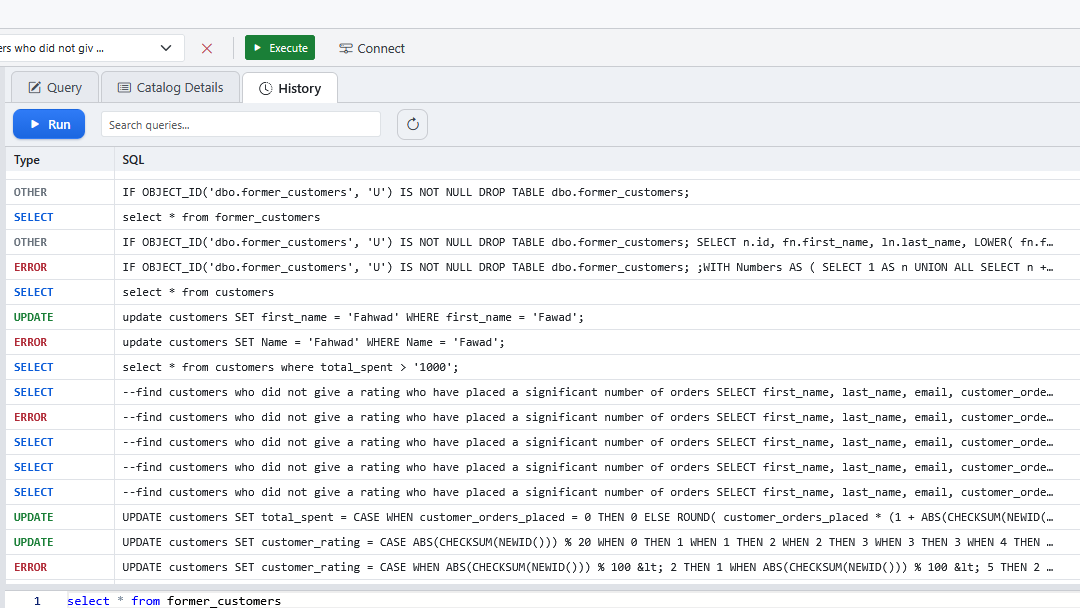
| Column | What it shows |
|---|---|
| Type | The kind of statement: SELECT, INSERT, UPDATE, DELETE, DDL (such as CREATE, ALTER, DROP, or GRANT), or OTHER. A query that failed is marked ERROR. For a script, the type comes from its first statement. |
| SQL | The start of the SQL, on one line. Point to it to see more. |
| Ran At | When you ran it. |
| Ran For | How long it took, including fetching all the rows. |
| Rows | For a SELECT, the number of rows returned. For an INSERT, UPDATE, or DELETE, the number of rows it changed. For a script, the total of all its statements. |
Click a query to see its complete SQL, with syntax highlighting, in the lower part of the tab. The SQL there is read-only; to copy it, select it and press Ctrl+C.
The list is reloaded each time you open the tab. To reload it without leaving the tab, click Refresh (↻).
Searching
Type part of a query in the Search queries... box, for example a table or column name. The list shows only queries whose SQL contains what you typed, ignoring upper and lower case. Clear the box to see everything again.
Running a query again
Select a query and click Run, or double-click it. SyncriTab switches to the Query tab and runs it on the current query page. The results replace that page's results, but the SQL in the editor isn't changed, so nothing you were writing is lost.
The query runs on your current connection and database. Running it again also adds it to the top of your history as a new entry.
To edit a query before running it, copy its SQL from the lower part of the History tab and paste it into the editor.
What's recorded
- Every query and script you run with Execute, including ones that fail. If you run only a selection, just the selected SQL is recorded.
- Browse Data in the catalog pane isn't recorded, and neither are scheduled tasks. Scheduled task runs have their own history; see Task Scheduler.
- Your history is separate for each data source and for each database. When you choose another database in the catalog pane, the History tab shows the queries you ran on that database.
How much history is kept
SyncriTab keeps your newest 1,000 queries for each data source and database. Older ones are removed as you run new queries.
The History tab lists the newest 250 of them. Searching looks through all 1,000 and lists up to 250 matches. To list more or fewer, choose Edit › Options and change Records in History on the Advanced Options tab. See Options & Preferences.
History is kept on the SyncriTab server, so it's there whichever computer or browser you use, and it's kept when auto-save is off.
History is tied to the data source's name. If a DB Manager renames a data source, the History tab starts empty for it, and the older queries are no longer shown.
Who can see your history
- Only you can see your History tab.
- DB Managers can see the most recent queries run by all developers in the Query Activity report. See Reports.
- If your administrator has turned on encryption at rest, your history is encrypted on the server. See Security & Encryption.