Reports
Reports show what's happening across your SyncriTab installation: which scheduled tasks ran, which queries developers ran, and who signed in.
Opening the reports
Sign in as a DB Manager or an administrator and click Reports in the side menu. DB Managers see the activity reports and administrators see Login Audit; a user with both roles sees all three. Click a report to open it, and click Back to Reports to return to the list.
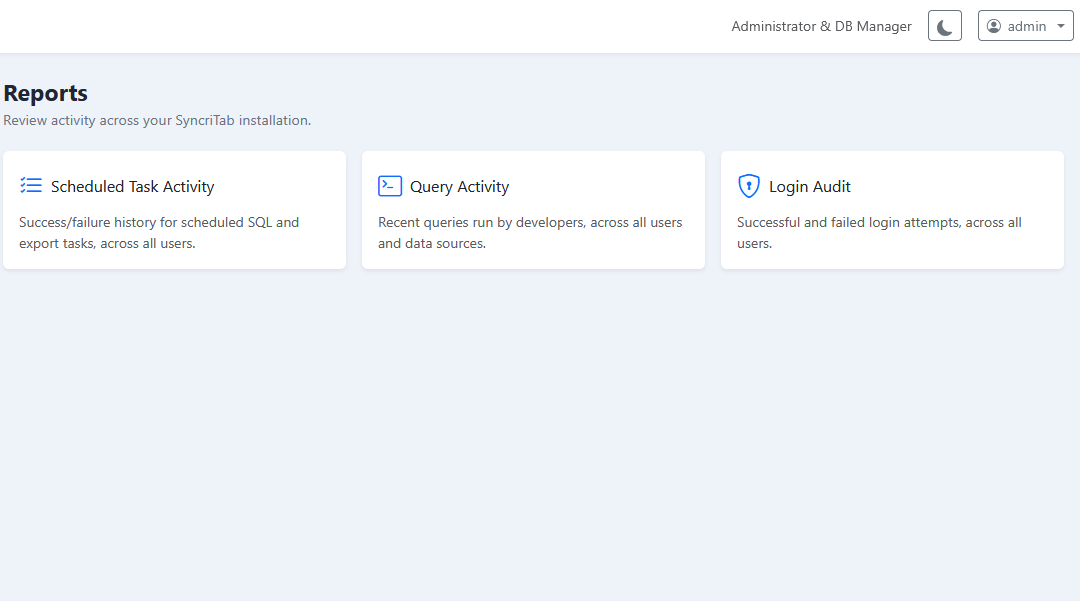
| Report | Shows | Who can open it | How far back |
|---|---|---|---|
| Scheduled Task Activity | Every run of every user's scheduled tasks | DB Managers | 10 days |
| Query Activity | The most recent queries developers ran | DB Managers | The latest 500 queries |
| Login Audit | Every successful and failed sign-in | Administrators | 90 days |
Each report shows its information at the moment you open it. To see newer entries, reload the page.
Scheduled Task Activity
Shows each run of the scheduled SQL scripts and exports that developers set up, newest first, so you can spot tasks that fail. See Task Scheduler.
| Column | What it shows |
|---|---|
| Task Name | The task's name. |
| Owner | The developer who created the task. |
| Task Type | A SQL script or an export. |
| Trigger | What started the run: SCHEDULED (its schedule), MANUAL (the owner ran it by hand), or CATCH_UP (a run missed while SyncriTab wasn't running). |
| Started | When the run began. |
| Completed | When it finished. |
| Status | How it ended; see the next table. |
| Rows | How many rows the task processed. |
| Detail | The error or warning, if there was one. |
| Status | Meaning |
|---|---|
| COMPLETED | The run succeeded. |
| COMPLETED_WITH_WARNINGS | The run finished, but something needs attention. See Detail. |
| FAILED | The run didn't finish. See Detail for the reason. |
| SKIPPED_OVERLAP | The run was skipped because the previous run of the same task was still going. |
| CANCELLED_SHUTDOWN | The run stopped because SyncriTab was shutting down or restarting. |
| QUEUED | The run is waiting to start. |
| RUNNING | The run is in progress. |
Query Activity
Shows the 500 most recent queries run by all developers across all data sources, newest first. Use it to see how SyncriTab is used, or to find slow or failed queries.
| Column | What it shows |
|---|---|
| User | The developer who ran the query. |
| Ran At | When it ran. |
| Type | SELECT, INSERT, UPDATE, DELETE, DDL (statements that change the database's structure or permissions, such as CREATE, ALTER, DROP, or GRANT), ERROR (the query failed), or OTHER. |
| SQL | The SQL that was run. |
| Data Source | The data source it ran against. |
| Database | The database it ran in. |
| Duration | How long it took. |
| Rows | How many rows it returned or changed. |
The report is built from each developer's query history, which keeps the latest 1,000 queries per data source and database. See Query History.
The SQL column shows queries exactly as developers wrote them, which can include customer data or passwords typed into statements. Treat this report as confidential.
Login Audit
Shows every attempt to sign in to SyncriTab, successful or not, over the last 90 days. Use it to check who has been signing in, and to spot password-guessing attempts.
Only administrators can open this report, because sign-in security is part of running the server. DB Managers who aren't also administrators don't see it.
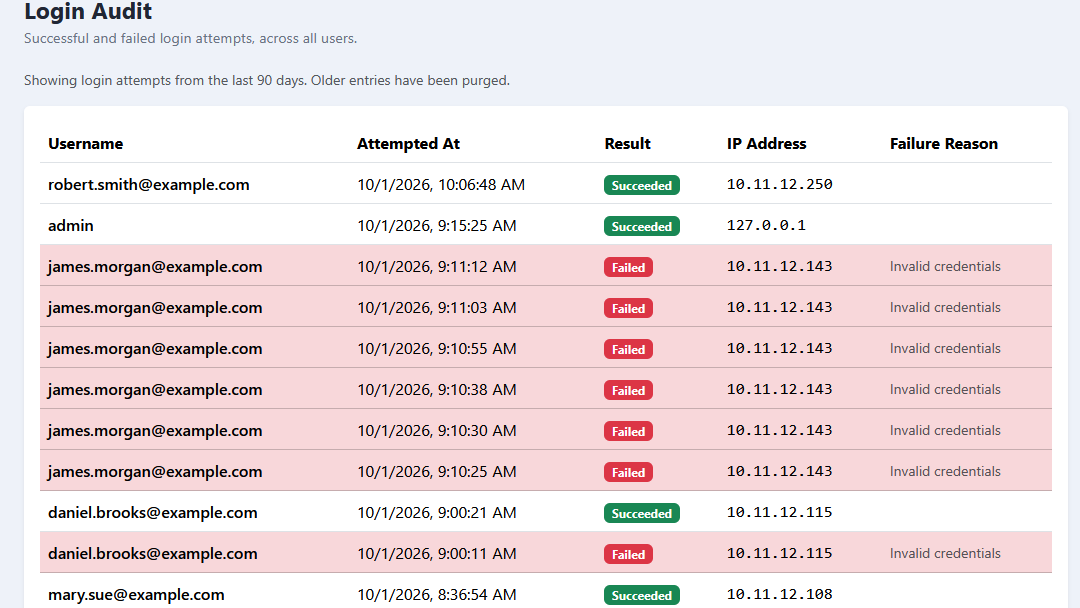
| Column | What it shows |
|---|---|
| Username | The login ID that was entered. For failed attempts, it may not be a real account. |
| Attempted At | When the attempt was made. |
| Result | Succeeded or Failed. |
| IP Address | Where the attempt came from. |
| Failure Reason | Why a failed attempt was refused. |
Many failed attempts from one IP address can mean someone is guessing passwords. Consider turning on Block malicious IP addresses.
How long data is kept
Older entries are removed automatically, so the reports don't grow without limit. The periods above are the defaults. If you need to keep records longer, for example for compliance, contact Synametrics Support about changing them.