Getting Support
Send a question or problem report to Synametrics Support from inside SyncriTab, and follow your requests until they're answered.
Opening Contact Support
Anyone who can sign in can contact support:
- In the query workspace: click your name in the upper-right corner, then Contact Support. It opens in a new browser tab, so your query pages and connections stay open.
- On the administration pages: click Contact Support at the bottom of the side menu, or in the menu under your name.
Before you write, check Troubleshooting and the If something goes wrong section at the end of the page for the feature you're using; the answer may already be there.
Sending a request
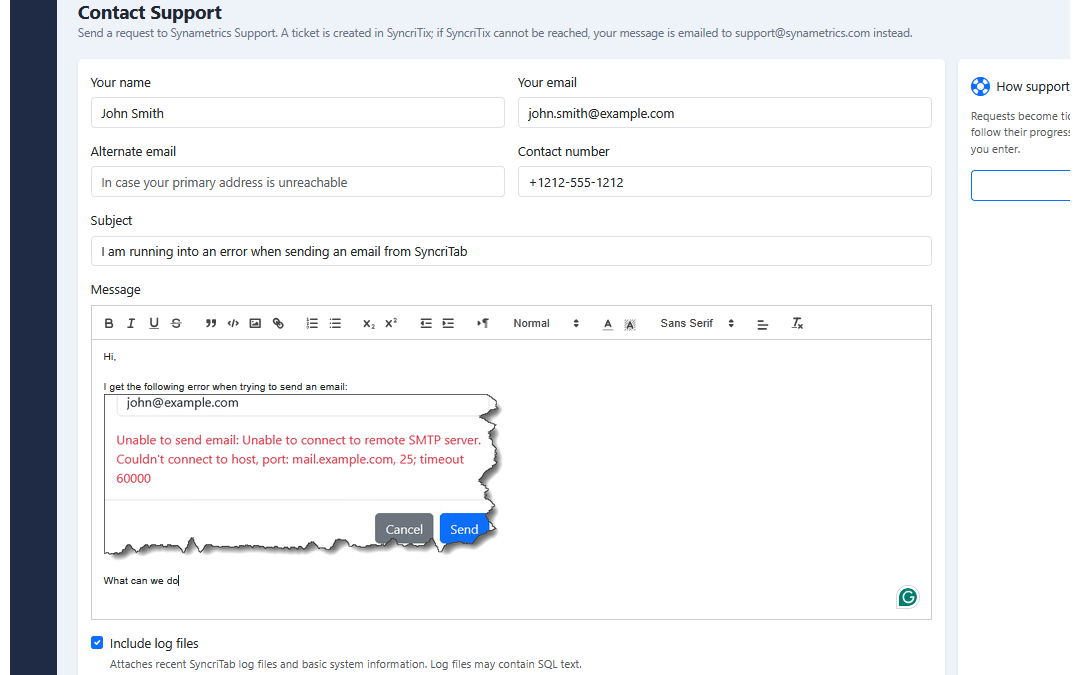
- Check Your name and Your email. They start with the details from your account. Replies go to this email address.
- Optionally, enter an Alternate email, in case your main address can't be reached, and a Contact number.
- Enter a short Subject, such as Export to CSV stops at 10,000 rows.
- In Message, describe the problem. You can format text, add links, and paste screenshots.
- Leave Include log files selected unless you don't want to share them; see What is sent.
- Click Send.
When the request is received, the page shows the ticket number, such as Support ticket 48213 has been created., and a View Ticket link. Synametrics aims to reply within 72 hours; replies can take longer over weekends and holidays. Click Submit another request to write a new one.
Writing a request that can be answered quickly
- Say what you were doing, what you expected, and what happened instead.
- Copy any error message exactly, or paste a screenshot of it.
- List the steps that make the problem happen, if you know them.
- Say which database the problem involves, for example SQL Server 2019 or PostgreSQL 16, and which data source.
- Send one problem per request, so each can be tracked on its own.
What is sent
Every request includes, besides what you type:
- Basic information about your installation: the SyncriTab version, the license type, serial number, and company name, the number of data sources, the operating system, the Java version, and the memory in use. This lets Support see which version you have without asking.
- With Include log files selected, SyncriTab's log files from the server, zipped, with only the most recent 3 MB of each.
The log files are SyncriTab's record of what happened on the server. They can include the text of SQL statements, error messages from your databases, login IDs, and IP addresses, from all users. If that information must not leave your organization, clear Include log files and describe the problem in the message instead. Support may ask for specific log entries later.
How the request is delivered
SyncriTab sends the request straight to SyncriTix, Synametrics' support ticket system, over the internet. If SyncriTix can't be reached, SyncriTab emails the same request to support@synametrics.com through your email server instead. In that case the page says Your message was emailed to Synametrics Support. There's no ticket number yet; Support replies to your email address.
If both fail, for example because the server has no internet access and no email server is set up, the page says Your request could not be submitted. Please email support@synametrics.com directly. What you typed stays on the page, so you can copy it into an email.
Previous tickets
The Previous Tickets list shows the requests that became tickets, newest first, with the Ticket No, Subject, Created On, Last Updated, and current Status. Click a ticket number to open the ticket in SyncriTix.
| Status | Meaning |
|---|---|
| Open | Waiting for Support. |
| Responded | Support has replied. Check your email. |
| Pending | Support is waiting for something, often more information from you. |
| Closed | The ticket is resolved. If the problem comes back, send a new request and mention the old ticket number. |
| Deleted | The ticket was removed. |
| Unknown | SyncriTab couldn't reach SyncriTix to check. The page shows a warning; try again later. |
- Administrators see every user's tickets, with a Submitted By column. Everyone else sees only their own.
- Requests that went out by email aren't listed, because they have no ticket number.
- The list keeps tickets for 60 days.
Other ways to reach Synametrics
- Email support@synametrics.com, for example if you can't sign in to SyncriTab. Include your serial number, from the About page, and the SyncriTab version.
- Product information, downloads, and purchasing are on the SyncriTab home page. For license questions, see Licensing & Purchasing.
If something goes wrong
| Problem | What to do |
|---|---|
| Name, email, subject and message are required. | Fill in all four, then click Send again. |
| The message is too large. Remove some images and try again. | A message can be up to 2 MB, including pasted screenshots. Remove or crop some screenshots. |
| Please wait a few seconds before submitting again. | SyncriTab ignores a second request sent within 30 seconds, to avoid duplicate tickets from a double-click. Your first request was sent; check Previous Tickets. |
| Your request could not be submitted. Please email support@synametrics.com directly. | The server couldn't reach SyncriTix and couldn't send email. Copy your message into an email to support@synametrics.com. Ask your administrator to check the server's internet access and the email settings; see Server Configuration. |
| Unable to reach SyncriTab. Your message has not been sent; please try again. | Your browser lost its connection to SyncriTab. Check your network and click Send again; your message is still on the page. |