Licensing & Purchasing
SyncriTab is sold as a monthly or yearly subscription for the number of people who run queries. This page explains how licenses are counted, what happens when a trial or subscription ends, and how an administrator buys, renews, or adds licenses.
How licenses are counted
You need one license for each user account with the Developer role. Administrator and DB Manager accounts are free, as long as they don't also have the Developer role.
- An account with the Developer role counts once, however many other roles it has.
- Licenses belong to accounts, not to people or computers. A developer can sign in from any browser.
- Your license should cover every developer account. When you add developers, add licenses too; see Adding licenses. To free a license, delete the account or remove its Developer role on the User Management page.
For example, a team with 2 administrators, 3 DB Managers, and 10 developers needs 10 licenses. See Roles and licensing.
The trial
A new installation runs as a 30-day trial, using the serial number you received during Initial Setup. During the trial:
- Every feature works, and you can create as many developer accounts as you like.
- The 30 days are counted from the day SyncriTab was first installed on the server. Entering another trial serial number doesn't restart them.
Buy a subscription before the trial ends so your developers aren't interrupted. See Buying a subscription.
Checking your license
Administrators can see the license on the About page: click About in the side menu.
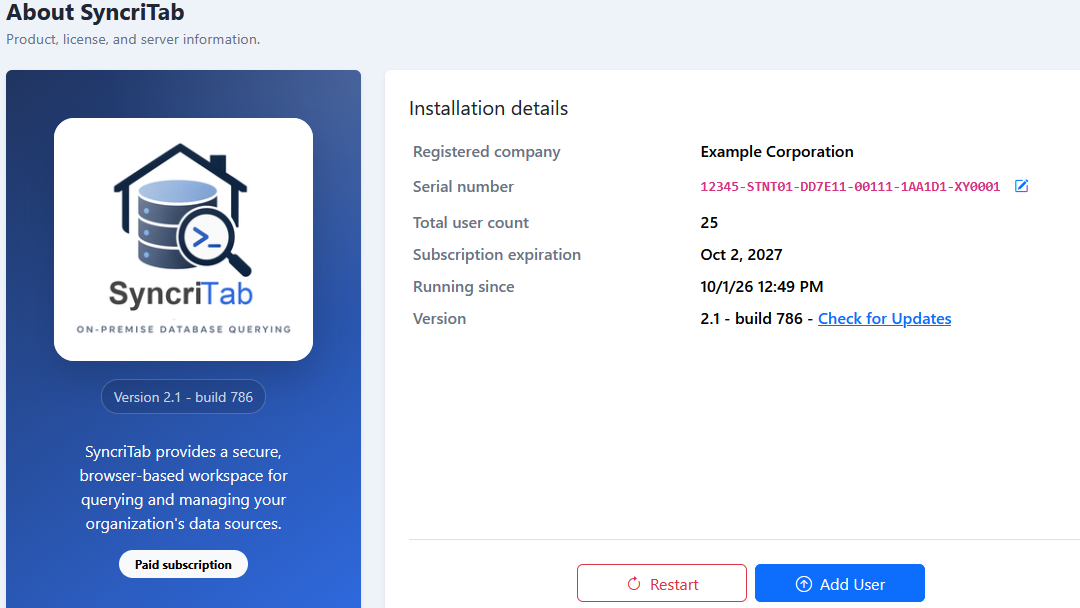
| Item | Shows |
|---|---|
| License type | Trial or Paid subscription, under the product name. |
| Registered company | The company name the serial number was issued to. |
| Serial number | Your serial number. Have it ready when you contact Synametrics about your license. |
| Total user count | How many developer licenses you've bought. |
| Subscription expiration | The date the subscription ends. The adjacent Auto-renew enabled or Auto-renew disabled link shows whether SyncriTab will renew automatically. |
Administrators can click the auto-renewal link beside Subscription expiration to enable or disable automatic renewal. The link is green when enabled and gray when disabled.
The button under the details depends on your license:
| Button | Shown when |
|---|---|
| Upgrade | You're using a trial. |
| Add User | You have a paid subscription with more than 5 days left (monthly) or 10 days left (yearly). |
| Renew Subscription | Your paid subscription ends within those 5 or 10 days, or has ended. |
All three open the same purchase steps, described below.
When a trial or subscription ends
When the trial is over, or a subscription ends without being renewed, or the serial number isn't valid:
- A red banner at the top of every administrator page says Your SyncriTab license has expired or is invalid. with a Renew Subscription link.
- Other users see a banner asking them to contact their administrator.
- Everyone can still sign in, and administrators and DB Managers can still use their pages.
- Developers can't run queries, browse table data, export, or run scheduled tasks. They also can't view the SQL code of objects in the catalog, generate SQL, open ER diagrams, or use Database Search, Schema Diff, or Reverse Engineering. They see Your SyncriTab license has expired or is invalid. Please contact your administrator to renew the license before running queries.
- Developers can still sign in, browse the list of objects in the catalog, and open, edit, and save their scripts.
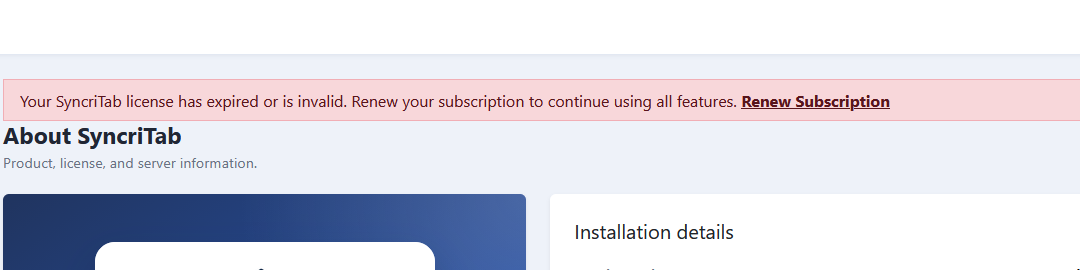
Nothing is deleted. Once you renew, developers can run queries again straight away. The banner goes away the next time each user signs in.
Buying a subscription
Only administrators can buy. The SyncriTab server must be able to reach the internet, because it gets the price from Synametrics and sends the order there. Have a credit card ready.
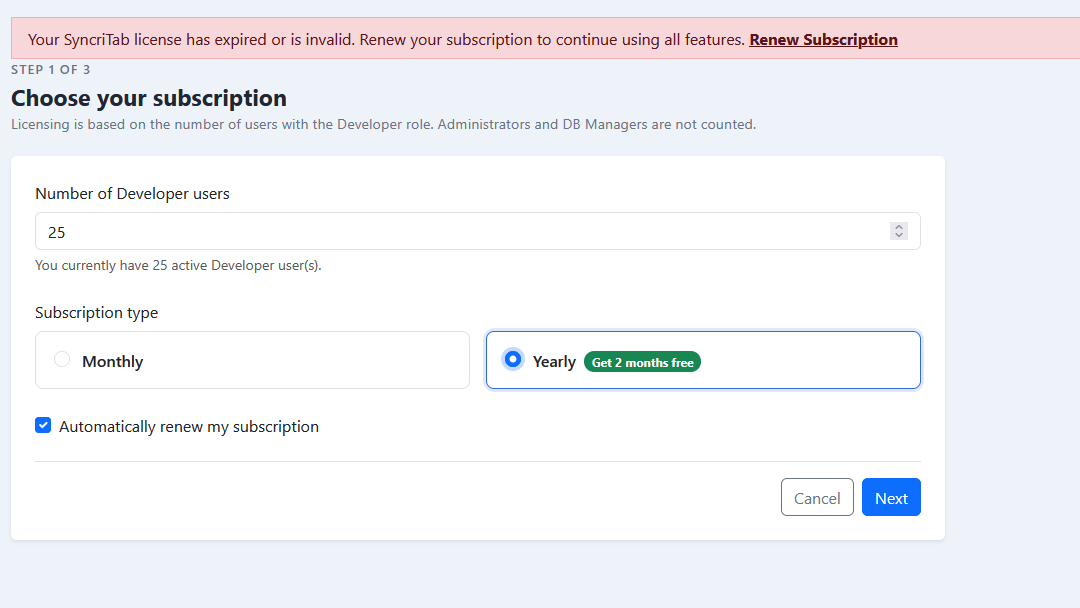
- On the About page, click Upgrade, Add User, or Renew Subscription. You can also click Renew Subscription in the license banner.
- Step 1, Choose your subscription. Enter the Number of Developer users: the total number of developer licenses you want, not just the extra ones. It starts with the number of developer accounts you have now. Choose Monthly or Yearly; yearly gives you 2 months free. Choose whether to renew automatically, then click Next. Getting the price takes a few seconds.
- Step 2, Payment information. Check the Order summary: the number of users, the plan, the New expiration date, and the Total due today. Then fill in your contact information, billing address, and credit card. The receipt is sent to the Billing Email. If you have a promo code, enter it. Click Next.
- Step 3, Review and confirm. Check the order, the address, and the card, which shows only its last four digits. Click Proceed to pay.
When the payment goes through, SyncriTab saves the new serial number and license count and returns to the About page, which shows Paid subscription and the new expiration date. The change takes effect at once; you don't need to restart.
If the card is declined, step 3 shows the reason and nothing is charged. Correct the details with Back, or try another card.
The card details go from your SyncriTab server to Synametrics' payment service over an encrypted connection. Use a secure connection to SyncriTab itself (HTTPS) when you buy; see SSL Certificates.
Adding licenses
When you add developers to a paid subscription, buy the extra licenses with Add User on the About page. In step 1, enter the new total, for example 12 if you have 10 licenses and are adding 2. Step 2 shows what you'll pay today for your current subscription.
If you enter fewer users than you have developer accounts, step 1 warns you that your license should cover every Developer user. Remove the Developer role from accounts that no longer need it first, or enter a larger number.
Renewing
Near the end of the subscription, the About page shows Renew Subscription. Renewing extends the subscription by another month or year from its current end date, so renewing early doesn't lose any days.
Entering a serial number
If you bought SyncriTab another way, for example by invoice, or Synametrics support sent you a new serial number, enter it on the About page:
- Click the pencil next to Serial number. The Modify Serial Number dialog opens with your current values.
- Enter the Company Name, Serial Number, and User Count exactly as Synametrics sent them. The company name must match letter for letter, including spaces and punctuation.
- Click Save Changes.
SyncriTab checks the three values together before saving them. If they match, the page says The serial number was saved. The new license is in effect. If they don't, the dialog stays open with the reason, and your current license keeps working.
If something goes wrong
| Problem | What to do |
|---|---|
| Unable to fetch the subscription cost right now. Please try again later. | The SyncriTab server couldn't reach Synametrics. Check that the server can reach the internet, including through any proxy or firewall, and try again. |
| Enter a valid credit card number. | The card number isn't valid. Check it for typing mistakes. |
| The payment is declined, or Unable to complete the purchase right now. Please try again later. | Check the card details and billing address, or use another card. If it keeps happening, contact Synametrics; see Getting Support. |
| Step 1 appears again after you click Next or Proceed | Your session expired partway through. Start again from step 1; nothing was charged. |
| After paying, the Modify Serial Number dialog opens with Your payment went through, but the new license couldn't be saved. | SyncriTab couldn't write its configuration file. The new license works until SyncriTab restarts. Click Save Changes to try again. If that fails too, copy the three values somewhere safe and ask the person who manages the server to check that SyncriTab can write to its config folder. The values are also in the SyncriTab log. |
| After paying, the dialog says the license Synametrics returned couldn't be verified | Your card was charged, but the serial number that came back doesn't check out, so SyncriTab kept your current license. Copy the values shown and contact Synametrics support; see Getting Support. |
| This serial number doesn't match the company name and user count. | Copy all three values from the email Synametrics sent, rather than typing them. The company name must match exactly. If they still don't match, contact Synametrics with the serial number. |
| This serial number has expired. | The serial number's subscription has ended. Enter your current serial number, or renew; see Renewing. |
| Developers can't run queries | Check the About page. If the trial or subscription has ended, renew it. If the page shows a paid subscription and the problem continues, contact Synametrics with your serial number. |