Initial Setup
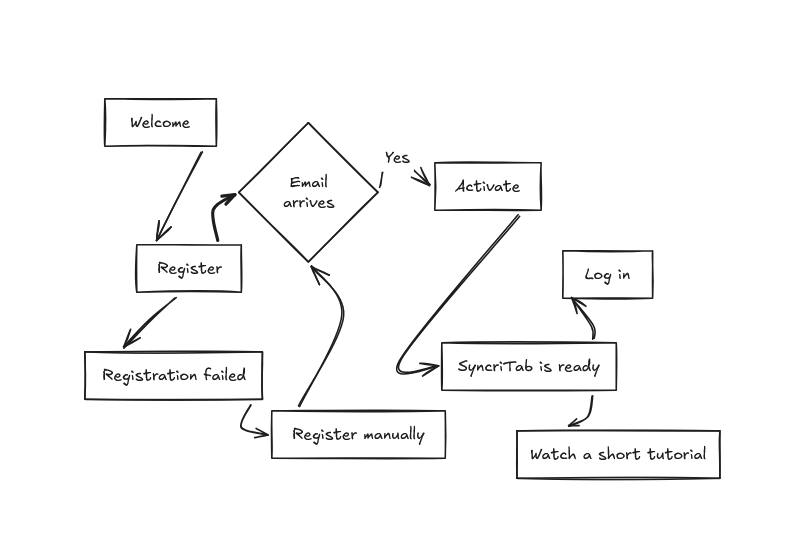
The first time you open SyncriTab, a short setup wizard creates your administrator account and registers your copy for a free 30-day trial.
Overview
After you install SyncriTab, open it in a browser at http://your-server:21786. Until setup is finished, SyncriTab shows the setup wizard instead of the sign-in page. The wizard has three steps:
- Create the administrator account you will use to sign in.
- Register your copy with Synametrics, which emails you a serial number.
- Enter the serial number to finish setup.
Finish setup right away. Until setup is complete, anyone who can reach the server sees the setup wizard. Complete it as soon as SyncriTab is installed, before you open the server to other users.
Before you start
- The SyncriTab server needs internet access, because it sends your registration to Synametrics. If it has none, you can register manually from any computer. See If registration can't be completed automatically.
- You need access to the email address you register with. The serial number is sent there.
- Setup takes about five minutes.
Step 1: Create the administrator account
The Welcome to SyncriTab page asks for the account you will use to sign in and manage SyncriTab.
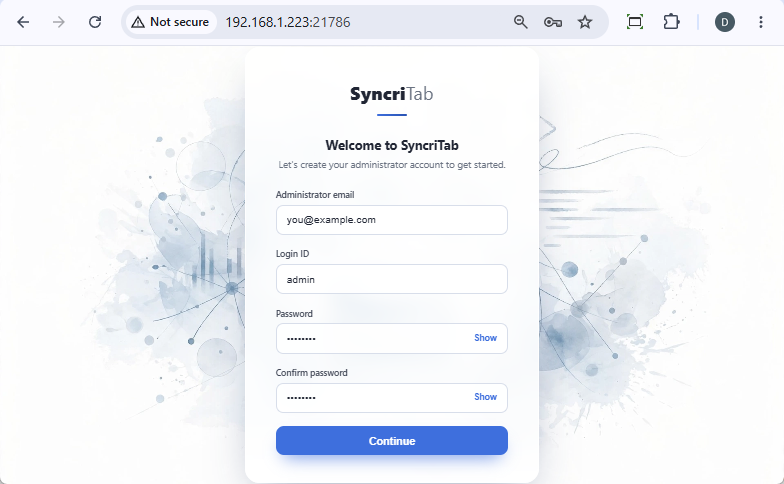
| Field | What to enter |
|---|---|
| Administrator email | The address where SyncriTab sends alerts. It's also filled in for you on the next page. You can change it later on the Security tab of the Configuration page. |
| Login ID | The name you'll sign in with, such as admin or your email address. |
| Password | A strong password for this account. |
| Confirm password | The same password again. |
Click Continue.
This account has both the Administrator and DB Manager roles, so it can configure the server and also set up data sources and developers. See User Roles.
Tip: Use your email address as the login ID. If you forget your password, SyncriTab emails a reset link to the login ID if it's an email address, or otherwise to the account's MFA email address. With a login ID such as admin and no MFA email address, the reset link can't be emailed. You can add an MFA email address to the account later on the User Management page.
If SyncriTab was preconfigured to require two-factor authentication, this page also asks for an MFA Email Address, where verification codes are sent. It's filled in with the administrator email, and you can change it.
Step 2: Register your copy
The Register your copy page asks for your details:
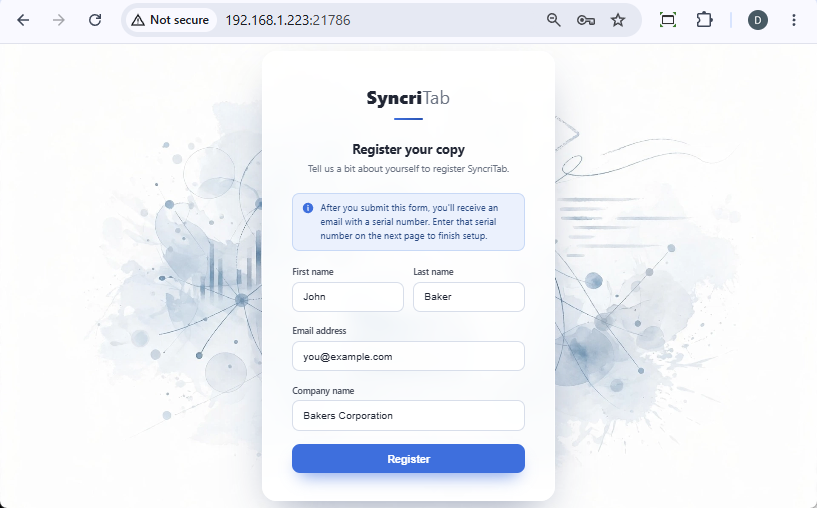
- First name and Last name
- Email address: where your serial number is sent. It's filled in with the administrator email from step 1; change it if the serial number should go elsewhere.
- Company name: your organization's name. The serial number is issued for this exact name, and SyncriTab checks it when you enter the serial number.
Click Register. SyncriTab sends your details to Synametrics, and Synametrics emails you a serial number for a free 30-day trial. To keep using SyncriTab after the trial, purchase a subscription. See Licensing & Purchasing.
Step 3: Enter your serial number
Open the email from Synametrics, copy the serial number, and paste it into the Serial number field. A serial number has six groups of six characters separated by hyphens. Then click Finish setup.
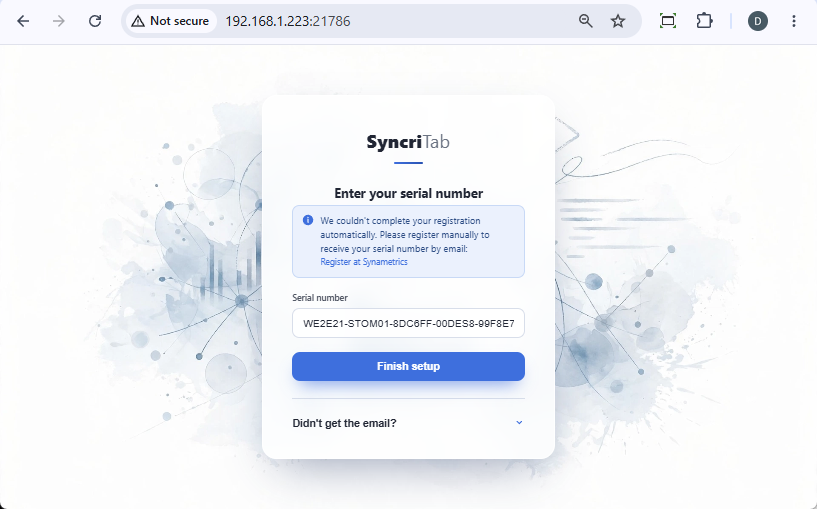
If SyncriTab says the serial number is not valid, check that you copied the whole serial number without extra spaces. The serial number must also belong to the company name you entered in step 2.
If the email doesn't arrive
- Wait a few minutes, and check your spam or junk folder.
- On the serial number page, click Didn't get the email?.
- Check the email address shown, and correct it if it's wrong.
- Click Resend serial number.
If registration can't be completed automatically
If the server can't reach Synametrics, for example because it has no internet access, the serial number page shows the message We couldn't complete your registration automatically, with a Register at Synametrics link.
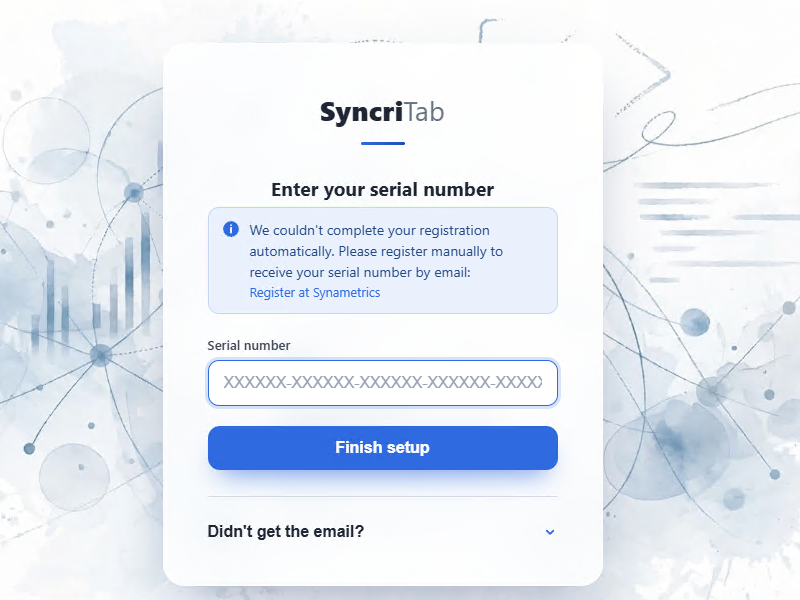
- Click Register at Synametrics, or open https://www.synametrics.com/registerSyncriTab on any computer with internet access.
- Complete the form. Use exactly the same company name that you entered in step 2.
- When the serial number arrives by email, enter it on the serial number page and click Finish setup.
Keep the SyncriTab page open while you register. If SyncriTab restarts before you finish, you'll need to start the wizard again.
Setup complete
When the serial number is accepted, SyncriTab saves your settings, creates your administrator account, and shows the SyncriTab is ready page with a short list of next steps.
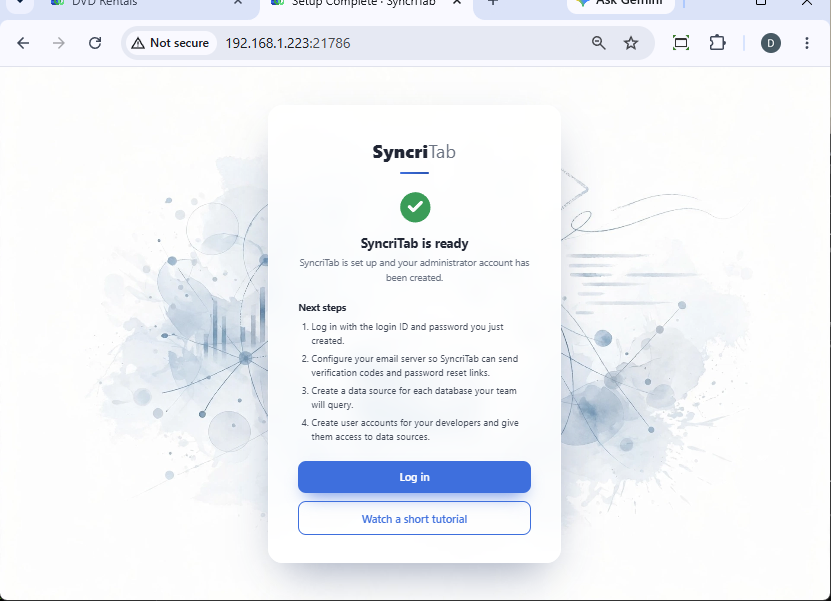
- Click Log in to go to the sign-in page. Sign in with the login ID and password you created in step 1. See Signing In.
- Click Watch a short tutorial to open an introductory video in a new browser tab.
What to do next
After you sign in, prepare SyncriTab for your team:
- Configure email. SyncriTab needs an email server to send two-factor verification codes, password reset links, and alerts. See Server Configuration.
- Secure the connection. Turn on HTTPS, and optionally the standard web ports 80 and 443, so users don't have to type
:21786. See SSL Certificates. - Add your databases. Create a data source for each database your team will query, and add a JDBC driver first if your database needs one. See Data Sources & Permissions and JDBC Drivers.
- Add developers. Create a user account for each developer, and give them access to the data sources they need. See User Management.
- Plan your purchase. Your trial lasts 30 days. See Licensing & Purchasing.
If something goes wrong
| Problem | What to do |
|---|---|
| The wizard started over from the beginning. | SyncriTab was probably restarted during setup. Nothing is saved until you click Finish setup, so go through the steps again. At step 3, you can enter the serial number you already received, as long as you entered the same company name in step 2. |
| The serial number is rejected. | Copy the serial number again from the email, without spaces. Make sure the company name you entered matches the one the serial number was issued for; if it doesn't, start again and enter the correct company name. |
| No serial number email arrives. | Check your spam folder, then use Didn't get the email? to correct the address and resend it. |
| Registration fails because the server has no internet access. | Register manually from another computer. See If registration can't be completed automatically. |
For other problems, see Troubleshooting or Getting Support.