Task Scheduler
The Task Scheduler runs your saved SQL scripts and exports automatically, at an interval or at a set time on chosen days, and can email you the results.
Use it for work that has to happen regularly: a nightly clean-up script, a weekly report emailed as a spreadsheet, or copying new rows into another database every hour. Tasks run on the SyncriTab server, so they run even when you're signed out and your browser is closed.
What you can schedule
| Task type | Runs | Set up first |
|---|---|---|
| Saved SQL Script | Every statement in one of your saved scripts, from top to bottom. The results can be emailed to one address as CSV files. | Save the script. See Saving a script. |
| Saved Export Definition | An export you saved from the Export wizard: to a file, as INSERT statements, or into another database's table. Email is set in the export itself. |
Save the export with a friendly name. See Saving an export for the scheduler. |
Only you can see and change your tasks. Each task runs with your access: if a DB Manager takes away your access to its data source, or your account loses the Developer role, the task fails until access is restored.
Opening the Task Scheduler
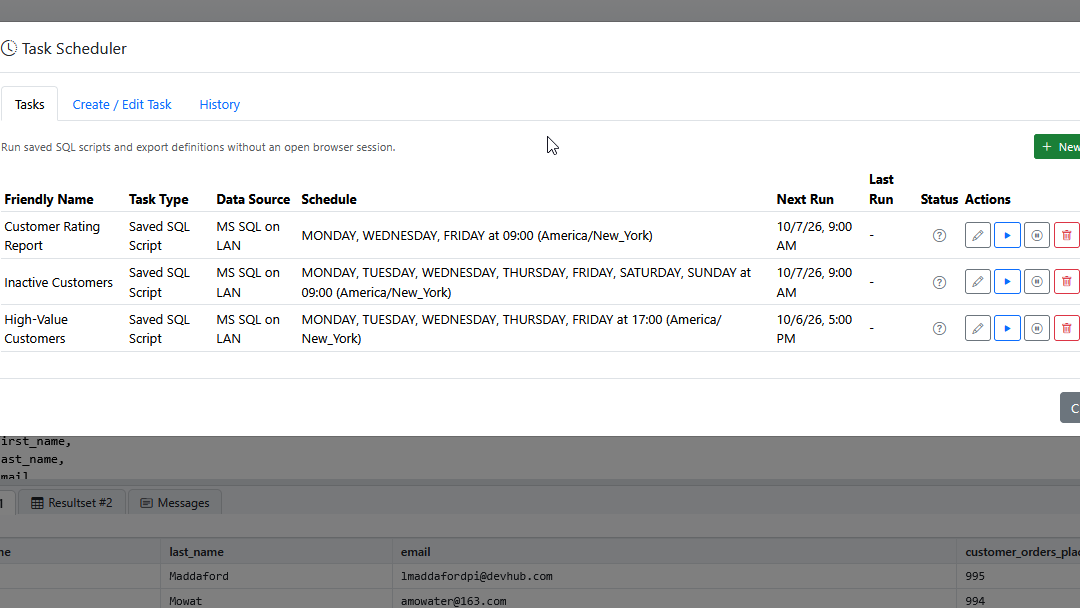
Choose Tools › Scheduler. You don't need to be connected to a database. The dialog has three tabs:
- Tasks lists your tasks.
- Create / Edit Task holds the task you're adding or changing.
- History lists each time your tasks ran in the last 10 days.
Creating a task
- On the Tasks tab, click New Task.
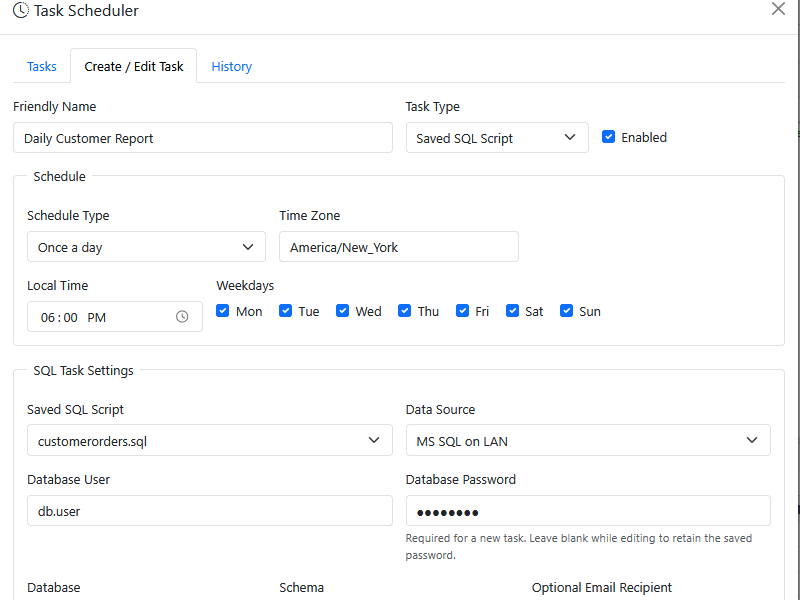
- Enter a Friendly Name, such as Nightly order clean-up. It's only a label; you can change it later.
- Choose the Task Type.
- Leave Enabled selected so the task runs on its schedule. Clear it to save the task without running it.
- Set the schedule. See Choosing a schedule.
- Fill in the settings for the task type. See SQL task settings or Export task settings.
- Click Save Task.
When you save a SQL task, SyncriTab connects to the database with the details you entered to check them. If it can't connect, or can't find the database or schema, it shows why and doesn't save the task.
Choosing a schedule
| Schedule Type | Settings | Runs |
|---|---|---|
| At an interval | Interval (minutes) | Every that many minutes. For example, 120 runs the task every 2 hours. The first run is one interval after you save it. |
| Once a day | Local Time and Weekdays | At that time on each selected day. For example, 17:00 on Mon, Tue, and Thu. |
Time Zone sets the zone the schedule's times are in. It starts as your browser's time zone. To change it, type a time zone name such as America/New_York, Europe/London, or UTC. Daylight saving time is handled for you: a time that is skipped when clocks go forward runs at the first moment after the change, and a time that happens twice when clocks go back runs once.
An interval counts from when each run was due, not from when the previous run finished, so a slow task doesn't push later runs back.
SQL task settings
| Setting | What to enter |
|---|---|
| Saved SQL Script | The script to run. The task runs whatever the script contains at the time it runs, so changes you save to the script apply to the next run. |
| Data Source | The database to run it against. Only data sources you have access to are listed. |
| Database User and Database Password | The database account the task connects with. The task runs without you, so SyncriTab saves the password, encrypted. When you edit a task, leave the password empty to keep the saved one. |
| Database and Schema | Optional. The database and schema to switch to before running the script. Type their names. |
| Optional Email Recipient | An email address to send the results to. Leave it empty for scripts that only change data, such as updates and clean-ups. |
If you were connected when you clicked New Task, the data source, user, database, and schema start with the ones you're connected to.
The script's statements are split with your query terminator, go on a line by itself by default. The task keeps the terminator settings from when you saved it; if you change them in Edit › Options, open the task and save it again. Each statement is committed as it runs, as when you run the script yourself.
Export task settings
Choose the Saved Export Definition. The line below it shows where the export goes and whether it sends an email. To change those, run the Export wizard again and save it under the same name. Exports saved with an older version of SyncriTab are listed but can't be chosen; save them again in the Export wizard first.
Emailed results
When a SQL task has an email recipient, SyncriTab sends one email after each run. After a successful run:
- The subject is the task's friendly name followed by completed or completed with warnings.
- The message gives the script, data source, database, schema, and times of the run, the number of result sets and rows, and the messages the database returned, such as 12 row(s) affected.
- Each result set is attached as a CSV file, named after the task, for example
Weekly-sales-result-1.csv.
If the run fails, the email's subject ends in failed. The message gives the error, usually the database's own error message, and any messages the database returned before the failure. No results are attached, because the script didn't finish. Statements that ran before the failure aren't undone.
Email works only if your administrator has set up the email server. See Server Configuration.
Limits
- A SQL task can return up to 25 result sets, with up to 1,000,000 rows each.
- The attachments of one email can total up to 25 MB. Result sets that don't fit aren't attached, and the email says which ones were left out.
- A SQL task that runs longer than 2 hours is stopped and marked as failed.
When a limit is reached, the run is marked Completed with warnings. For larger results, schedule an export to a file instead.
Managing tasks
The Tasks tab lists each task with its type, data source, schedule, next and last run times, and an icon for the status of its last run. Point to the icon to see the status. A disabled task is shown crossed out.
Each row has these buttons:
| Button | What it does |
|---|---|
| Edit (pencil) | Opens the task on the Create / Edit Task tab. If you change the schedule, the next run is worked out again from now. |
| Run Now (play) | Runs the task right away, after you confirm. Its schedule doesn't change. |
| Disable / Enable | Stops or restarts the schedule. A task that is enabled again runs at its next scheduled time; it doesn't make up runs it missed while disabled. |
| Delete (trash can) | Deletes the task after you confirm. Its history is kept until it's 10 days old. |
| History (clock) | Opens the History tab showing only this task's runs. |
Reviewing task history
The History tab lists your tasks' runs from the last 10 days, newest first, 50 at a time. Use the Task and Status lists to narrow it down, and Previous and Next to page through it. While a task is running, the tab updates by itself.
| Column | Shows |
|---|---|
| Started | When the run started. |
| Task | The task's friendly name. |
| Trigger | Scheduled, Manual (Run Now), or Catch-up (a run that was missed while SyncriTab was stopped; see When SyncriTab was not running). |
| Status | See the table below. |
| Duration | How long the run took, in seconds. |
| Rows and Result Sets | How many rows and result sets a SQL task returned, or how many rows an export wrote. |
| Sent if an email was sent. | |
| Summary | A short description of the result, including any warnings, or of why the run failed, with the database's error message. For an export to a file, the file name. |
| Status | Meaning |
|---|---|
| Queued | Waiting for a free slot. SyncriTab runs two tasks at a time. |
| Running | Running now. |
| Completed | Finished without problems. |
| Completed with warnings | Finished, but something needs your attention. The summary says what, for example Warnings: The results could not be emailed to … with the reason, or that rows were left out because a limit was reached. |
| Failed | Didn't finish. The summary says why, for example The scheduled SQL script failed: … followed by the database's error. If a SQL script fails partway, the statements before the failure have already run. |
| Skipped (overlap) | The task was due while its previous run was still going, so this run was skipped. |
| Cancelled (shutdown) | SyncriTab was stopped or restarted while the task was running. |
DB Managers can see every user's task runs in the Scheduled Task Activity report.
When SyncriTab was not running
Tasks run only while the SyncriTab server is running. When it starts again after being stopped:
- An interval task that missed one or more runs runs once, as a catch-up, then carries on with its normal schedule. It doesn't run once for every missed interval.
- A once a day task that missed its time today runs once, as a catch-up. A run missed on an earlier day is skipped. For example, with a 17:00 task, if the server is down from 16:00 to 18:00, the task runs at 18:00; if it's down from Monday night until 14:00 on Tuesday, Monday's run is skipped.
If something goes wrong
| Problem | What to do |
|---|---|
| Save a SQL script before creating a SQL task. or Save a runnable export definition before creating an export task. | There's nothing to schedule yet. Save a script, or save an export with a friendly name in the Export wizard, then open the Task Scheduler again. |
| Enter the database password for a new SQL task. | A new SQL task needs the database password so it can connect without you. |
| The task can't be saved because of the time zone | Type a full time zone name, such as America/Chicago, not an abbreviation such as CST. |
| A task that used to work now fails | Check the summary on the History tab. Common causes: the database password was changed (edit the task and enter the new one), the script or export was deleted or renamed, the data source was changed or deleted, or your access to it was removed. |
| No email arrives | Check your spam folder, then the History tab: if the email couldn't be sent, the summary says why. Ask your administrator to check the email server settings; email failures are also written to the SyncriTab log. |
| Runs show Skipped (overlap) | The task takes longer than its interval. Make the interval longer, or make the script faster. |
| The task ran at the wrong time | Check the task's Time Zone. The times in the list are shown in your browser's time zone, which may differ from the task's. |