Connecting to a Database
Before you can browse or query a database, connect to it by choosing a data source and signing in with your database account.
Connecting
- Click Connect on the toolbar, or choose File › New Connection.
-
In Connect to a Data Source, choose a Data Source. The list shows the data sources a DB Manager has given you access to, with the type of database after each name.
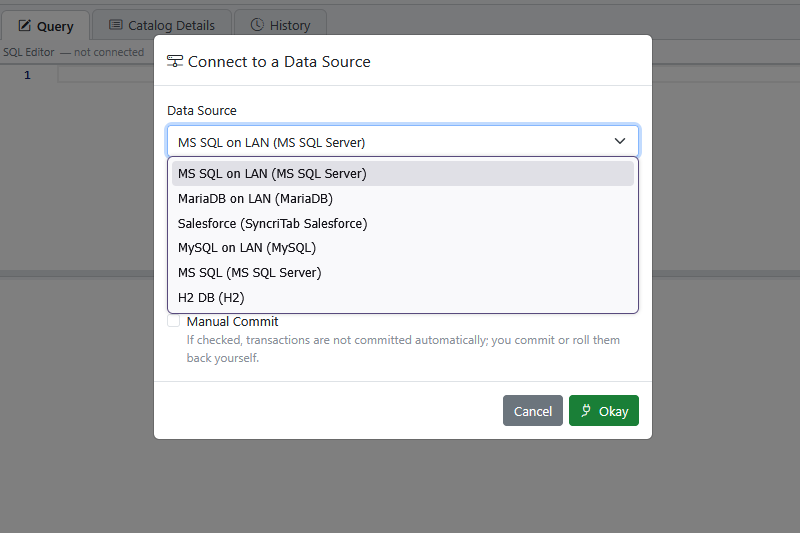
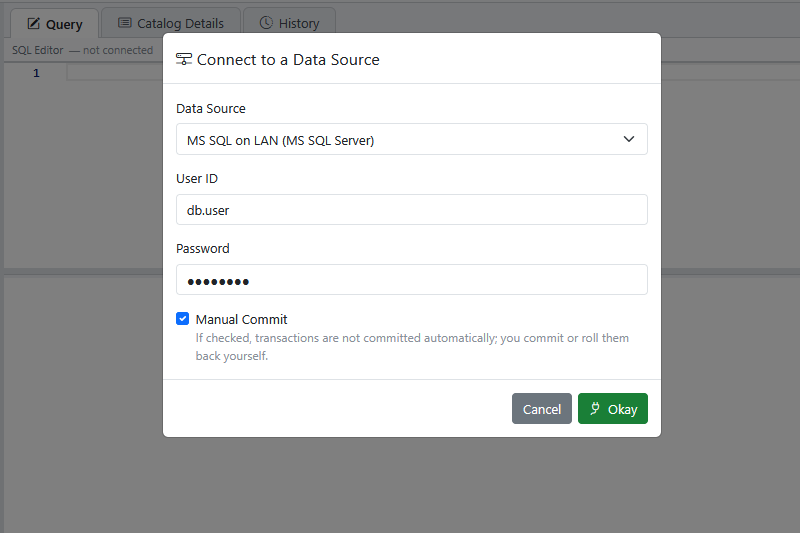
Choosing a data source. - Enter your User ID and Password for the database. These are your database account, not your SyncriTab sign-in, and they're used only for this connection. SyncriTab never saves your password. While you're connected, it keeps it encrypted in memory so it can reconnect if it has to close a connection to stop a query (see Stopping a query), and it forgets it when you disconnect.
- Optionally, select Manual Commit. See Manual commit.
- Click Okay.
When you're connected:
- The data source's name appears in the app bar and the browser tab, and the status bar turns green and says connected.
- The catalog pane fills in with the database's objects, starting with the database and schema you last used with this data source.
- If auto-save is on, the query pages from your last session with this data source are restored. Otherwise, you start with one empty query page. See Saved Sessions.
- Execute becomes available.
If the list is empty
If the list says No data sources available, you haven't been given access to any data source yet. Ask a DB Manager to give you access. See Choosing which developers can use a data source.
Manual commit
Normally, every statement that changes data is saved in the database as soon as it runs. With Manual Commit selected, changes stay pending until you save or undo them yourself, so you can check the results of INSERT, UPDATE, and DELETE statements before they become permanent.
- To keep your changes, run
COMMIT. - To undo them, run
ROLLBACK.
Type these in the SQL editor and run them like any other statement. The exact syntax can vary by database; see your database's documentation.
Commit or roll back before you disconnect. What happens to changes that are still pending when a connection closes depends on the database: most databases undo them, but some, such as Oracle, save them. Pending changes can also lock rows, making other users wait.
Manual commit applies only to the connection you open with it. To change it, connect again.
Switching to another data source
The workspace is connected to one data source at a time. To switch, choose a different data source from the Data Source list at the top of the catalog pane, or click Connect. SyncriTab opens the connection dialog, and the new connection replaces the current one once you click Okay.
If auto-save is on, SyncriTab saves your current session before switching. If it can't, it asks whether to continue without saving.
Disconnecting
Choose File › Close Connection. SyncriTab closes the database connection and clears the catalog. As when switching, your session is saved first if auto-save is on.
Signing out, with File › Logout or Sign Out in the user menu, also closes your connection.
Idle connections
If you're idle for longer than the server's session time, 30 minutes by default, SyncriTab signs you out and closes your connection. Until then, it keeps the connection alive, even if the database would normally drop idle connections sooner. See Automatic sign-out.
If you can't connect
If the connection fails, the dialog shows the error from the database. Common causes:
| Problem | What to do |
|---|---|
| Wrong user name or password | Enter your database account, not your SyncriTab sign-in. Check with your database administrator if you're not sure. |
| The database can't be reached, or the connection times out | The database may be down, or a firewall may block the SyncriTab server from reaching it. Ask your DB Manager to test the data source. See Testing a connection. |
| The account doesn't have access to the database | Your database account exists but isn't allowed to use this database. Ask your database administrator to grant access. |