Keyboard Shortcuts
Keyboard shortcuts run common menu commands in the query workspace without the mouse. You can change them, add shortcuts to other commands, or turn them off.
Your shortcuts belong to your account. They're saved on the SyncriTab server, so they follow you to any computer and browser, and they don't affect anyone else. On a Mac, use Cmd wherever this page says Ctrl, and Option for Alt; SyncriTab shows the Mac names in its menus.
Default shortcuts
| Command | Menu | Shortcut |
|---|---|---|
| New Connection | File | Ctrl+Alt+N |
| New Query Page | File | Alt+Shift+N |
| Open File | File | Ctrl+O |
| Save | File | Ctrl+S |
| Find | Edit | Ctrl+F |
| Replace | Edit | Ctrl+H |
| Execute | Query | F5 |
New Query Page isn't Ctrl+N, as in many programs, because Chrome and Edge keep Ctrl+N for opening a new browser window and never pass it to web pages. If you gave a command Ctrl+N, Ctrl+Shift+N, or Ctrl+Shift+W in an earlier version, it's back to its default shortcut.
These commands have no shortcut until you give them one: Open Workbook, Save As, Save Workbook, Close Connection, Logout, Comment Block, Uncomment Block, Options, Export, Schema Diff, Database Search, Reverse Engineering, Scheduler, and Customize Shortcuts.
A command's current shortcut is shown next to it in the menus and in the tooltip of its toolbar button.
Where shortcuts work
- Shortcuts work anywhere in the query workspace: in the SQL editor, the results grid, and the catalog.
- They don't work while a dialog is open, so typing in a dialog never runs a command behind it.
- In the SQL editor, your shortcut takes priority over the editor's own key for the same combination. See Editor keys.
Customizing shortcuts
- Choose Tools › Customize Shortcuts. The dialog lists every command with its Current Shortcut and its Default.
- Click Edit next to a command, or Record if it has no shortcut. The row shows Press the shortcut now.
- Press the key combination you want, for example Ctrl+Alt+E. SyncriTab checks it right away and shows a message under the row if it can't be used.
- Repeat for other commands.
- Click Save. Your new shortcuts work straight away, and the menus show them.
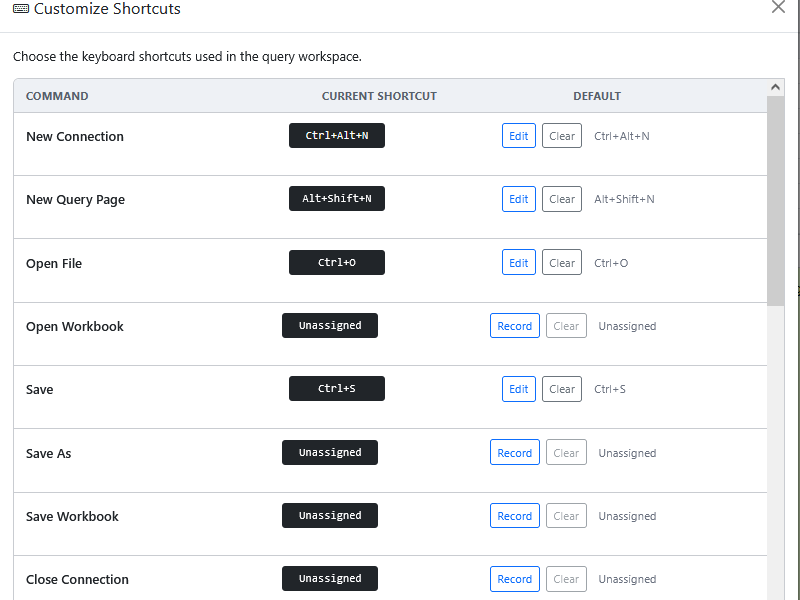
While a row is recording:
- Press Esc to stop recording and keep the old shortcut.
- Press Backspace or Delete to remove the shortcut. The command stays in the menu; it just has no shortcut.
To remove a shortcut without recording, click Clear. Changes aren't kept until you click Save: Cancel, the close button, or Esc (when no row is recording) closes the dialog and discards them.
Which keys you can use
- A letter or digit, together with at least one of Ctrl, Alt, and Shift, such as Ctrl+Shift+E.
- F1 to F12, Home, End, Page Up, Page Down, and Insert, alone or with modifiers.
- Punctuation keys can't be used, because they're in different places on different keyboard layouts.
- Each shortcut can belong to only one command. If it's already used, the message names the command that has it; clear or change that one first.
These combinations are kept for the browser or operating system and can't be assigned: Ctrl+L, Ctrl+N, Ctrl+Shift+N, Ctrl+Shift+W, Ctrl+T, Ctrl+W, Ctrl+R, Ctrl+P, Ctrl+Q, Ctrl+Shift+T, Ctrl+Tab, Alt+←, Alt+→, F6, F11, and F12.
Your browser, operating system, or other software might also use a combination you choose. If a new shortcut does something else, or nothing, pick another one. Combinations with Ctrl+Alt are the least likely to clash.
Going back to the defaults
In Customize Shortcuts, click Reset Defaults and confirm. All your shortcuts return to the defaults at once, and the dialog stays open so you can check them.
Editor keys
The SQL editor also has its own keys, which you can't change here. The most useful are:
| Keys | What they do |
|---|---|
| Ctrl+Space | Show IntelliSense suggestions. See IntelliSense. |
| Ctrl+Z / Ctrl+Y | Undo / redo. |
| Ctrl+/ | Comment or uncomment the selected lines with --. See Commenting out lines. |
| Alt+↑ / Alt+↓ | Move the current line up or down. |
| Shift+Alt+↓ | Copy the current line below itself. |
| Ctrl+Shift+K | Delete the current line. |
| Ctrl+D | Select the next occurrence of the selected text, to edit several at once. |
| F3 / Shift+F3 | Go to the next or previous match of a search. |
| Tab / Shift+Tab | Indent or unindent the selected lines. |
If something goes wrong
| Problem | What to do |
|---|---|
| A shortcut does something else, or nothing | Your browser, operating system, or other software uses that combination first. Assign the command another shortcut. |
| A shortcut doesn't work | Close any open dialog first; shortcuts don't run while one is open. Check the shortcut in the menu, or in Tools › Customize Shortcuts. |
| That shortcut is already assigned to … | Clear or change the other command's shortcut first, then record this one again. |
| That shortcut is reserved by the browser or operating system. | Choose a combination that isn't in the reserved list under Which keys you can use. |
| That key cannot be used as a shortcut. | Use a letter or digit with a modifier, or a function or navigation key. Punctuation keys can't be used. |
| Shortcuts could not be loaded. Defaults are being used. | SyncriTab couldn't read your saved shortcuts, so the defaults apply for now. Reload the page. If it keeps happening, ask your administrator to check the SyncriTab log. |