Reverse Engineering
Reverse Engineering writes the SQL that creates your existing tables, views, stored procedures, and triggers into a single .sql file that you can download.
Use the file to recreate a database's design on another server, to keep a copy of it under version control, or to review it outside SyncriTab. Reverse Engineering copies the design only, not the data. To copy data, see Exporting & Importing Data.
Generating a script
Reverse Engineering uses the connection of the query page you're working in, so connect to a data source first. See Connecting to a Database.
- At the top of the catalog pane, choose the Database and User / Schema to script. Choose <All Users> to include every schema you can access.
- Choose Tools › Reverse Engineering. The top of the dialog shows the data source, database, and schema being scripted, and SyncriTab loads the lists of objects.
- Choose what to script. See Choosing objects.
- Optionally, change the Download file name. It starts as the database name followed by the date and time, for example
Sales_20260929_143000.sql. The time is in UTC. - Click Generate.
- When the dialog says Reverse engineering completed., click Download SQL.
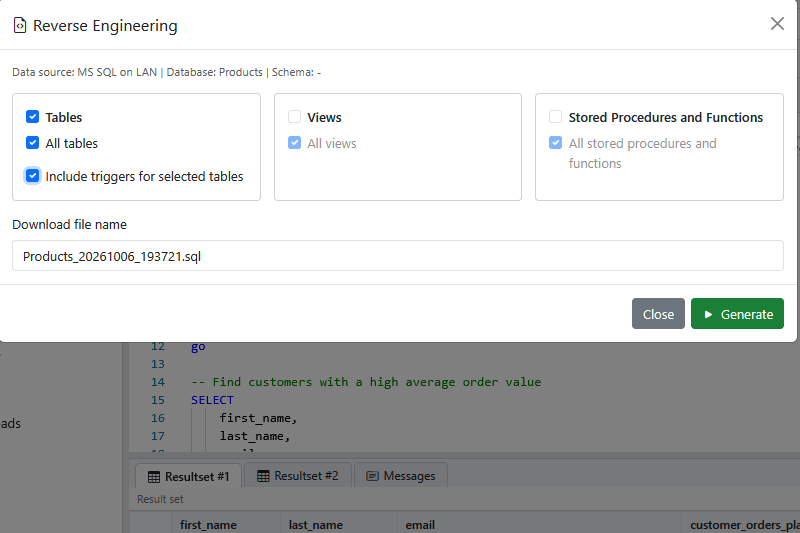
While the script is generated
A progress bar shows the current step, such as Scripting tables, and the object being scripted. Large databases can take several minutes.
- To stop, click Cancel Job. Nothing is saved.
- If you close the dialog while the script is being generated, SyncriTab asks whether to cancel it. Generation doesn't carry on after the dialog is closed.
- You can't run queries or change the database or schema on that query page until it finishes.
- You can generate one script at a time.
Downloading the file
The file can be downloaded once. After you click Download SQL, it's deleted from the SyncriTab server, and the dialog says The SQL file was downloaded. Download it before you close the dialog: once the dialog is closed, you can't get back to the file, and it's deleted after 30 minutes. If it has already been deleted when you click Download SQL, the dialog says so. Click Generate again if you need another copy.
Choosing objects
The dialog has a card for each kind of object SyncriTab can script for this database:
| Card | Selected at first | Notes |
|---|---|---|
| Tables | Yes, all tables | Always available. Also has Include triggers for selected tables, which is cleared at first. |
| Views | No | Shown only if SyncriTab can read view definitions for this database. |
| Stored Procedures and Functions | No | Shown only if SyncriTab can read procedure code for this database. |
For each card:
- Select the card's check box, for example Views, to include that kind of object.
- Leave All views (or All tables, and so on) selected to script every object of that kind.
- Clear it to choose objects from the list that appears. Hold Ctrl and click to choose several, or hold Shift and click to choose a range. Choose at least one.
Triggers can't be chosen one by one. With Include triggers for selected tables selected, the file includes every trigger that belongs to the tables you're scripting.
A script can include up to 5,000 objects and be up to 100 MB. For a larger database, generate it in parts, for example tables in one file and procedures in another, or one schema at a time.
What the script contains
The file is plain UTF-8 text. It starts with comments that name the data source, database, and schema and give the time it was generated, followed by up to four sections in this order:
- Tables. Each
CREATE TABLEstatement. A table that another table refers to with a foreign key comes first, so the script can be run from top to bottom. For example,CUSTOMERcomes beforeORDERSifORDERSrefers toCUSTOMER. - Views. A view that uses another view comes after it.
- Stored procedures and functions, in name order.
- Triggers, grouped by table.
Each statement ends with your query terminator, go on a line by itself by default, so SyncriTab and other tools can run the file as a script. To change the terminator, choose Edit › Options before you click Generate. See Options & Preferences.
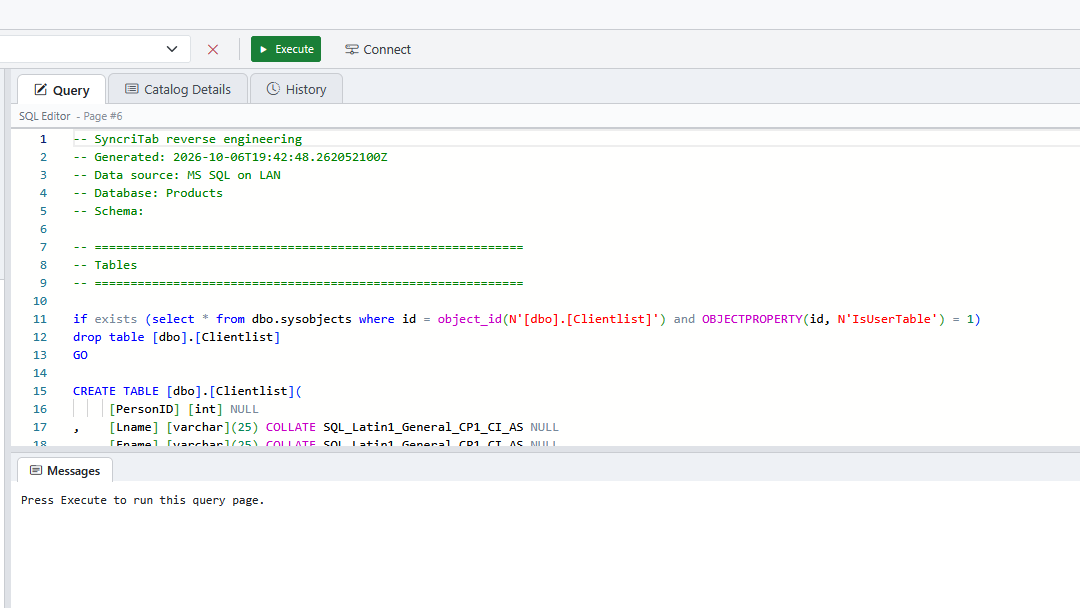
To run the script, for example against a new, empty database, upload it and open it with File › Open File, connect to the target database, and click Execute. See Uploading a script from your computer. Review it first: the statements create objects, and they fail if objects with the same names already exist.
Databases without full support
For most databases, SyncriTab writes each table's CREATE TABLE statement the way the database itself describes it. When it can't, or when you've cleared Prefer Plugin for DDL in Edit › Options, it builds the statement from the table's column information, and a warning says Tables were scripted from their column information, because the database plugin can't script them or Prefer Plugin for DDL is turned off in Edit > Options. A statement built this way includes the columns, their data types, default values, and whether they allow empty values, plus the primary key and foreign keys. It doesn't include indexes, unique and check constraints, or other database-specific settings, so review it before you use it.
For these databases, the Views and Stored Procedures and Functions cards and the trigger option usually aren't shown, because SyncriTab can't read their code.
Tables that refer to each other
If two or more tables refer to each other through foreign keys, no order can put every table after the tables it refers to. SyncriTab still scripts them, and adds a comment at the top of the file and a warning in the dialog: Some tables contain a dependency cycle; review their foreign-key constraints before running the script. To run such a script, create the tables without those foreign keys first, then add the foreign keys with ALTER TABLE statements.
Objects that can't be scripted
If SyncriTab can't read the SQL of an object, for example because your database account isn't allowed to see a procedure's code, or a table was dropped after you opened the dialog, it leaves that object out and scripts the rest. The file has a comment where the object would have been, such as:
-- SKIPPED: Procedure dbo.usp_Payroll could not be scripted: permission deniedWhen the script is ready, the dialog lists each object that was left out, with the reason. Ask your database administrator for access to the objects' definitions, then generate them again. If none of the objects can be scripted, the job fails and names the first one with its reason.
If something goes wrong
| Problem | What to do |
|---|---|
| Connect to a data source before reverse engineering. | Reverse Engineering needs an open connection on the current query page. Connect, then open it again. |
| The reverse-engineering inventory could not be loaded. | SyncriTab couldn't list the objects in the database. Check that you can see them in the catalog, then close the dialog and open it again. |
| Select at least one object category. or Select at least one object from each enabled category. | Select at least one card. For each selected card, either leave All selected or choose at least one object from its list. |
| Too many objects were selected. or The generated SQL file exceeded the configured size limit. | Generate the script in parts: fewer kinds of objects, fewer objects, or one schema at a time. |
| selected objects could not be scripted and were left out of the file | The file was created without the objects listed below the message. See Objects that can't be scripted. |
| None of the selected objects could be scripted. | The message names the first object and the reason, usually an error from the database. Fix the cause, for example by getting access to the objects' definitions, and try again. If it keeps happening, send a support request with the message and the SyncriTab log. See Getting Support. |
| Some views refer to each other; review their order before running the script. | No order puts each of these views after the views it uses. Run the script, then run the views that failed again, or move their statements further down. |
| The generated SQL file is no longer available. Click Generate to create it again. | The file was already downloaded, or more than 30 minutes have passed. Click Generate again. |