Updating & Restarting
Keep SyncriTab up to date with new features and security fixes, and restart it when a change requires it.
The About page
Updates and restarts are done from the About page. Sign in as an administrator and click About in the side menu. Besides the license details, it shows the installed Version, how long SyncriTab has been Running since, a Check for Updates link, and a Restart button.
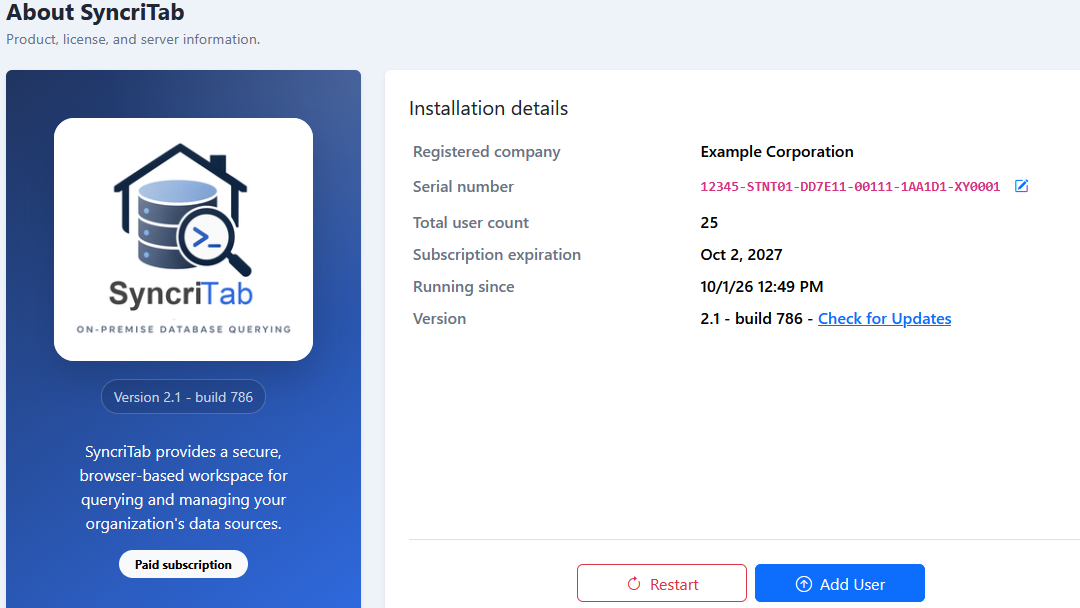
Updating SyncriTab
Never reinstall SyncriTab to update it. Running the installer again over an existing installation wipes out your configuration, including users, data sources, and settings. Always update with Check for Updates as described below.
SyncriTab checks for a newer version once a day. When it finds one, it emails the Administrator's address once for that build, with the installed and available versions and a link to the About page. This needs a working email server; see Email Configuration. You can also check at any time. To see whether an update is available and install it:
- On the About page, click Check for Updates next to the version number. SyncriTab asks Synametrics for the latest version.
- If you already have the latest version, the dialog says You are running the latest public version. There's nothing more to do.
- If an update is available, click Download and Stage. SyncriTab downloads the update, shows the progress, and checks its digital signature so that only genuine Synametrics updates are installed.
- When the download finishes, click Restart and Apply Update and confirm. SyncriTab restarts and installs the update as it starts.
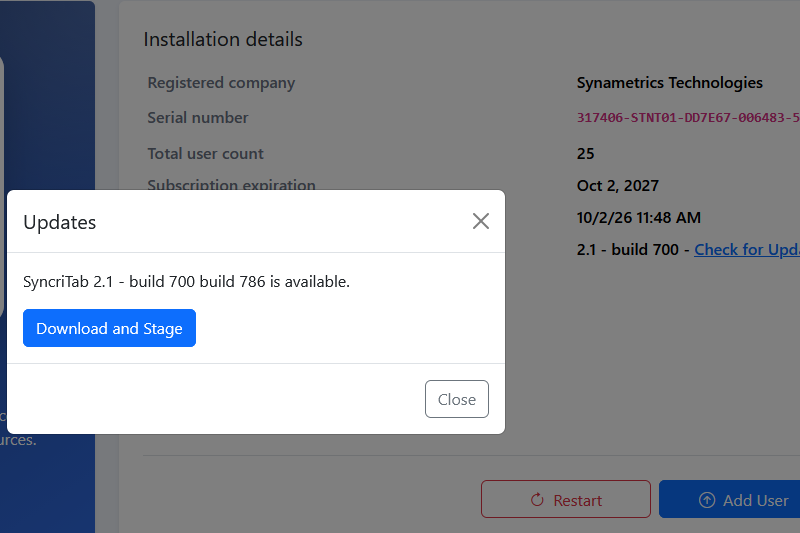
Installing an update restarts SyncriTab, which signs everyone out and interrupts running queries, exports, and scheduled tasks. Choose a quiet time, and check the Dashboard for active sessions first.
Before you update
- Back up the installation folder. See The installation folder.
- Read the release notes on the SyncriTab website.
- Make sure the server can reach the internet over HTTPS. See Network access.
After you update
Wait for SyncriTab to start, sign in, and check that the About page shows the new version. Users' query pages and results are restored when they sign in again, if auto-save is on. See Saved Sessions.
Updating SyncriTab in Docker
Use Check for Updates as described above. The update is installed on the container's data volume, so it's kept when the container is replaced. Rebuilding the Docker image doesn't update an existing installation, because the container copies the program files to its volume only the first time it starts with an empty volume.
Installing a custom build from Synametrics Support
Synametrics Support may send you an update package, for example to fix a problem before it's in a public release. The file is named SyncriTabManualUpdate.zip.
An update package contains program code that runs on your server. Install a package only if you received it directly from Synametrics Support.
- On the About page, click Check for Updates.
- When the dialog says you're running the latest version, click Upload a custom build instead.
- Choose
SyncriTabManualUpdate.zipand click Upload and Validate. Don't rename the file; SyncriTab accepts only this name. - When the upload finishes, click Restart and Apply Update and confirm.
Restarting SyncriTab
Some changes take effect only after a restart, including:
- changing the HTTP or HTTPS ports (see Changing ports),
- switching to a different type of certificate, when SyncriTab asks you to (see SSL Certificates),
- setting or changing the encryption passphrase (see The encryption key).
Restarting from the About page
- On the About page, click Restart and confirm.
- A page counts down for 30 seconds and then returns to the home page. If SyncriTab isn't back yet, wait a little longer and reload the page.
A restart signs everyone out and closes all database connections, so warn your users first.
Restarting from the server
If you can't reach SyncriTab in a browser, restart it on the server:
| Platform | How to restart |
|---|---|
| Windows | Restart the SyncriTab service in the Services console, or run net stop SyncriTab and then net start SyncriTab in a Command Prompt opened as administrator. |
| Linux | sudo systemctl restart syncritab |
| Docker | docker restart syncritab-server |
See Installing SyncriTab for more about managing the service on each platform.
If something goes wrong
| Problem | What to do |
|---|---|
| Checking for updates fails. | The server can't reach Synametrics. Check its internet access, proxy, and firewall. |
| The download fails or can't be verified. | Try again later. If it keeps failing, contact Synametrics Support. |
| SyncriTab doesn't come back after a restart. | Wait a minute, then check that the service is running and look in the logs folder for errors. See Troubleshooting. |