Schema Diff
Schema Diff compares the design of two databases, such as development and production, and produces a report of every table, view, procedure, and trigger that was added, removed, or changed.
Schema Diff compares structure, not data. Use it to check that a release was deployed completely, to find what changed between two environments, or to review a database before an upgrade.
Comparing two databases
Choose Tools › Schema Diff. The New Comparison tab has two cards: the Source Endpoint and the Target Endpoint. Schema Diff opens its own connections for each, so you don't have to be connected to either database in the workspace.
- In the Source Endpoint card, choose the Data Source, and enter your Database User and Database Password for it.
- Click Validate Connection. SyncriTab connects to check your details, then shows the type of database and fills in the Database and Schema lists, if the database has them.
- If you need a different database or schema than the one selected, choose it. When you choose a database, SyncriTab switches to it and refreshes the Schema list; you don't need to validate again.
- Repeat steps 1 to 3 for the Target Endpoint.
- Optionally, enter an email address in Optional report recipient email to have the report sent there. See Emailing the report.
- Optionally, select Include unchanged objects to list objects that are the same on both sides too. By default the report lists only differences.
- Click Compare.
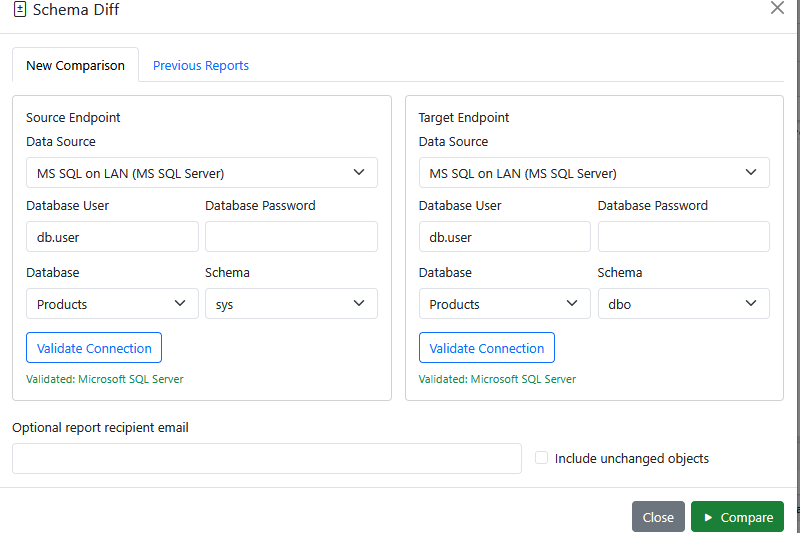
Compare becomes available once both endpoints are validated. If you change the data source, user, or password in an endpoint card after validating it, SyncriTab clears its password and you validate that endpoint again. Changing the database or schema doesn't.
Only data sources a DB Manager has given you access to are listed. See Data Sources & Permissions. You can compare two different data sources, or two databases or schemas on the same server.
While the comparison runs
A progress bar shows how far the comparison has got. It first reads the source database, then the target, then compares them and saves the report. Comparing large databases can take several minutes.
- To stop a comparison, click Cancel Job.
- You can close the dialog and keep working. The comparison carries on in the background; reopen Tools › Schema Diff to see its progress, or find the finished report on the Previous Reports tab.
When it finishes, the dialog says Comparison complete: followed by a link to the report. If something needs your attention, such as an email that couldn't be sent, a yellow box below the link lists it under The comparison finished with warnings:.
If the comparison fails, the dialog says which step failed, which data source was being read, and the reason reported by the database, for example: The schema comparison failed while reading the target database (Production). Reason: …
What is compared
What Schema Diff can compare depends on whether both endpoints use the same kind of database, and whether SyncriTab can read the source code of views, procedures, and triggers for that database. The report and the Previous Reports list show which of three modes was used:
| Mode | Tables | Views | Procedures & functions | Triggers |
|---|---|---|---|---|
SAME_VENDOR_SCRIPT_AWARESame kind of database, and source code is available |
Full structure | Columns and source code | Parameters and source code | Source code |
SAME_VENDOR_STRUCTURALSame kind of database, but source code isn't available |
Full structure | Columns | Parameters | Not compared |
CROSS_VENDOR_STRUCTURALDifferent kinds of database, for example SQL Server and PostgreSQL |
Structure, with data types compared by kind (text, number, date, and so on) | Columns | Not compared | Not compared |
For tables, the full structure means the columns and their order, data types, sizes, whether they allow empty values, default values, primary keys, foreign keys, and indexes.
Reading the report
The report opens in a new browser tab. It's a single web page that you can also save, print, or email.
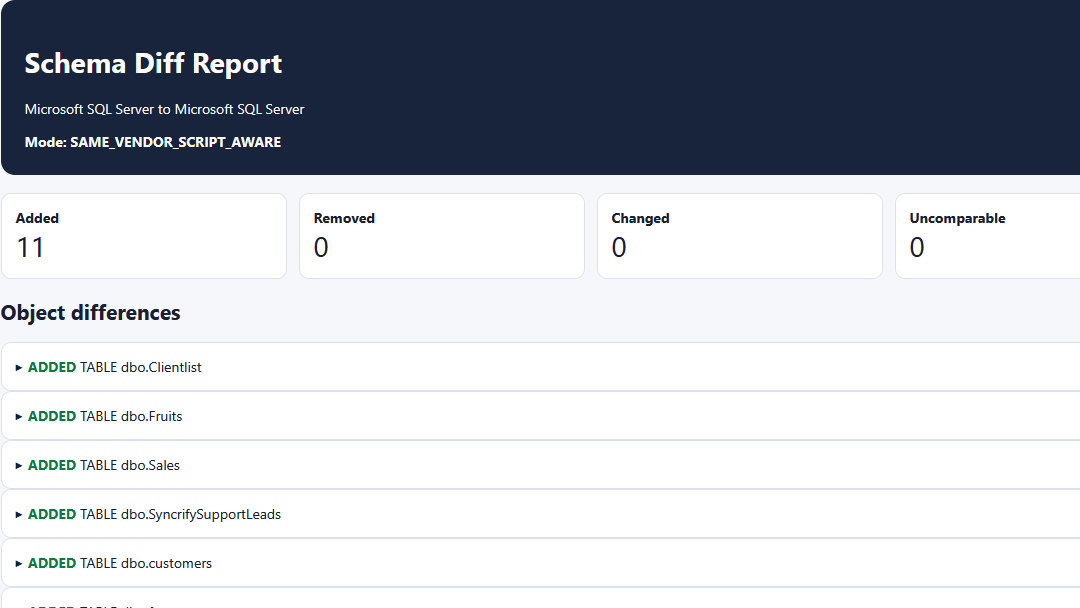
- The header names the type of the source and target databases and the comparison mode.
- Four cards count the objects that were Added, Removed, Changed, and Uncomparable.
- Under Object differences, each object has a line with its status, kind, and name. Click it to see the details: a table of each property that differs, with its value in the source and in the target.
- When a table exists on only one side, its entry includes a
CREATE TABLEstatement you can run to create it on the other side. - A Warnings and limitations section at the end lists anything that couldn't be read or compared.
| Status | Meaning |
|---|---|
| ADDED | The object exists only in the target. |
| REMOVED | The object exists only in the source. |
| CHANGED | The object exists in both, but differs. The details list each difference. |
| UNCHANGED | The object is the same in both. Listed only when you select Include unchanged objects. |
| UNCOMPARABLE | SyncriTab couldn't read the object on one side, for example because your database account isn't allowed to see it. It isn't reported as added or removed, because it might exist. |
Previous reports
Every report is saved. The Previous Reports tab of the Schema Diff dialog lists your reports with the two endpoints, the mode, when each was generated, its difference counts, shown as +added, -removed, ~changed, and ?uncomparable, and whether it was emailed.
- View opens the report in a new tab.
- Download saves the report as an
.htmlfile. - Delete removes it, after you confirm.
Reports are kept until you delete them. They're stored on the SyncriTab server with your saved scripts, where only you can see them, and they're encrypted if your administrator has turned on encryption at rest, including its extended areas. See Security & Encryption.
Emailing the report
If you enter an email address before clicking Compare, SyncriTab sends the finished report to it as an attachment. Leave the box empty to only save the report. Email works only if your administrator has set up the email server; see Server Configuration.
If the email can't be sent, the report is still saved, and you can open it from Previous Reports. The dialog shows the reason as a warning when the comparison finishes, and the Email column of Previous Reports shows:
- Sent: the report was emailed.
- Not sent: the email failed. Point to it to see the reason.
- -: no email address was entered.
Email failures are also written to the SyncriTab log, so your administrator can investigate them.
Passwords and privacy
- The passwords you enter are used only to open the connections. SyncriTab never saves them, and it clears the password boxes after validating.
- The connections are closed when the comparison finishes, or when you close the dialog without comparing.
- Reports can contain object names and the source code of views, procedures, and triggers. Treat them, and anyone you email them to, accordingly.
If something goes wrong
| Problem | What to do |
|---|---|
| Could not connect to the data source. Verify the credentials and try again. | Check the database user and password for that data source. They're your database account, not your SyncriTab sign-in. |
| Compare stays unavailable | Both endpoints must be validated. If you changed the data source or user in a card after validating, enter the password and click Validate Connection again. |
| Many objects are UNCOMPARABLE | Your database account can't see those objects, or their definitions, on one side. Ask your database administrator for read access to the database's metadata, or compare with an account that has it. |
| Procedures and triggers aren't compared | The two databases are different kinds, or SyncriTab can't read source code for this kind of database. See What is compared. |
| Could not switch to the selected database: | Your database account may not have access to that database. Choose another one, or ask your database administrator for access. If the message says the validation expired, validate the endpoint again. |
| The schema comparison failed while … | The message names the step and the data source that failed, and the reason. Fix the cause if you can, for example a permission, and try again. If it keeps happening, send a support request with the message and the SyncriTab log. See Getting Support. |
| The report wasn't emailed | Check the warning in the dialog, or point to Not sent in Previous Reports, for the reason. Ask your administrator to check the email server settings. The report is saved, so you can download it and send it yourself. |