Synametrics Technologies
Revolving around the core of technology
Document information
| Document ID: | 778 |
|---|---|
| Subject: | Connecting to PostgreSQL using ODBC |
| Creation date: | 7/29/09 3:17 PM |
| Last modified on: | 12/12/18 3:42 PM |
PostgreSQL ODBC problems
PostgreSQL is yet another open source RDBMS having a proven track record in the industry. The following section discusses how to use PostgreSQL with WinSQL.
Download and installation
Binaries for Windows can be downloaded from http://www.postgresql.org/ftp/binary/v8.2.1/win32/. The default installer includes necessary ODBC driver needed to connect through WinSQL. In case your server is already installed on a different machine, the ODBC driver can be downloaded from http://www.postgresql.org/ftp/odbc/versions/msi/
Installing the RDBMS is pretty straightforward. During the install process you will be required to configure the server. The screen shot for that window is shown below
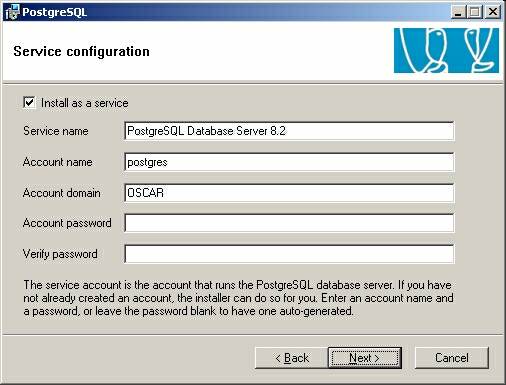
If you decide to run PostgreSQL server as a Windows server, you will have to provide information on this screen. By default, the installer uses a login name called "postgres". If no user exists on your system with this name, the installer will try to create one for you.
The next screen is for initializing the database. Although initialization can be postponed for a later time, we recommend doing it during install process. Initialization configures the server for use by setting up necessary parameters.
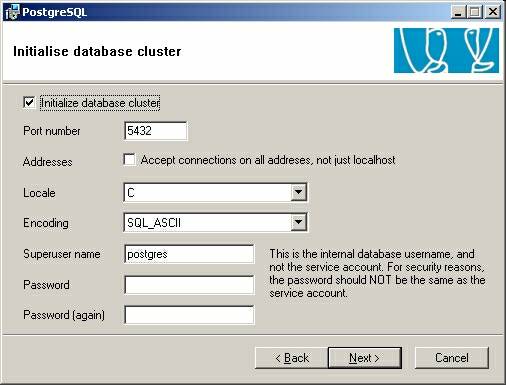
The following table discusses some important parameters in this screen.
Port Number:???????????? Refers
to TCP/IP port number the server will listen on. You will be required to
specify the same value when setting up the ODBC driver.
Addresses:???????????????? Check
this box if you want to allow clients from other machines to connect to this
database. If you leave this unchecked, client access will be restricted to the
machine where database is installed.
Locale:??????????????????????? Locale
refers to cultural preferences regarding alphabets, sorting, number formatting,
etc. PostgreSQL uses the standard ISO C and POSIX locale facilities provided by
the server operating system. For additional information refer to the
documentation of your system.
Encoding:??????????????????? Specifies
the character set you will be using for this database. For English language,
leave this setting at SQL_ASCII
Superuser
name:??????? This is the login name for the super-user account. By default
this is set to "postgres". Consider changing this name for security reasons.
Password:?????????????????? Password for super-user
The remaining screens are self-explanatory and you can leave all settings at the default values.
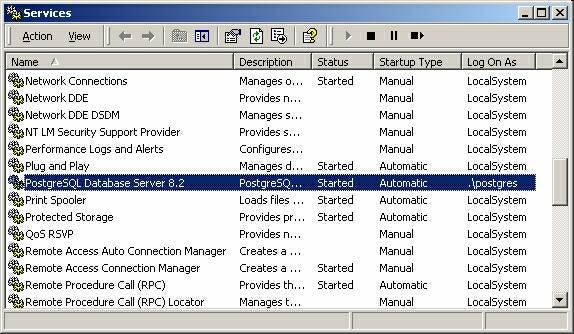
After installation confirm that PostgreSQL service is running in the control panel.
Configuring for remote access
The default configuration of PostgreSQL limits client access only from the machine where the server is installed. Allowing remote clients to connect to the server requires a two-step process:
- Check the "Addresses" box during installation (see above)
- Edit pg_hda.conf file
pg_hda.conf is a configuration file holding information about client authentication. The default path on Windows for this file is C:\Program Files\PostgreSQL\8.2\data\pg_hba.conf
Open this file in any text editor such as Notepad. Scroll down towards the bottom and add a new line for every host you wish to grant access to. For example, if you need to allow every machine on your local network to access the database, add a line like:
host ? all??? all??? 192.168.1.1/24?????? ? md5
This is assuming your local network uses an IP address like 192.168.1.x. For more information on CIDR notation refer to http://www.aboutmyip.com/AboutMyXApp/SubnetCalculator.jsp
Configuring the ODBC driver
In this example, we will be connecting to the default database called "postgres". Follow the steps below to create a new DSN for PostgreSQL
- Start ODBC Data Source Administrator either from within WinSQL or from the Control Panel
- Select the Drivers tab and confirm that PostgreSQL ANSI and PostgreSQL Unicode are among the available drivers.
- Select either System DNS or User DNS and click Add button
- Next screen is used to specify connection parameters to
the database
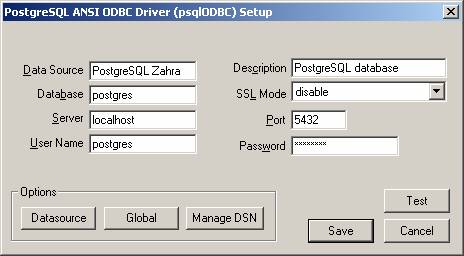
- Click the Test button to ensure you can connect.
- Finally click Ok
Following table describes the parameters required for configuration
Data Source:????????????? This
field identifies the data source and you will see this in WinSQL's connection
window.
Description:??????????????? A
user friendly description for the DSN
Database:?????????????????? Name
of the database you are connecting to. Use postgres if this is a new
installation and do not have any other database. Otherwise, check with your
database administrator for the exact value.
SSL Mode:???????????????? Defines
how data is transferred between client and server.
Server:??????????????????????? Host
name or IP address for the server. If you specify anything but localhost,
ensure that the server is configured to listen on IP addresses other than the
loop back address.
Port:??????????????????????????? TCP/IP
port where the server listens on.
User Name:??????????????? User
login name for connection
Password:?????????????????? Password for the login
Establishing Connection from WinSQL
Start WinSQL after creating the ODBC DSN. In the connection window select your newly created DSN for PostgreSQL.
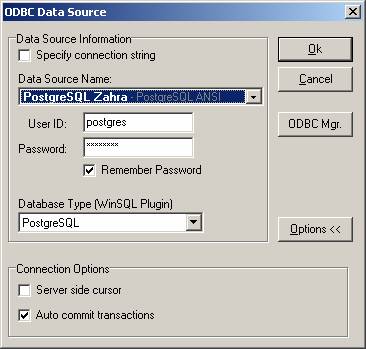
In the connection window select PostgreSQL as the Database type. This ensures that you are using the appropriate plugin file.
Important Concepts
Default Values
Following table lists values for some important parameters in PostgreSQL database.
TCP/IP Port:?????????????? 5432
Login ID:??????????????????? <specified during installation>
Password:?????????????????? <specified during installation>
Troubleshooting
Make sure the server name is "localhost" rather than the machine name.
Change the parameter holder string from :: to :::
User comments
Posted by Clive Howe on 1/2/12 10:45 AM
Add a comment to this document
Do you have a helpful tip related to this document that you'd like to share with other users?
