Synametrics Technologies
Revolving around the core of technology
Document information
| Document ID: | 1474 |
|---|---|
| Subject: | Maintaining multiple versions of a backed up file |
| Creation date: | 8/31/10 9:50 AM |
| Last modified on: | 12/8/11 2:11 PM |
Creating file versions
Starting from version 2.1, multiple versions of a file can be created on the Syncrify Server. Consider the following scenario:- A user creates a new document and backs it up to the Syncrify server
- Later, the user makes changes to this document and backs up the modified version of the same file
- The Syncrify server will keep both versions of the file. The latest version is stored as-is on the server but older versions just contain the difference in the file. If a user decides to restore an older version, Syncrify server will rebuild the file on-demand.
Watch a short video demonstrating versioning in action.
Benefits of using versioning
- Users can restore a previous version of a file.
- Previous versions of a file are stored in a special format containing enough information to rebuild the file on demand, tremendously reducing disk space on the server.
Steps to use versioning
Versioning can be enabled or disabled on a per-user basis.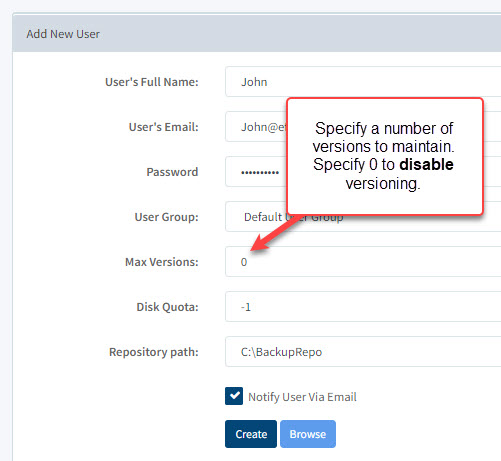 When creating a new user, the administrator must decide the number of versions to
maintain for every file. Specify a number greater than 0 to enable versioning. Assume a
backup is run every night. Specifying a value 7 for this field will create up to 7
versions of a file, each representing one day of data.
When creating a new user, the administrator must decide the number of versions to
maintain for every file. Specify a number greater than 0 to enable versioning. Assume a
backup is run every night. Specifying a value 7 for this field will create up to 7
versions of a file, each representing one day of data.
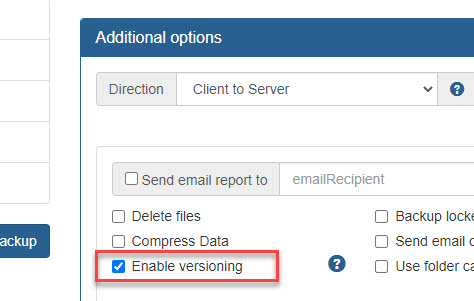 On the client's end, versioning can be further narrowed down to a profile level. This means
you can select the profiles for which versioning is enabled. This allows users to create versions for certain types of files but not others.
On the client's end, versioning can be further narrowed down to a profile level. This means
you can select the profiles for which versioning is enabled. This allows users to create versions for certain types of files but not others.
Follow the steps below to enable versioning on the client's end
- Start Syncrify client
- Select a desired profile
- Click on the advanced tab
- Check Enable versioning
- Save the profile
Caveats
It is important to note that previous file versions are automatically deleted when:- File encryption is enabled or disabled
- Encryption password is modified
- Versioning is enabled but client runs a backup job with this option disabled.
In this case, previous versions will be removed and new versions will be created
when it is enabled again.
- The option "Delete files from server" is checked
and user deletes a file from the client machine.
Restoring previous versions (Using web interface)
- Log in to the web interface using your login ID/password (this must be a non-admin account)
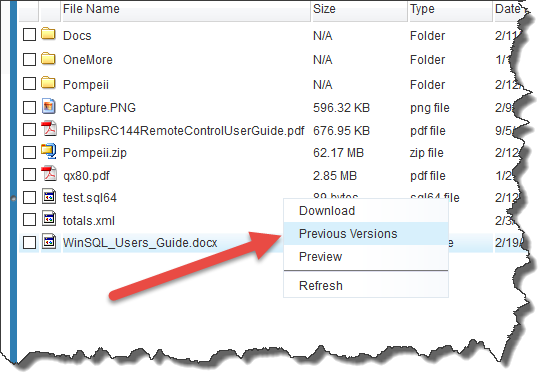
- Navigate to the desired file. Click the right mouse button and select Previous Versions
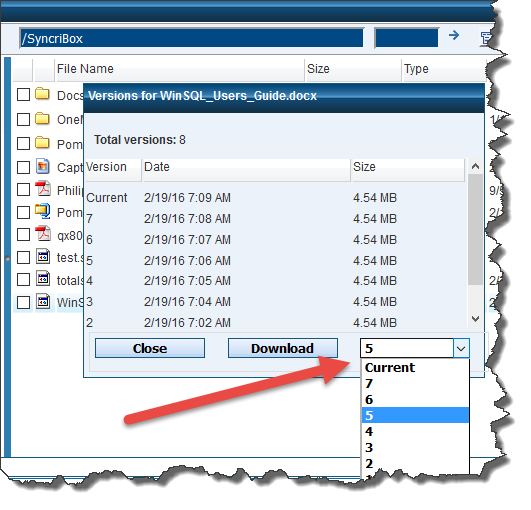
- Select the desired version from the list and download.
Restoring previous versions (Using Syncrify Client)
- Start Syncrify client
- Navigate to the file that you would like to restore.
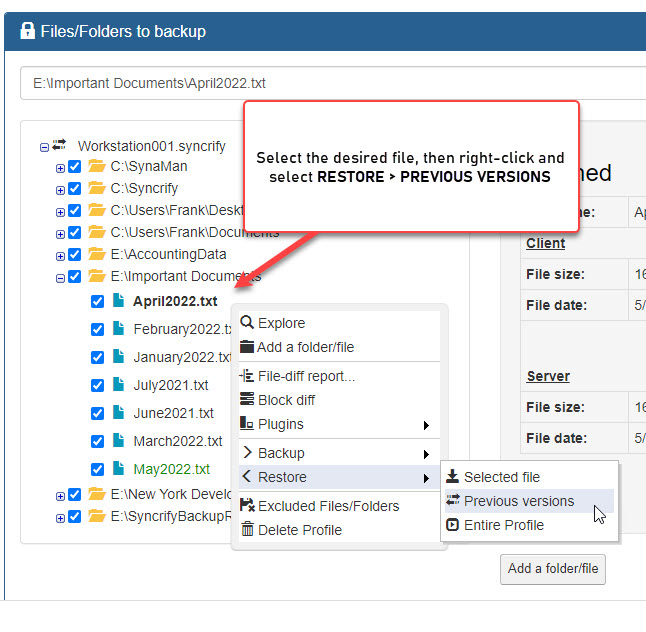
- Highlight the desired file, click the right mouse button and select
Restore previous versions from the pop-up menu.
-
This will invoke a screen that displays previously backed up versions and allows users to restore the desired file.
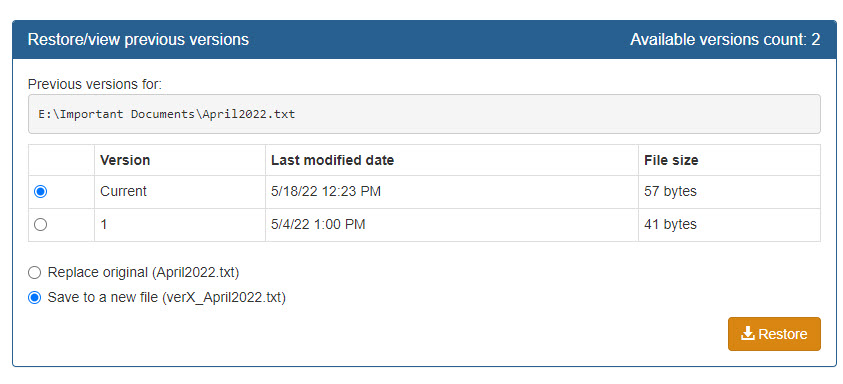
- To restore any version, select appropriate row and click the Restore button.
How are versions stored
You will see additional files on the server when versioning is enabled. These files are stored in the same folder where the actual file is stored.Assume the 5 versions of Instructions.docx exist. You will see the following files in the repository path of the user.
| File Name | File Size | Last modified date | Description |
|---|---|---|---|
| Instructions.docx | 24.5 MB | March 30, 2010 | This is the most recent version (version 5) of the file. |
| Instructions.docx.4_34233_1000_synver | 1.5 KB | March 25, 2010 | Version 4 - this is just the delta change. If user decides to restore this version, Syncrify merges this delta with version 5 and sends it back to the client. |
| Instructions.docx.3_3584_1000_synver | 2.4 KB | March 20, 2010 | Version 3 |
| Instructions.docx.2_78484_1000_synver | 2.4 KB | March 10, 2010 | Version 2 |
| Instructions.docx.1_873584_1000_synver | 2.4 KB | March 09, 2010 | Version 1 |
Add a comment to this document
Do you have a helpful tip related to this document that you'd like to share with other users?
Important: This area is reserved for useful tips. Therefore, do not post any questions here. Instead, use our public forums to post questions.
