Synametrics Technologies
Revolving around the core of technology
Document information
| Document ID: | 1421 |
|---|---|
| Subject: | Specifying selection filter in Syncrify |
| Creation date: | 7/13/10 12:28 PM |
| Last modified on: | 11/2/18 3:01 PM |
Selection filters
Selection filters allow users to include and/or exclude files from a backup. To use selection filters you must be using Syncrify 1.4 or above.
There are two types of filters:
- Server side
- Client side
- Start the Syncrify client
- Select the desired profile
- Highlight a top-level folder name. IMPORTANT: Selection filters can only be specified to a top-level
folder but are applied to the entire folder tree. Refer to the image below
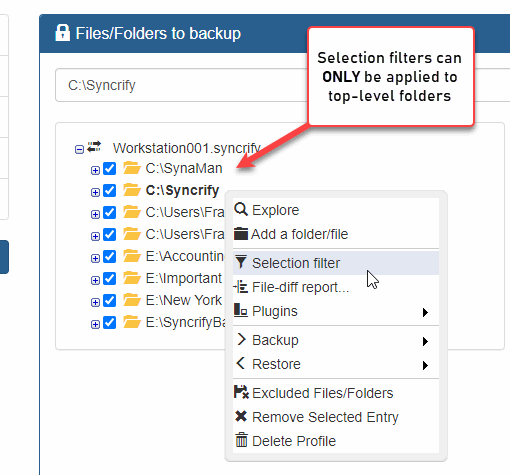
- Click the right mouse button to bring up a pop-up menu and select Selection filter
- This opens up another screen where you can type a filter.
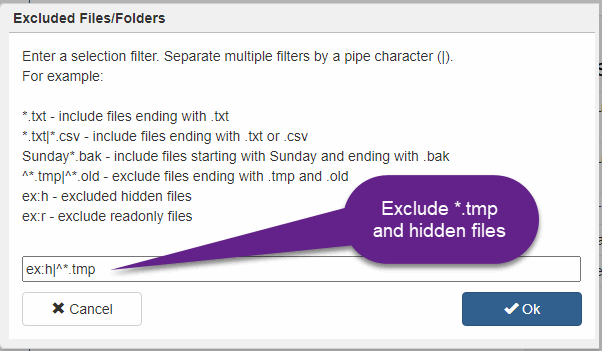
Rules for specifying filters
- Selection filters accept wildcard characters just like the dir or ls command on your operating system. An asterisk (*) represent one or more characters and a question mark (?) represents one character.
- Multiple rules can be separated by a pipe (|) character.
- Use a slash (/) at the end to represent a folder
- Use a back-slash (\) to escape special characters. Refer to Example 2 below for a sample.
- Specify
ex:hto exclude hidden files andex:rto exclude readonly files.
Examples
Example 1 - Backing up only images
This will cause Syncrify to backup only image files. Other files in the folder will be skipped.
*.jpg|*.gif|*.png|*.bmp
This will cause Syncrify to backup only image files. Other files in the folder will be skipped.
Example 2 - Exclusion filter
This will copy every file but *.tmp, *.bak, and *.cvs. The last token will exclude a folder called $RECYCLE.BIN. An important information to keep in mind is that a $ is a reserved character. Therefore, you must escape it with a back-slash. Reserved characters are $ % [ ] ( ) { } +
^*.tmp|^*.bak|^*.cvs|^\$RECYCLE.BIN/
This will copy every file but *.tmp, *.bak, and *.cvs. The last token will exclude a folder called $RECYCLE.BIN. An important information to keep in mind is that a $ is a reserved character. Therefore, you must escape it with a back-slash. Reserved characters are $ % [ ] ( ) { } +
Example 3 - Exclude folders beginning with a DOT.
This will exclude folders like .profile , .cvs, etc.
^.*/
This will exclude folders like .profile , .cvs, etc.
User comments
Posted by Dominique BILLET on 6/16/11 8:25 AM
It is possible to specify selection filter in command line ?
Posted by Clair on 9/16/13 12:14 PM
Nice feature but when I tryed it (exclusion filter), it made the check of folders so slow that it was impossible to use
Posted by Lucien Dekkers on 11/18/15 12:00 PM
How to exclude folders in the whole tree? I want to exclude the Chrome Cache Folders from all 250 users on our Terminal server.
Posted by Rob on 4/30/16 3:06 PM
The above information does not allow you to filter out reliably. I want to filter out a number of different file types, as well as some sub folders. Any file extension match matches extensions which _start_ with that extension. For example, if I include ^*.o in my selection filter then no files that end with .o* are included (so no .old, .obj, .object, .ost etc.)
I got around this by realising that I can mark the end of the filename by using the $ character (so it's regex like but '*' and '.' don't work like a regex). So changing the exclusion specification to ^*.o$ will only exclude files that actually end with .o and still include files that have .o in them before the end of the file.
Also the tip for excluding sub folders does not appear to work (I tried excluding files using ^__*/ and all the files in subfolders called __history were included).
:o(
Posted by Steve on 9/16/12 2:58 AM
Steve H and all -
Has anyone been successful in doing as Steve suggested and using filters to exclude based on folder name pattern matches?
Posted by Kyle on 2/7/20 9:35 AM
Example 2 says that when using "$" variables you "must escape it with a back-slash" but the example string given has a forward slash:
"^*.tmp|^*.bak|^*.cvs|^\$RECYCLE.BIN/"
Please provide clarification
Posted by Frank on 7/14/12 4:10 AM
You write "IMPORTANT: Selection filters can only be applied to top-level folders." which is irritating and wrong.
The filter can only be /configured/ at top level folders but it is /applied/ to the whole tree (the top-level folders and all subfolders and files). At least my tests showed that.
Posted by pyc on 10/6/12 7:05 AM
+1 for selection filter in command line.
Posted by Steve Hobs on 1/25/12 11:12 AM
Is it possible to use wild cards or regex to filter out folders as well as files?
Add a comment to this document
Do you have a helpful tip related to this document that you'd like to share with other users?
Important: This area is reserved for useful tips. Therefore, do not post any questions here. Instead, use our public forums to post questions.
