Synametrics Technologies
Revolving around the core of technology
Document information
| Document ID: | 1357 |
|---|---|
| Subject: | Restoring backed up files from one machine to a different |
| Creation date: | 5/28/10 3:25 PM |
| Last modified on: | 11/12/18 12:38 PM |
Restoring files (to a different machine)
Often users want to restore files that were backed up from a different machine. The following steps demonstrate how to accomplish this task using Syncrify.Assumptions
- Files from machine 1 were backed to a Syncrify server.
- The backup profile name on machine 1 is Profile1
- You want to restore these files to machine 2
- The screen for Syncrify client on machine 1 looks like:
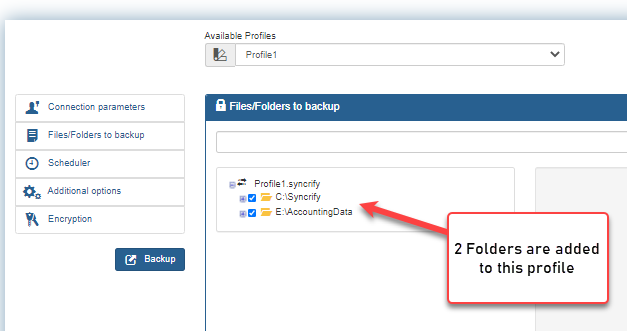
- Two folders: C:\temp and C:\data\temp are included in the profile.
Objective
The objective is to restore two folders that were backed up on machine 1 to machine 2. To make this example more interesting, we will restore the contents of C:\data\temp from machine 1 to F:\data\temp on machine 2. The following table displays the actual paths on both machines.| Folder 1 | Folder 2 | |
|---|---|---|
| Machine 1 | C:\temp | C:\data\temp |
| Machine 2 | C:\temp | F:\data\temp |
C:\temp and C:\data\temp are called the top-level folders.
Method 1
The simplest way to restore one or more files to any machine is to connect to Syncrify server using a web browser and download files that are required. To download any file, you can either click the right mouse button or simply double click it.This method, however, is not very convenient if you have to restore many files. That is where method two comes in.
Method 2
VERY IMPORTANT: Read this document in its entirety before using this method.Following steps demonstrate how to restore a backup created on a different machine.
- First, install Syncrify client on the machine 2.
- Ensure you can connect to Syncrify server from this machine
- Create a new profile and name it Profile1, which is identical
to what the value is on machine 1.
The easiest way to do this is to specify the server URL, login email, password and click the button with magnifying glass
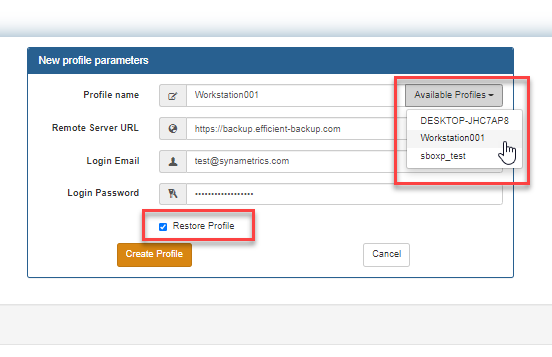
- Select the desired profile from the pop-up window
- Check the box for Restore Profile
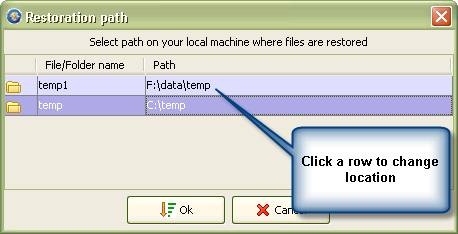
- Next you chose the location of the files on the new machine. Click Ok if the paths are correct or click the desired cell
to change its location.
- Finally, click the Restore button.
User comments
Posted by Tim on 3/25/14 2:06 PM
I find the Restore function of Syncrify to be extremely non-intuitive. A standard restore function is:
1-choose files
2-choose destination
3-execute
There should be no question, and certainly no cryptic warnings IN ALL CAPS...
Posted by Jim on 8/25/11 2:25 PM
It should be noted that after selecting Restore ALL files, it will give a warning to continue. Select Yes. It will then say the existing profile on the client does not match with the server. When asked to overwrite the profile, SELECT NO. Otherwise it will try and create the folder structure to be the same as the original.
Using the above example... If you allow the overwrite, C:\data\temp would restore to C:\data\temp. NOT allowing the overwrite would restore C:\data\temp to F:\data\temp
It took a couple of try's to figure this out.
Posted by bradshaw lupton on 6/22/10 3:11 PM
Following steps demonstrator
should be: Following steps demonstrate
Add a comment to this document
Do you have a helpful tip related to this document that you'd like to share with other users?
Important: This area is reserved for useful tips. Therefore, do not post any questions here. Instead, use our public forums to post questions.
