Synametrics Technologies
Revolving around the core of technology
Document information
| Document ID: | 1546 |
|---|---|
| Subject: | I get a JVM_Bind error when starting the web server |
| Creation date: | 10/8/10 10:56 AM |
| Last modified on: | 12/12/18 12:25 PM |
JVM_Bind error in Syncrify/SynaMan
IMPORTANT: This page applies to both SynaMan and Syncrify
Symptoms
The web server won't start on the port you decide to run. You see a similar error message in the log file.
WARN sradef.BootLoader - Could not start the web server. Will try again...
INFO sradef.BootLoader - Starting web server on port: 5800
ERROR http11.Http11BaseProtocol - Error initializing endpoint
java.net.BindException: Cannot assign requested address: JVM_Bind:5800
INFO sradef.BootLoader - Starting web server on port: 5800
ERROR http11.Http11BaseProtocol - Error initializing endpoint
java.net.BindException: Cannot assign requested address: JVM_Bind:5800
Solution
The most common reason for this error is that some other program is listening on port 5800 on your machine. Ensure no other program is listening.To find out which program is running on the same port, you can run the netstat command. On Microsoft Windows, try writing the following command in a DOS (Console) window.
netstat -oa | findstr 5800
Replace 5800 with the actual port number. The last column will contain the PID (Process ID) and you should be able to get the process name from Task Manager.
On Linux/UNIX try writing the following command
sudo netstat -lp | grep 5800
This command will prompt you for your password and then display the PID (Process ID) in the last column.
I don't have any program on this port, still it won't start
If you are absolutely confident nothing is listening on this port, try binding the socket to a specific IP address. By default, the web server in Syncrify and SynaMan tries to bind to every IP address on the machine. Every machine has at least two IP addresses:- Assigned IP, such as 192.168.1.10
- Loop back IP, like 127.0.0.1
The following steps demonstrate how to bind the HTTP server to a particular IP address on your machine.
- Stop Syncrify/SynaMan if it is running
- Locate $INSTALL_DIR/config/AppConfig.xml file on the host machine. $INSTALL_DIR is the folder where Syncrify/SynaMan is installed.
- Open this file in any editor
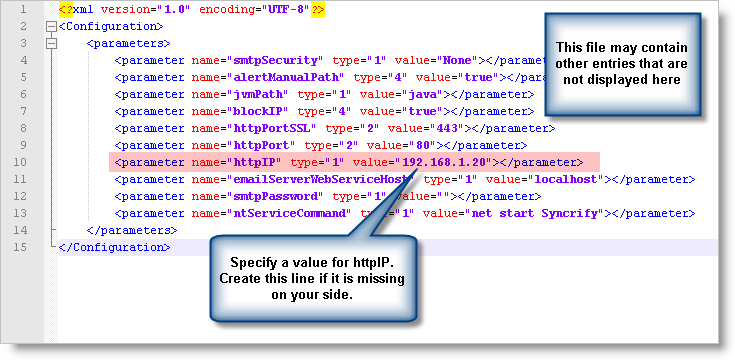
- Search for line containing httpIP and add the IP address of your machine as its value. If this line missing, add a new one with the following value.
<parameter name="httpIP" type="1" value="192.168.1.20"></parameter>Replace 192.168.1.20 with the actual IP address.
The following image displays the file contents after modification.
- Save the file
- Restart Syncrify/SynaMan
VERY IMPORTANT Once you bind the HTTP server to a particular IP address, you must use that address on the browser URL. For example, the following will NOT work.
You must use the IP address or a host name that resolves to this IP address, for example:
http://localhost:5800
You must use the IP address or a host name that resolves to this IP address, for example:
http://192.168.1.20:5800
User comments
Posted by Ed on 4/29/11 9:25 AM
How about instructions on changing or disabling the telnet port? -Dsyncrify.status.server.port=#### or ??) (This causes more startup issues than the web port.
Add a comment to this document
Do you have a helpful tip related to this document that you'd like to share with other users?
Important: This area is reserved for useful tips. Therefore, do not post any questions here. Instead, use our public forums to post questions.
