Synametrics Technologies
Revolving around the core of technology
Document information
| Document ID: | 759 |
|---|---|
| Subject: | How to query data in MS Excel file with ODBC |
| Creation date: | 7/29/09 12:13 PM |
| Last modified on: | 7/29/09 12:13 PM |
Details
The following section shows how to query an existing MS excel file with any ODBC client, including WinSQL.
Assume you have an existing file in MS Excel format that you want to view in WinSQL. This file contains 3 columns and the first row contains their names.
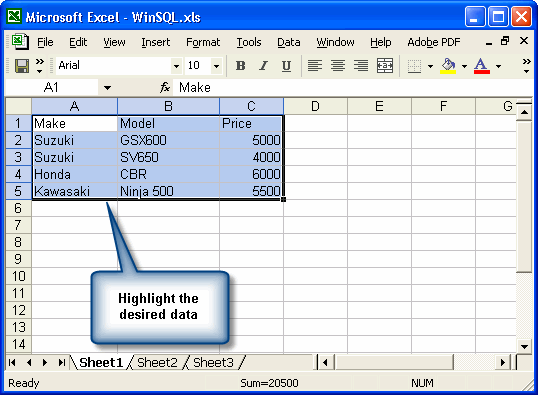
Steps to pull data from MS Excel
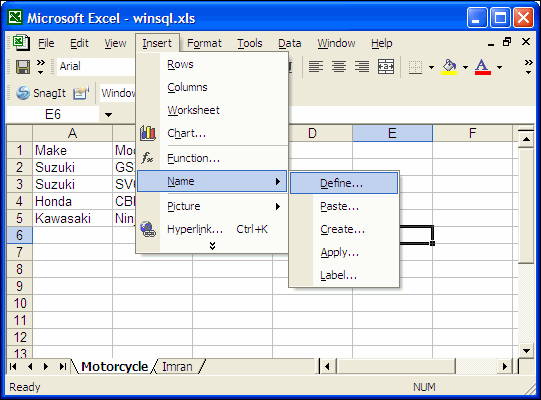
- First, you have to define a name for this data. This is done by selecting
Insert ? Name ? Define
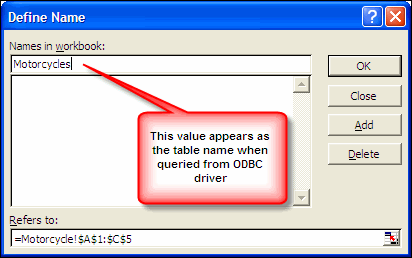
- The value you specify in this window serves as the table name when you connect through the ODBC driver.
- Next create a new ODBC DNS. Click File ? Open ODBC Manager from WinSQL's main menu.
- Click the Add button to add a new DNS
- Select Microsoft Excel Driver (*.xls) from the list and click Finish
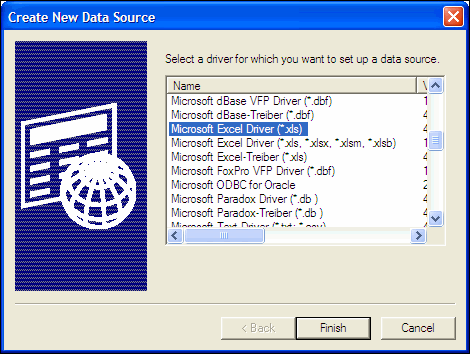
- Specify a Data Source Name and select the desired Excel file.
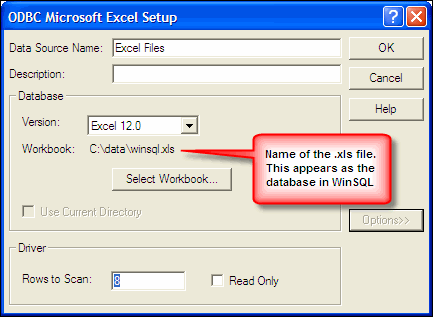
- Click Ok all the way and then connect from WinSQL.
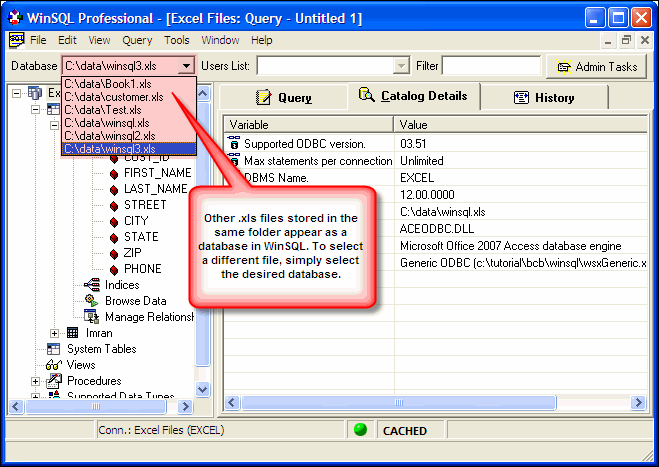
- Once connected you should be able to see the newly created table in WinSQL.
- To switch to other Excel files stored in the same folder, click the desired files from list of Databases
Add a comment to this document
Do you have a helpful tip related to this document that you'd like to share with other users?
Important: This area is reserved for useful tips. Therefore, do not post any questions here. Instead, use our public forums to post questions.
