Synametrics Technologies
Revolving around the core of technology
Document information
| Document ID: | 761 |
|---|---|
| Subject: | Inserting XML files in database tables. |
| Creation date: | 7/29/09 12:16 PM |
| Last modified on: | 12/12/18 10:39 AM |
Details
Microsoft SQL Server provides a convenient way of storing XML data
in a database table. To see a complete reference on how to store data
in MS SQL Server, refer to this KB article on Microsoft's web site.
create table withXML(
id integer identity primary key,
data xml,
dateInserted datetime default GetDate()
)
go
insert into withXML(data)
values ('<book genre="security"
publicationdate="2002" ISBN="0-7356-1588-2">
<title>Writing Secure Code</title>
<author>
<first-name>Michael</first-name>
<last-name>Howard</last-name>
</author>
<author>
<first-name>David</first-name>
<last-name>LeBlanc</last-name>
</author>
<price>39.99</price>
</book>')
go
select * from withXML
Loading data from a file on your local disk
Often users have to load data from a file. This can be accomplished by using the Insert/Update Wizard in the Browse Data window. The following steps show you how to accomplish this task.- Locate the desired table in the Catalog Window
- Click on the Browse Data node for that table
- Click the right mouse button and select Insert New Record. Refer to the image below.

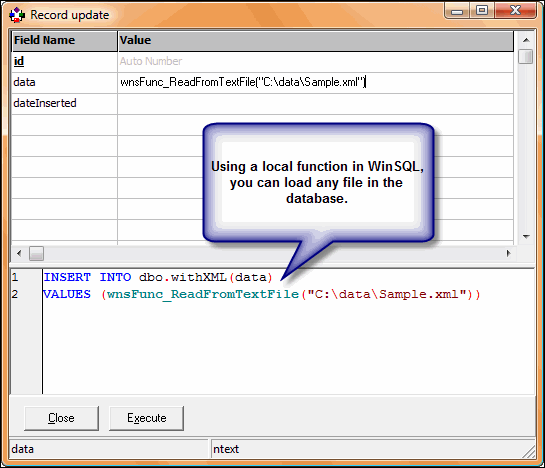
- Using a local function in WinSQL, specify the name of the file. This function is in the following format:
wnsFunc_ReadFromTextFile("YourFileName.xml")
Refer to the image below.
Add a comment to this document
Do you have a helpful tip related to this document that you'd like to share with other users?
