Synametrics Technologies
Revolving around the core of technology
Two-way file synchronization
Often users have to synchronize the contents of two folders on two different machines. Two-way synchronization helps you achieve this goal.
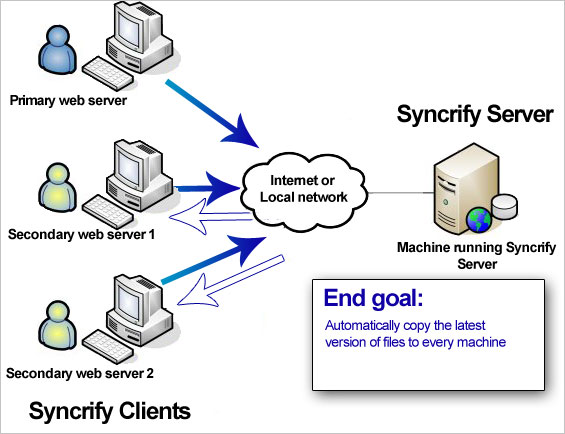 Consider a scenario where you have multiple web servers. You have one primary server and other two secondary servers. If a file changes on the primary server, you want that file to propagate to the secondary servers. This way in an event of a failure you can redirect users to one of the secondary servers.
Solution
Starting from version 2.2 of Syncrify, you can enable the Two-way synchronization option. Earlier versions of Syncrify could copy file in just one direction: from the Syncrify client to the Syncrify server. Version 2.2 can not only backup files from client to server, but can automatically update older files on the client with a newer version on the server if available.Assume you have:
- Created a new file on the primary web server.
- When a backup is running on the primary web server, this file will get copied to the Syncrify server, which is used hold your backups.
- When a backup is run on the secondary web servers, this file gets downloaded to the client machine since it does not exist.
- If you change the contents of this new file on any machine, the newer version will get copied to every other machine
Steps to use this feature
The following steps assume you want to synchronize the contents of C:\wwwroot folder between all 3 machines.- Create a new Profile on your primary web server. Let's call this profile WebProfile.
- Add C:\wwwroot to this profile
- Select Two-way Sync for the direction field.
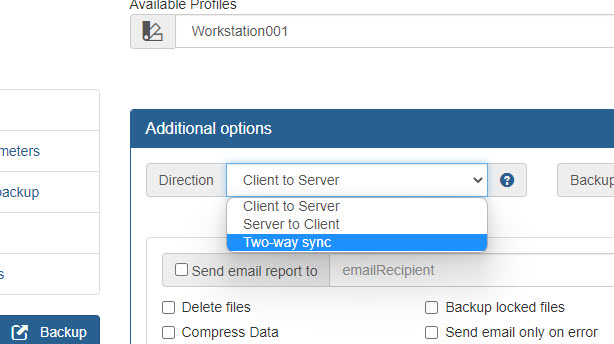
- Save the profile
- Create the same profile on the other two secondary servers. It is important to use the same name for the profile on all three web servers.
Advanced Scenario
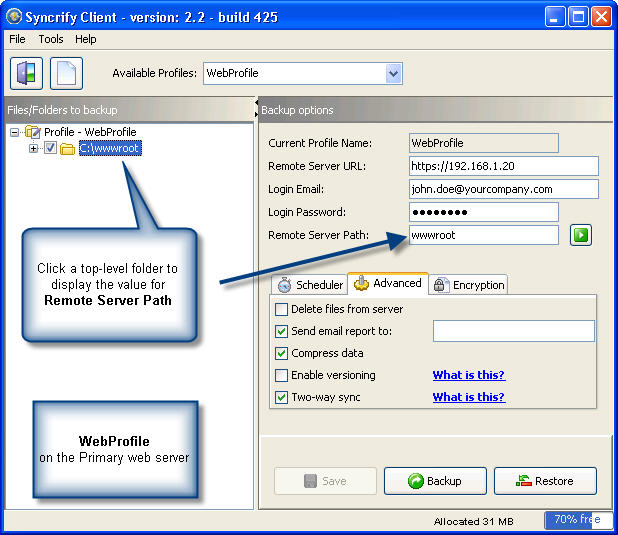
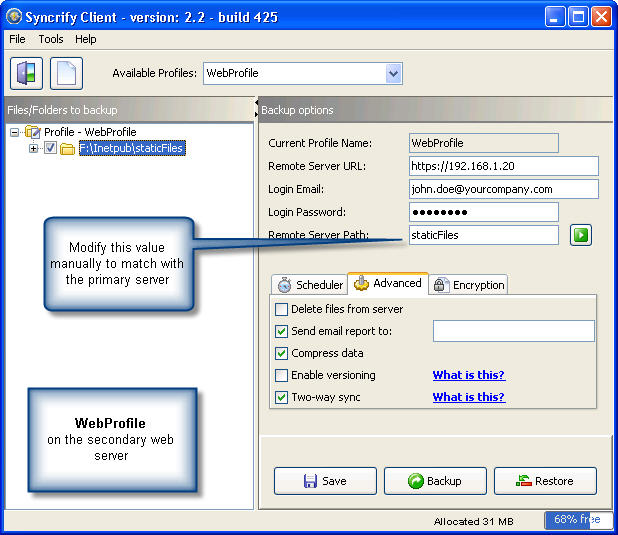
Often you want to synchronize folders with different paths. For example, the absolute path on your primary web server is C:\wwwroot but want to use F:\Inetpub\staticfiles folder on the secondary server. The following images display a screen shot of Syncrify client on both machines.| Primary web server | Secondary web server |
|---|---|
|
|
When you add folders to a profile, the Syncrify Client automatically assigns a value for Remote Server Path, which is typically based on the leaf folder name. If the absolute paths are different between primary and secondary web servers, you will have to manually change this value to match with the primary machine.
In summary, following must match on every machine where you want to use Two-way sync feature.
- You must use the same user to run the backups
- Profile names must match. (Profile names are case-sensitive)
- Value for Remote Server Path must be same between every client machine
- Check box for Two-way sync must be checked
- Values for compression and versioning must be same across every client.
Caveats
Delete retention option is disabled when using Two-way sync. Additionally, following statements are true:- You have 3 client machines that backup a profile using two-way sync. Syncrify will ensure files on these 3 machines stay synchronized
- Besides these client machines, a copy will also be stored on Syncrify server.
- If one of the client deletes a file, that file will be deleted from every 2 other clients and one server.
- Files should never be deleted on the server manually. If a file is deleted on the server, it will reappear on the server. If you want to delete a file, you should always delete it from the client's end.
